Manage KenzoAI Access
KenzoAI access configuration allows you to securely integrate BuildNinja with KenzoAI services. This setup allows features like the AI Side Panel, Log Analysis, and Configuration Explanation to verify their identity and interact with KenzoAI APIs.
To maintain security and operational control, KenzoAI access is managed using application keys and secrets. These credentials define how BuildNinja authenticates requests and determines which AI capabilities are available for users.
Only administrators can add, update, or revoke KenzoAI credentials. Changes take effect immediately and apply to all builds and AI features that rely on KenzoAI.
If you are new to KenzoAI concepts such as applications, usage limits, or credentials, see the KenzoAI Documentation for an overview of the platform model and application management.
Prerequisites:
Before configuring KenzoAI in BuildNinja, ensure that the following requirements are met:
- A valid GrapeHub account
- Access to the KenzoAI Developer Portal
- A KenzoAI application created in the developer portal
- The App Key and App Secret generated during application creation and securely saved
Add KenzoAI APP Key and Secret
-
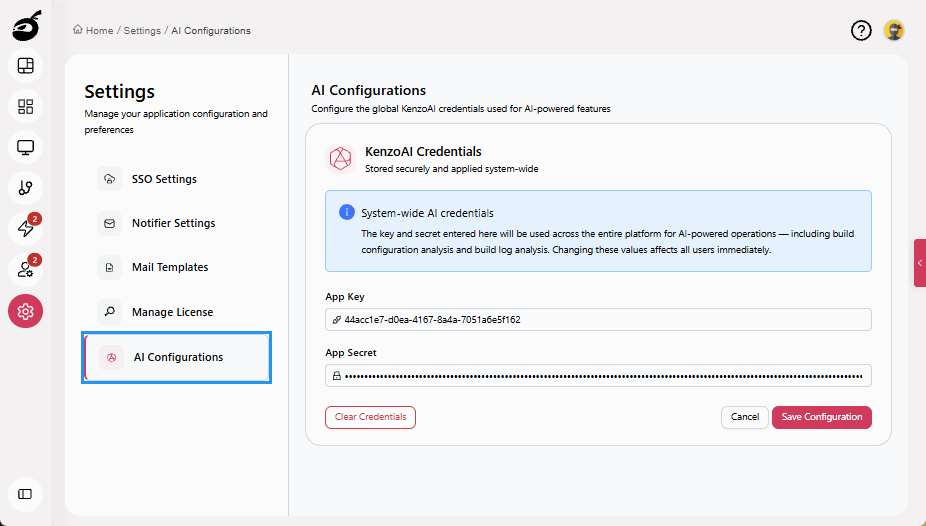
Navigate to Settings
 and open AI Configurations.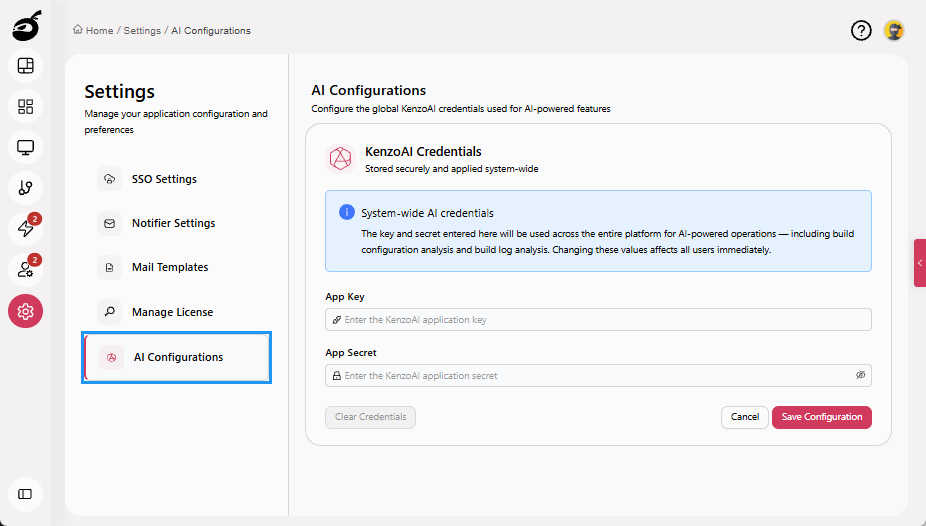
-
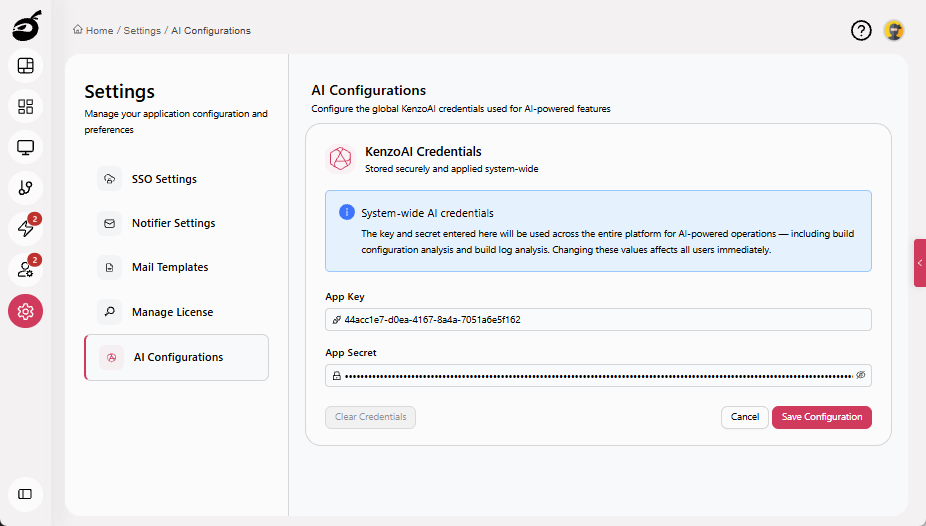
Enter the following details generated on the KenzoAI developer portal when creating the application:
- App Key: Provide the application key used for authentication.
- App Secret: Provide the application secret used for authentication.
-
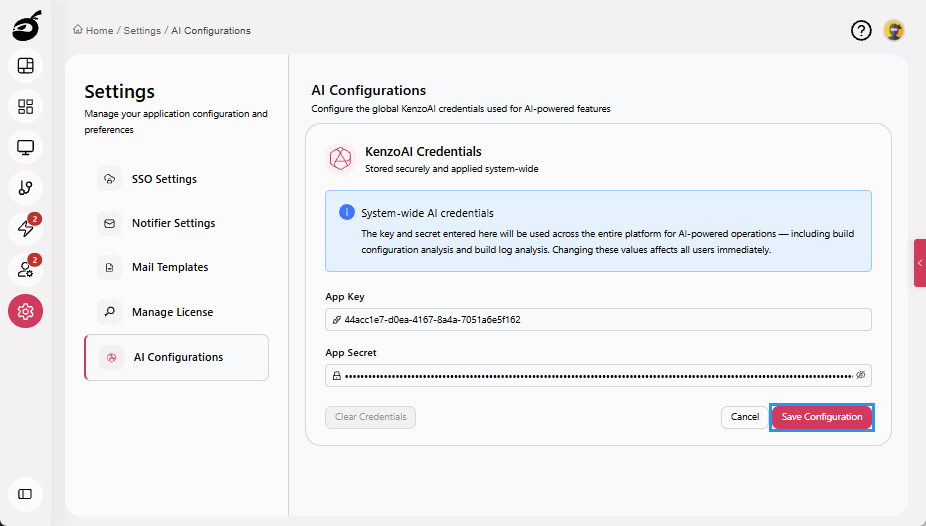
Click Save Configuration to save the configuration.
Clear KenzoAI Credentials
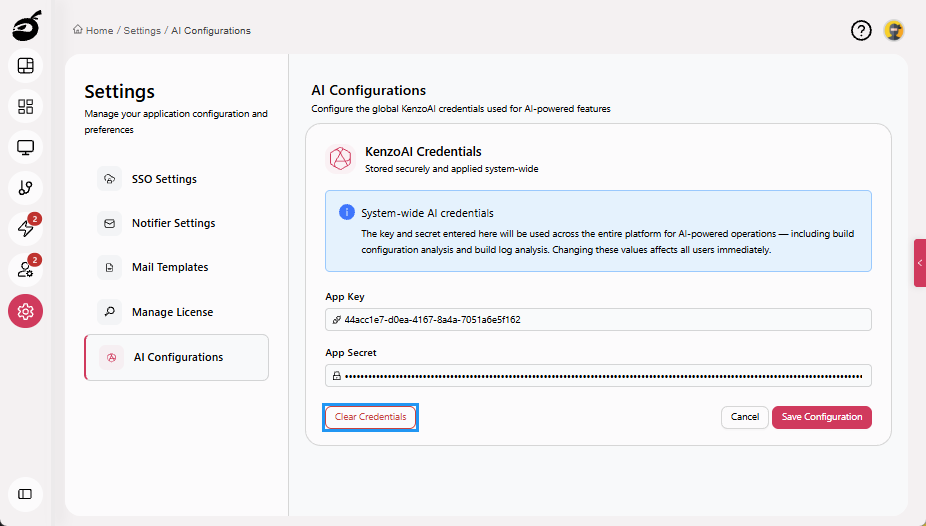
You can clear KenzoAI credentials to remove the currently configured AI access from BuildNinja. Clearing credentials immediately disables all AI-powered features until new credentials are added.
-
Navigate to Settings and open AI Configurations.
-
Click Clear Credentials.