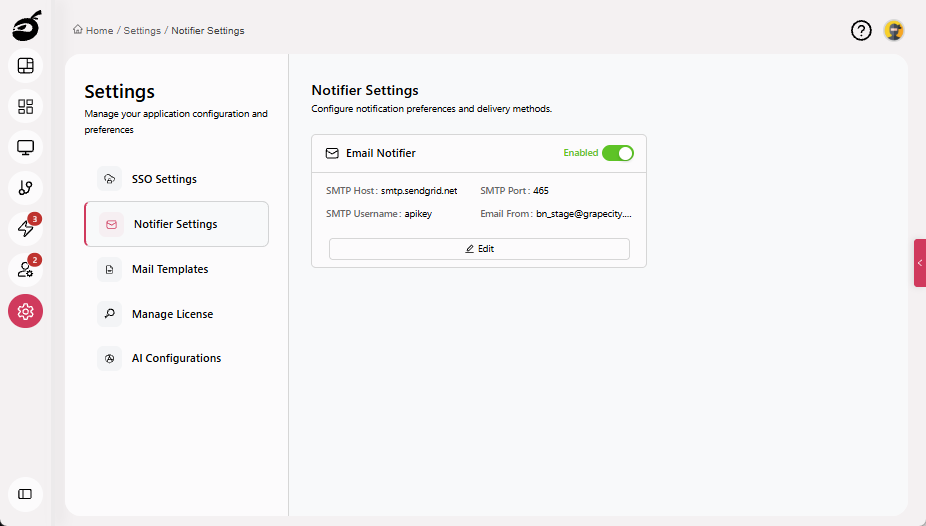
Set Up Notifier Settings
BuildNinja enables you to configure Notifier Settings at the system level. The notifier acts as a global integration for the entire system. Once set up, all project members can use it to receive notifications about build events through their configured notification rules.
-
Navigate to Settings
 and open Notifier Settings. A disabled notifier setting card will appear.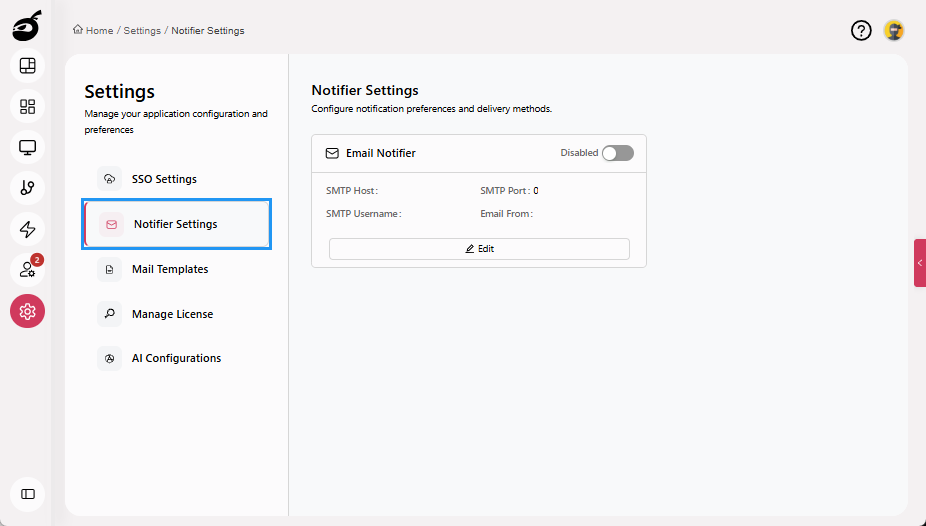
-
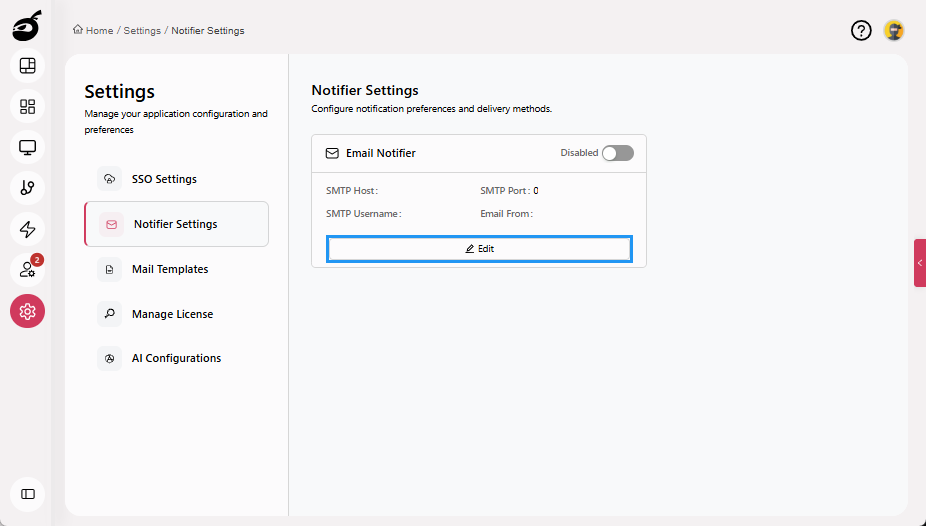
Click Edit to add notifier settings.
-
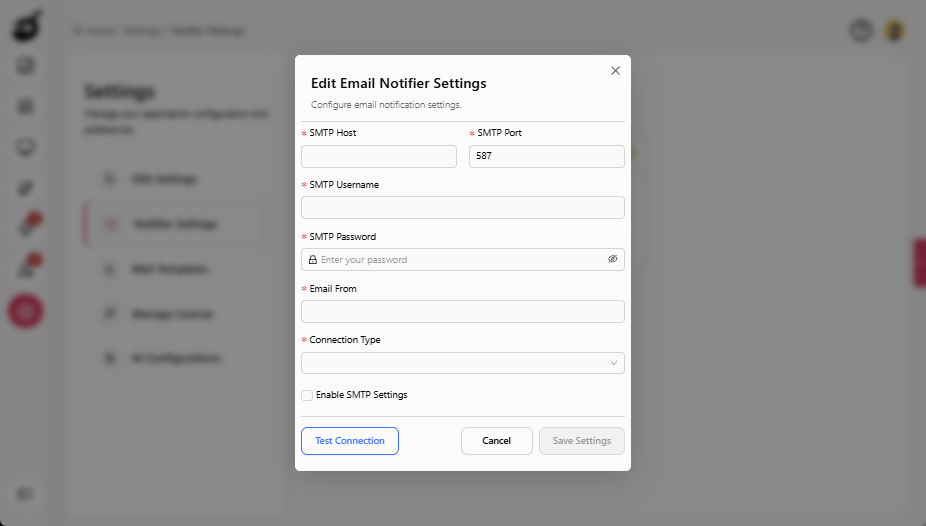
Provide the required configuration details in Edit Email Notifier Settings pop-up:
- SMTP Host: The hostname or IP address of the SMTP server (for example,
smtp.gmail.com). - SMTP Port: The port number used by the SMTP server (for example,
465for SSL or587for TLS). - SMTP Username: The username or email address used to authenticate with the SMTP server.
- SMTP Password: The password or app-specific token for the SMTP account.
- Email From: The email address that appears in the “From” field of build notifications.
- Connection Type: The security protocol for connecting to the SMTP server (SSL/TLS, STARTTLS, or None).
- SMTP Host: The hostname or IP address of the SMTP server (for example,
-
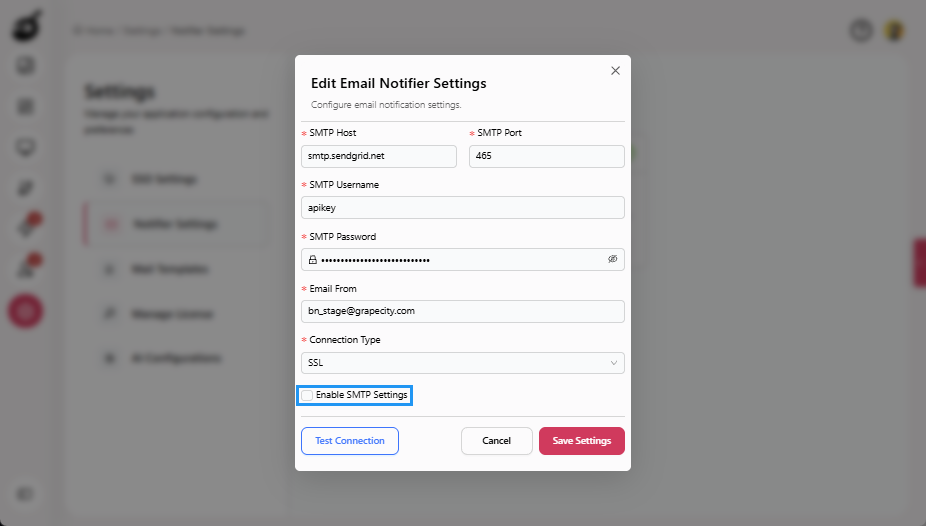
Check Enable SMTP Settings checkbox to enable the notifier automatically after saving (optional).
-
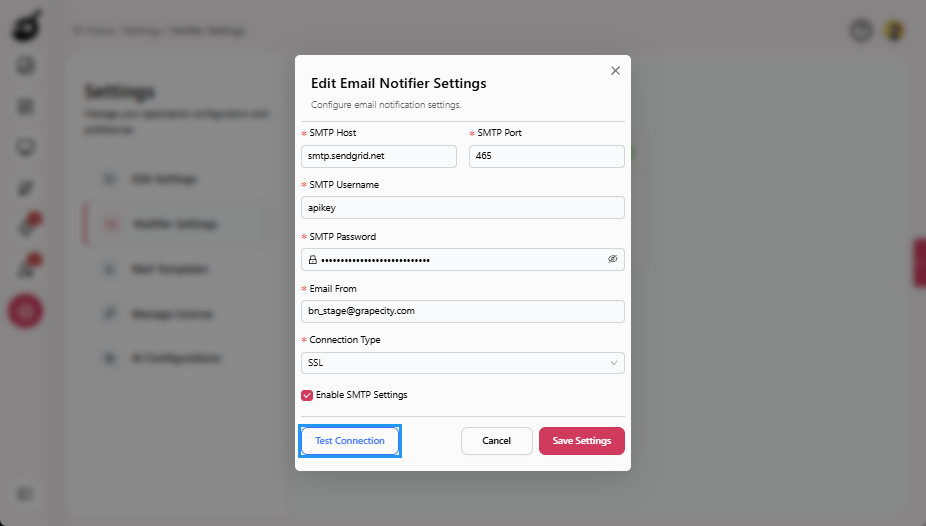
Click Test Connection to verify the configuration before saving (optional).
-
Click Save Settings to save the settings.
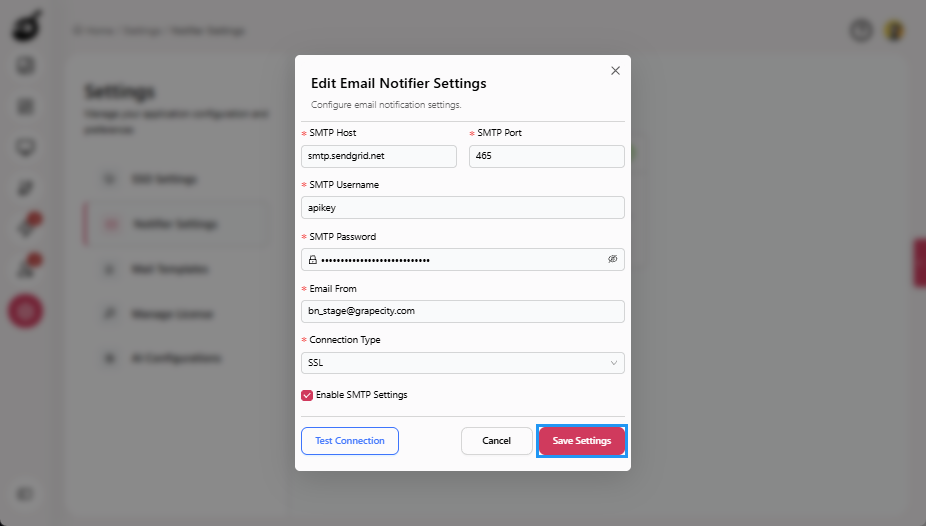
The notifier is now configured at the system level and will automatically be used whenever users set up notification rules for their builds.