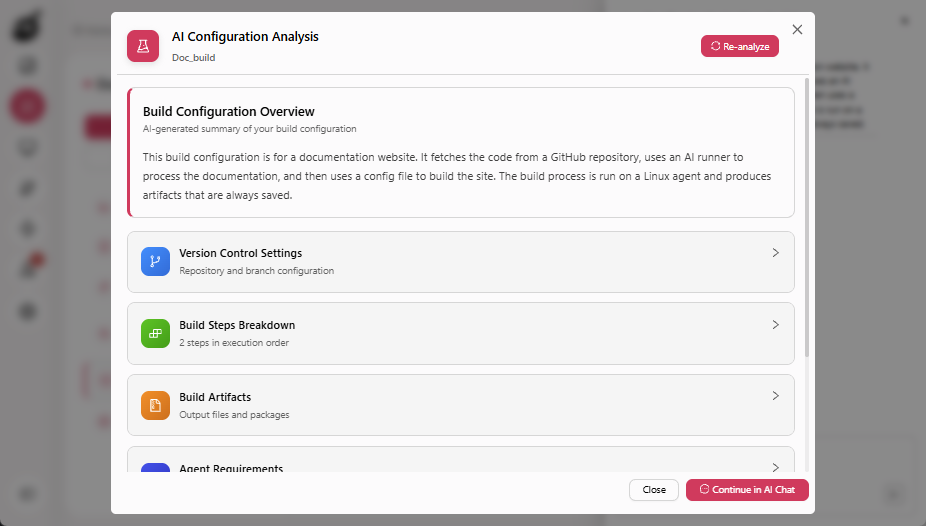
BuildNinja AI Side Panel
BuildNinja AI Side Panel is a persistent, global AI assistant available throughout the BuildNinja application. It provides real-time, context-aware support to help users analyze builds, understand configurations, and investigate failures without leaving their current workflow.
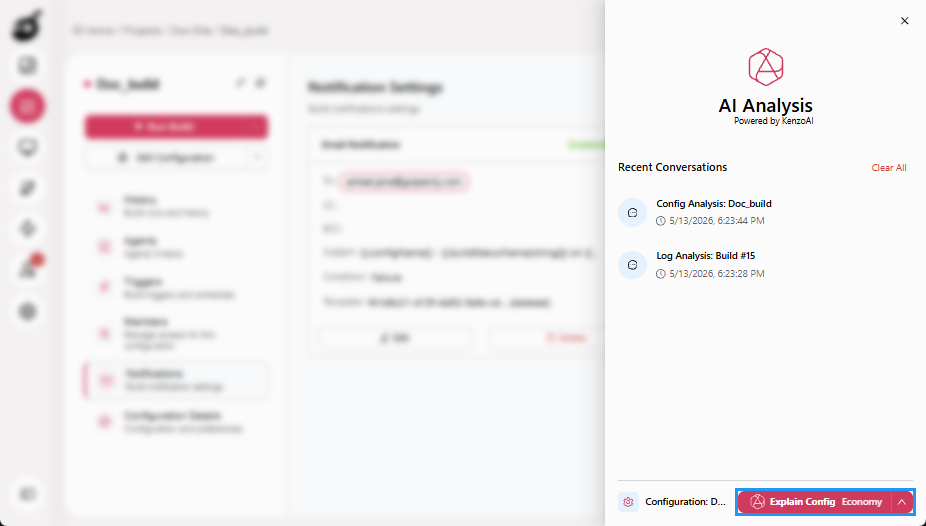
The side panel continuously detects the user’s current location and adapts its assistance accordingly. Based on where the user is working, it surfaces relevant AI capabilities, such as:
-
Build Results Tabs: Provides access to log analysis to help identify failure causes, execution risks, and performance issues.
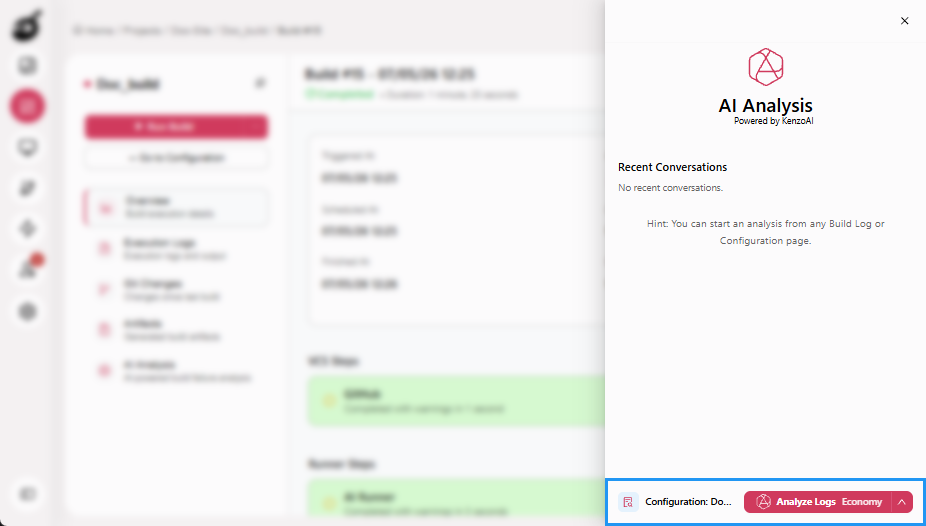
-
Configuration Tabs: Provides access to configuration explanation to help users understand configuration files, parameters, and dependencies.
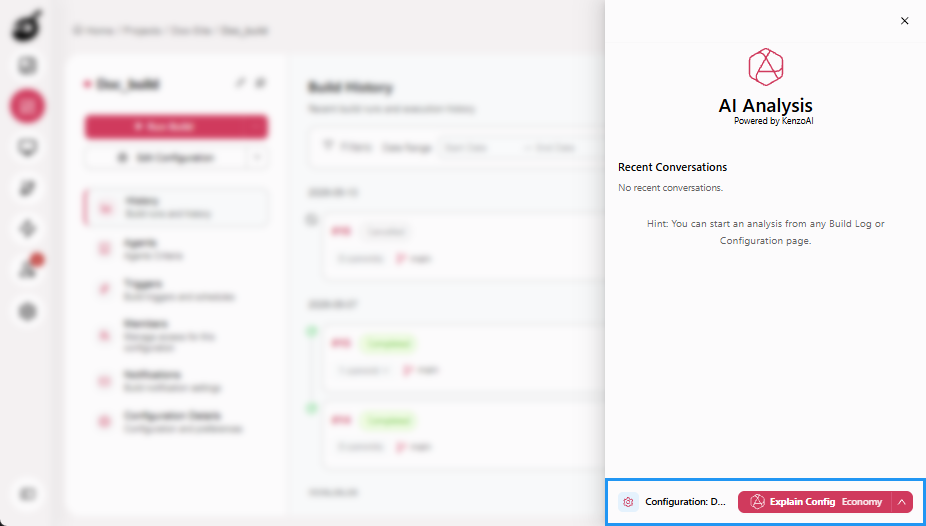
Users can select the suggested action and continue the investigation by asking follow-up questions. All follow-up interactions remain scoped to the same build, file, or configuration context, enabling deeper analysis without restarting the workflow.
All interactions in the AI Side Panel are organized into sessions to maintain visibility and control. Each session provides:
- A timestamped record of the request.
- Real-time status indicators showing analysis progress.
- The ability to cancel an active request using a stop control.
- Options to clear individual sessions or remove all session history.
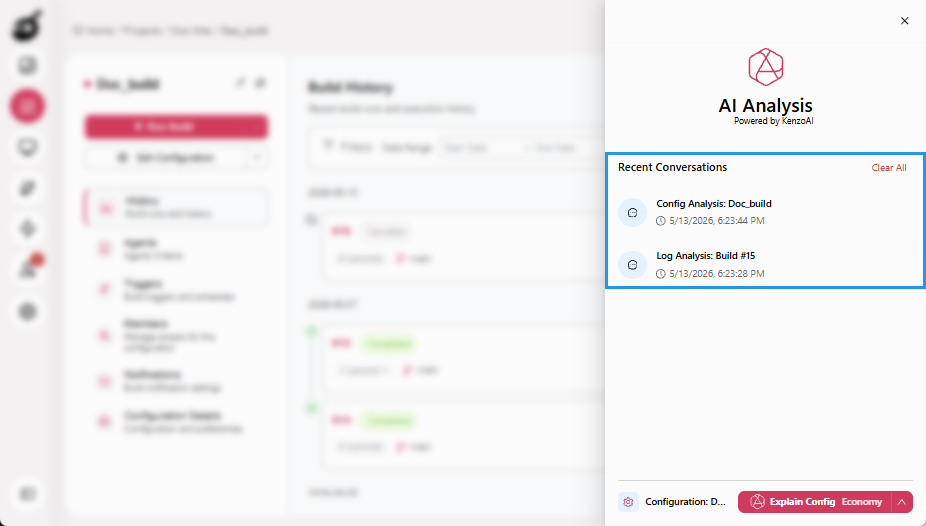
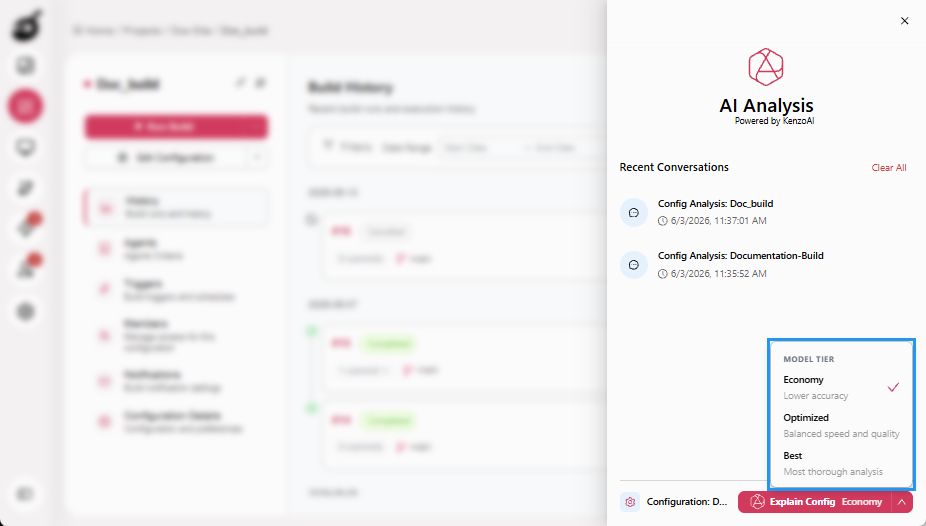
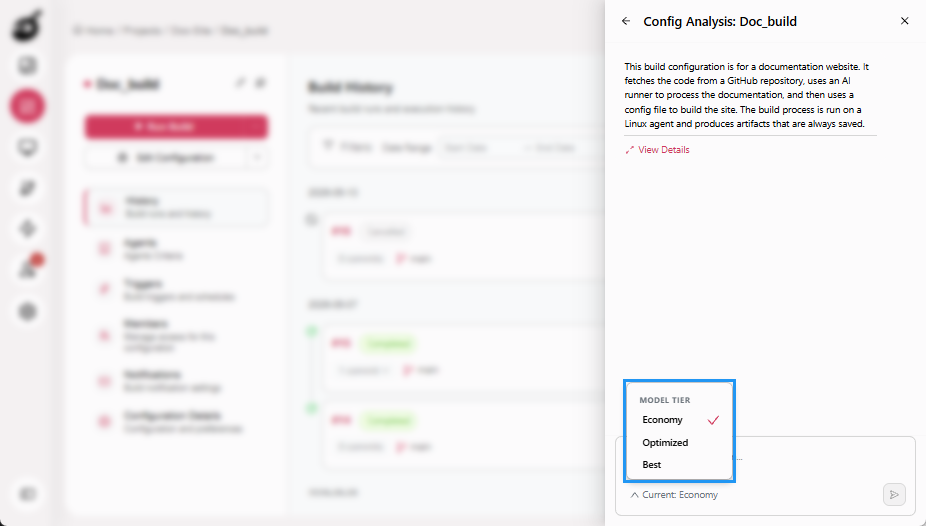
The AI Side Panel also allows users to control the depth and cost of analysis through model tier selection. Available tiers include:
- Economy: Provides faster responses with lower processing cost, suitable for quick checks and routine analysis.
- Optimized: Balances analysis depth and performance, recommended for most CI/CD workflows.
- Best: Delivers the deepest reasoning and most comprehensive insights for complex or high-impact investigations.
Access and Use BuildNinja AI Side Panel
-
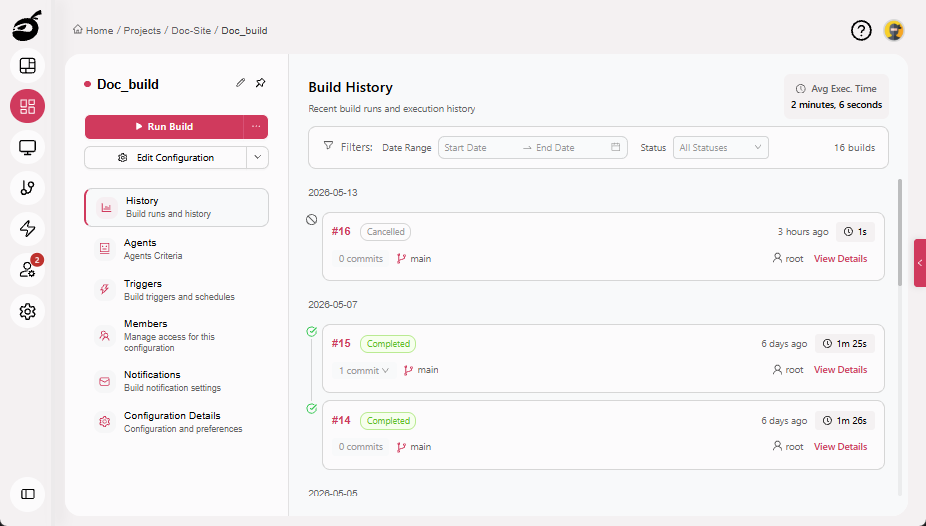
Navigate to the relevant build configuration.
-
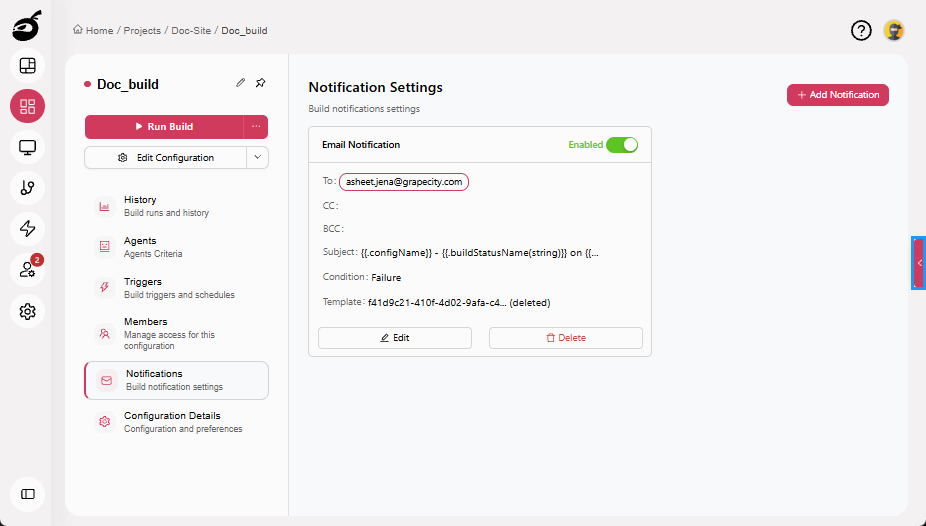
Go to a Build Results or configuration tab and open the BuildNinja AI Side Panel using the global AI control.
-
Select the suggested action.
-
Review the generated insights and continue the investigation by asking follow-up questions within the same session.
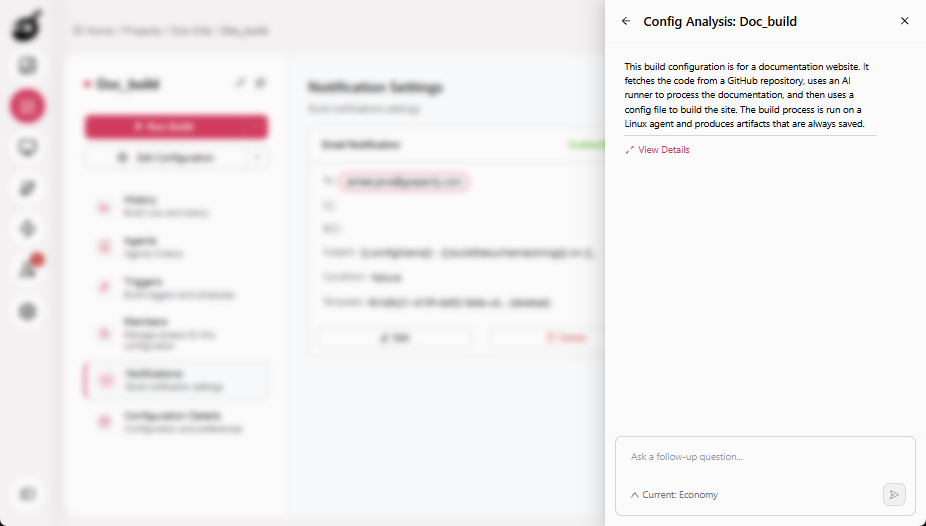
You can also view the corresponding detailed analysis report by clicking View Details.