AI Build Analysis Report
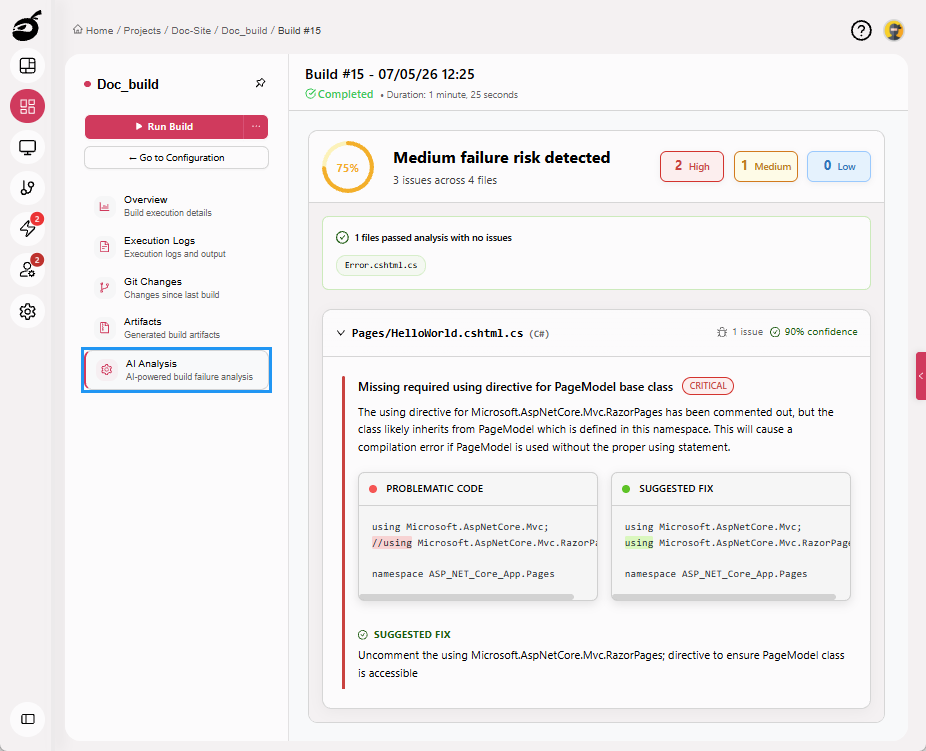
AI Build Analysis Report is a document-style report integrated into the Build Results in AI Analysis tab. It provides automated build risk assessment along with detailed file-level and code-level insights for completed builds.
The report is generated by the AI RunnerThe AI Runner performs AI-driven analysis on repository code changes (diffs) associated with a specific build. It evaluates what has changed between revisions to assess potential build risk and generate the AI Build Anal…, which evaluates repository code changes (diffs) associated with a specific build. The AI Runner runs its analysis asynchronously alongside the build workflow, ensuring that AI processing does not block core CI/CD operations.
The report follows a standardized, theme-aware layout designed for both quick assessment and detailed investigation. It includes:
- Summary Banner: Provides a high-level view of the build’s overall health.
- Failure Risk Gauge: Displays the calculated probability of build failure for the completed build.
- High Failure Risk (≥ 90%) shown in red.
- Medium Failure Risk (≥ 75%) shown in orange.
- Low Failure Risk (< 75%) shown in blue.
- Severity Statistics: Clickable tiles displaying the number of High, Medium, and Low severity issues. These tiles also act as filters for the detailed findings.
- File Analysis Cards: Collapsible sections for each analyzed file, showing the number of detected issues, analysis confidence, and a detailed explanation of identified problems.
- Code Comparison Windows: Side-by-side views highlighting Problematic Code marked by a red indicator and Suggested Fix marked by a green indicator.
- Suggested Fix: Clear explanations of what needs to change and why, enabling faster and more confident remediation.
Configure AI Runner
To generate the AI Build Analysis Report, an AI Runner must be configured and assigned to the build. This configuration ensures that build data is collected and analyzed automatically after build execution.
-
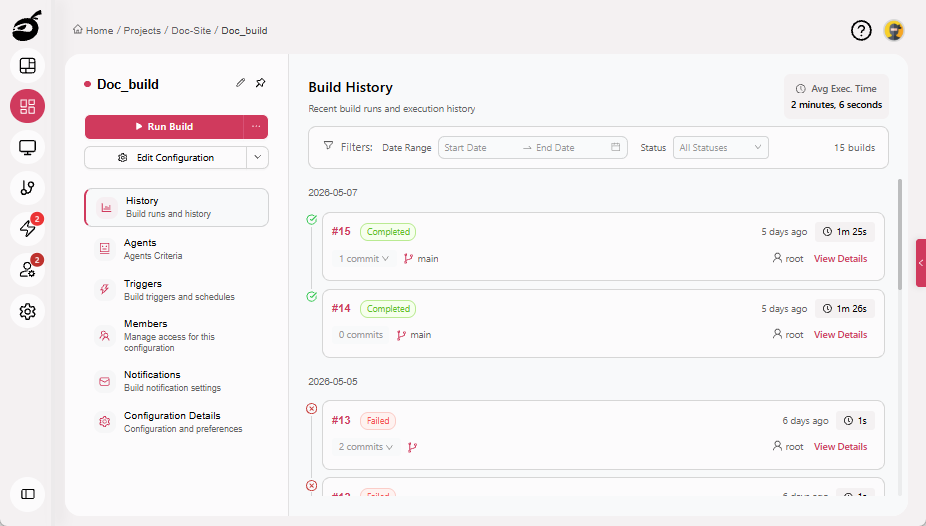
Navigate to the relevant build configuration.
-
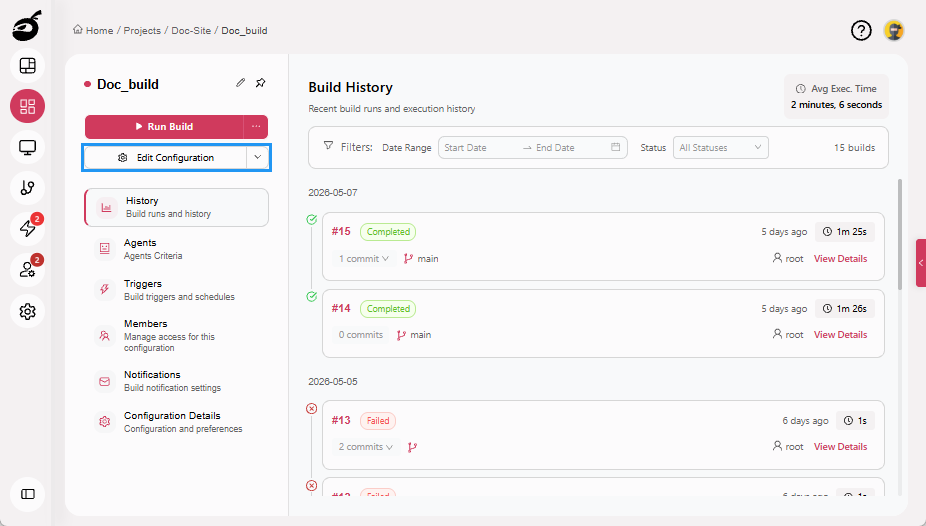
Click Edit Configuration.
-
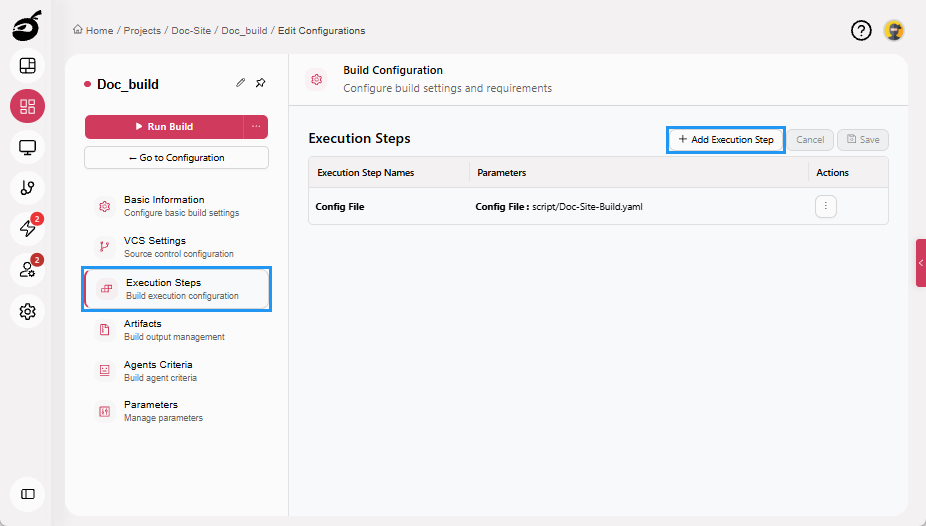
Navigate to Execution Steps and click Add Execution Step.
-
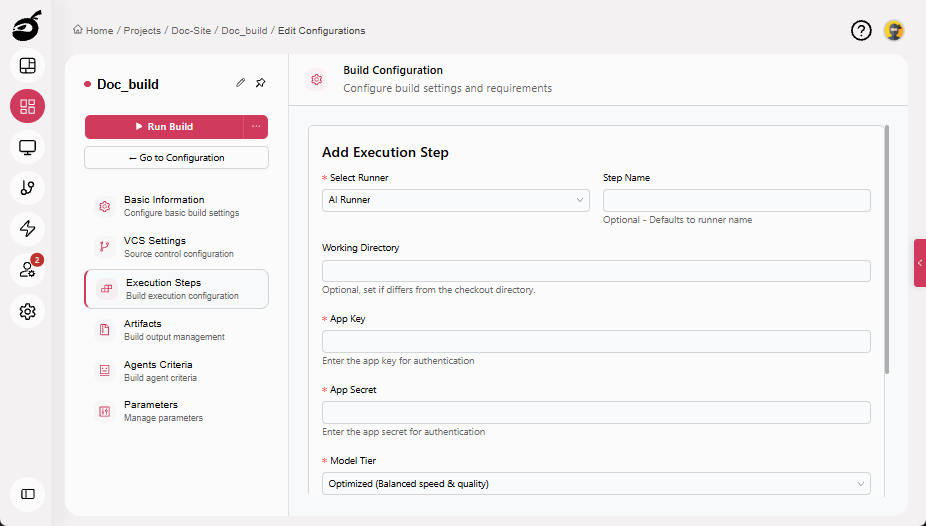
Enter the following details:
- Runner: Select the runner that will execute the AI analysis.
- Step Name: Defaults to the selected runner name; update if required.
- Working Directory: Specify only if it differs from the repository checkout directory.
- App Key: Provide the application key used for authentication.
- App Secret: Provide the application secret used for authentication.
- Model Tier: Select the level of AI analysis to apply:
- Economy: Provides faster responses with lower processing cost, suitable for routine builds and quick checks.
- Optimized: Balances analysis depth and performance, recommended for most CI/CD workflows.
- Best: Delivers the most comprehensive analysis and deepest reasoning, intended for complex builds or high-impact investigations.
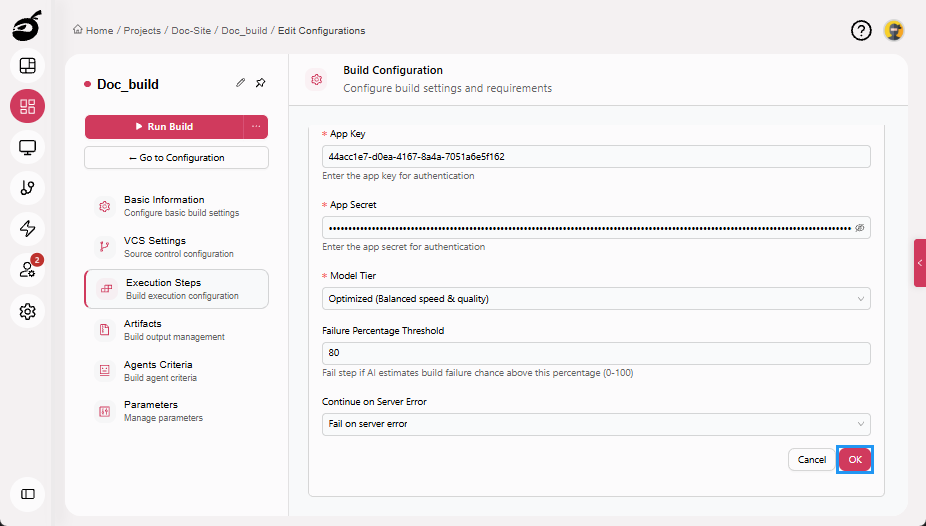
- Failure Percentage Threshold: Specify the estimated build failure probability (0–100) above which the step should fail.
- Continue on Server Error: Choose how the build behaves if the AI analysis fails due to a server-side or processing error, such as the CoreAI service being unavailable or the analysis failing unexpectedly.
-
Click OK to add the execution step.
-
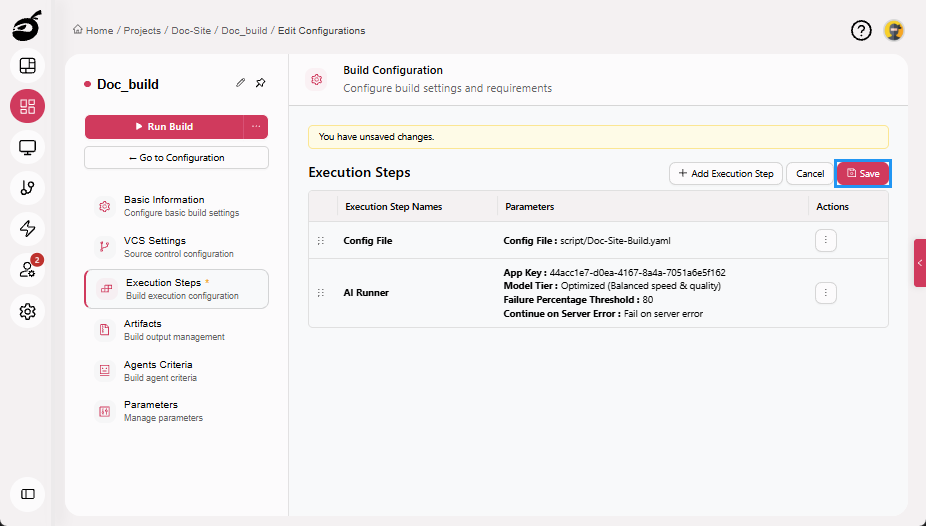
Click Save to save the Execution Steps.
 note
noteYou can add the AI Runner step at any position, but it is recommended to place it as the first execution step. This allows issues to be detected early and helps prevent later steps from running on faulty code.
Access AI Analysis Tab
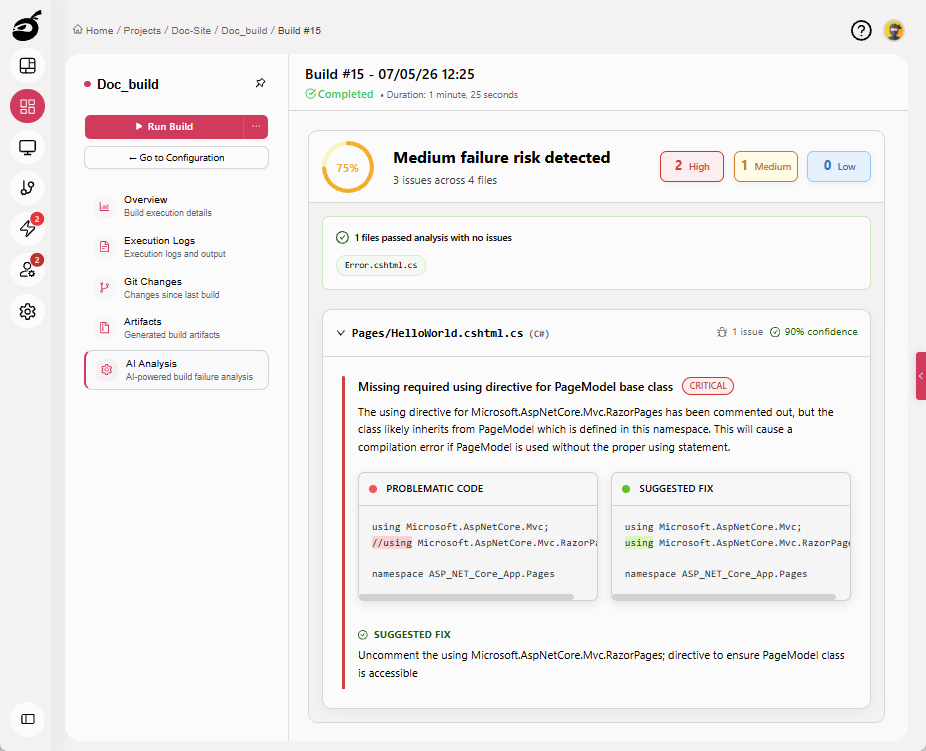
Once a build has completed and AI analysis is available, the AI Build Analysis Report can be accessed from the Build Results view.
-
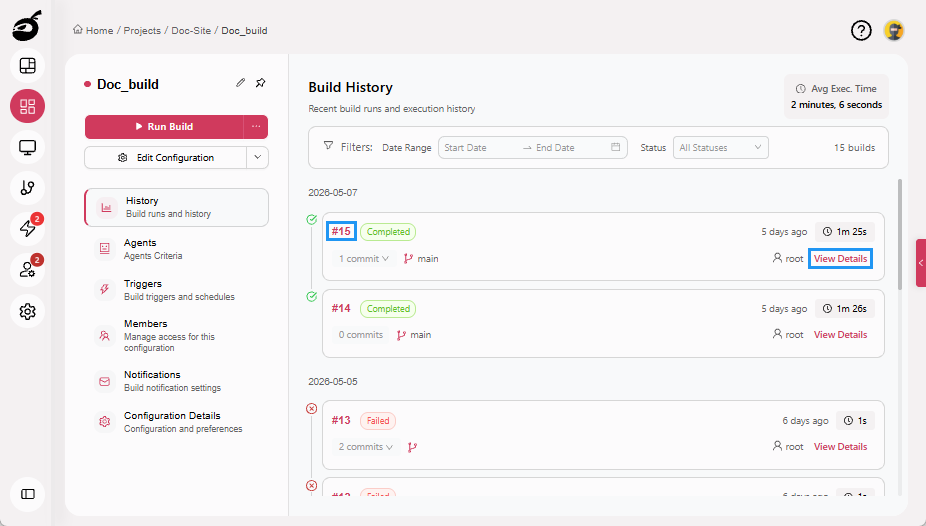
Click Build Number or View Details to view results.
-
Open AI Analysis tab.