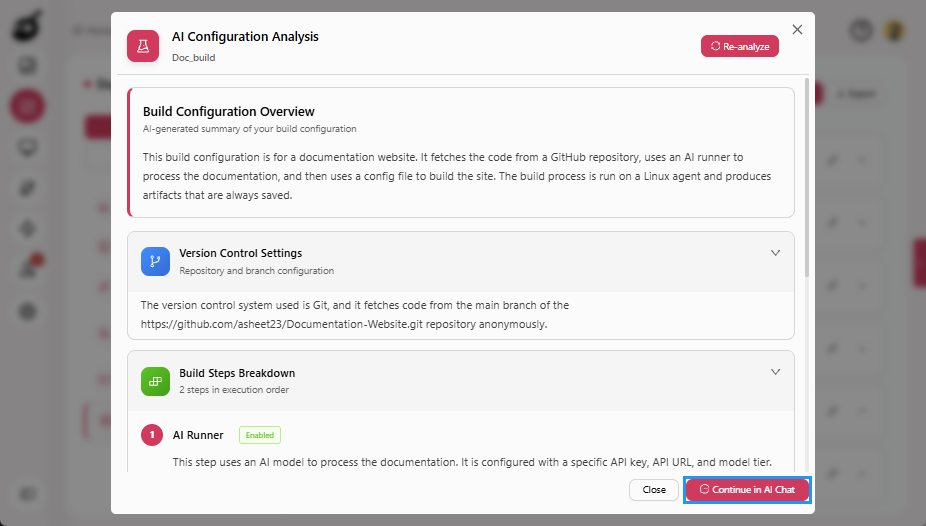
Specialized Analysis Modules
Specialized Analysis Modules provide focused, AI-powered insights for specific build artifacts, helping teams diagnose failures and understand complex build behavior without manually inspecting logs or configuration files. These modules are designed to surface actionable findings directly within build results, reducing investigation time and improving build reliability.
The available modules surface insights in a structured, easy-to-review format and are accessed through dedicated entry points in build results. Each module targets a distinct aspect of build investigation:
-
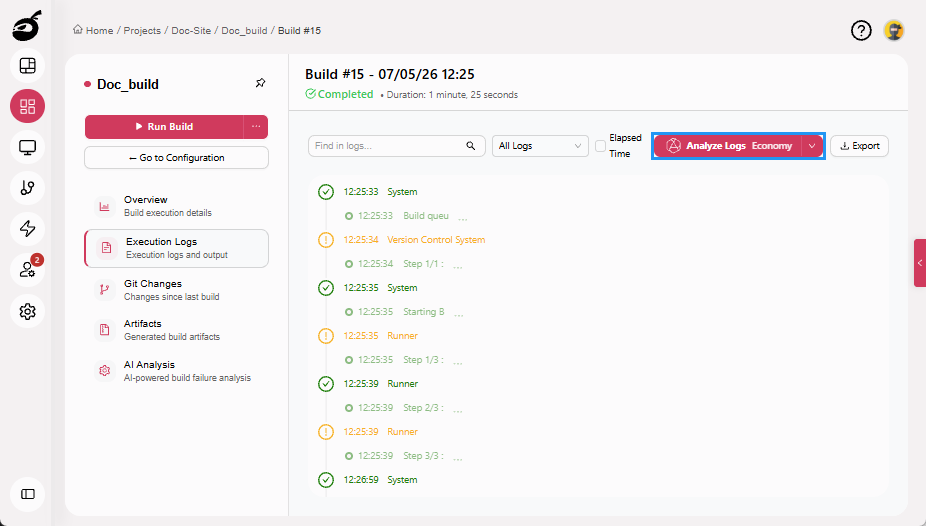
Log Analysis: Uses AI to examine build logs and identify the root causes of build failures or anomalies. It highlights errors, traces their origin, and groups related issues to help users quickly understand what went wrong and why. Log analysis is initiated by clicking Analyze Logs in the Execution Logs tab of Build Results.
-
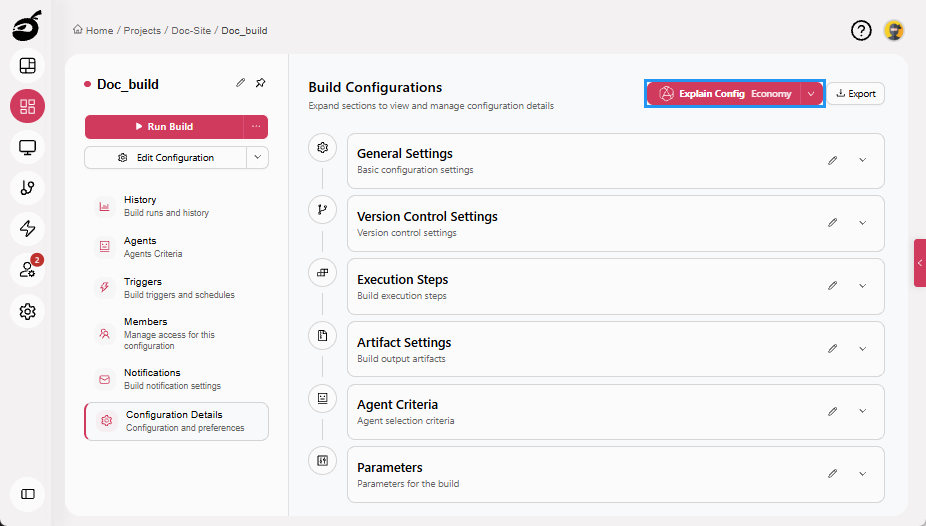
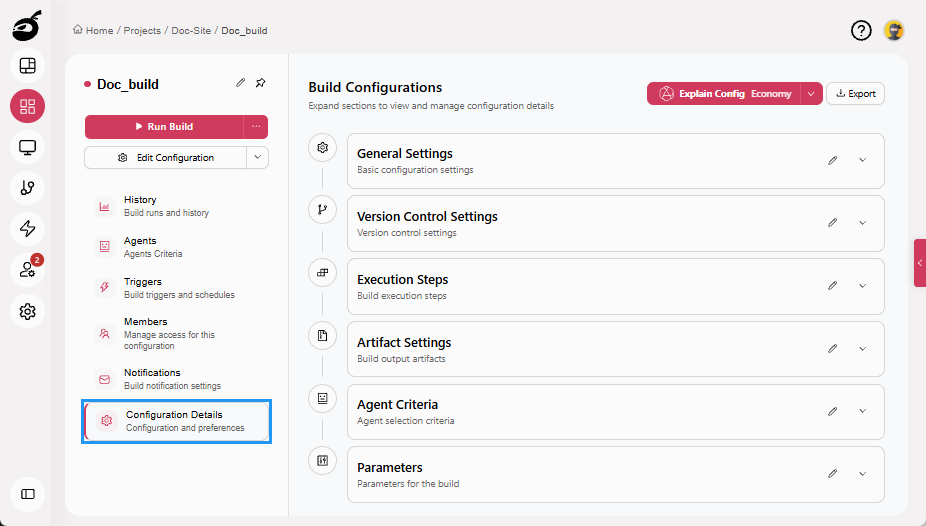
Configuration Explanation: Helps users understand complex build configurations by breaking down parameters, structures, and relationships in a clear, contextual manner. It explains what each setting does, why it matters, and how it impacts build behavior. Configuration explanation is initiated by clicking Explain Config in the Configuration Details tab.
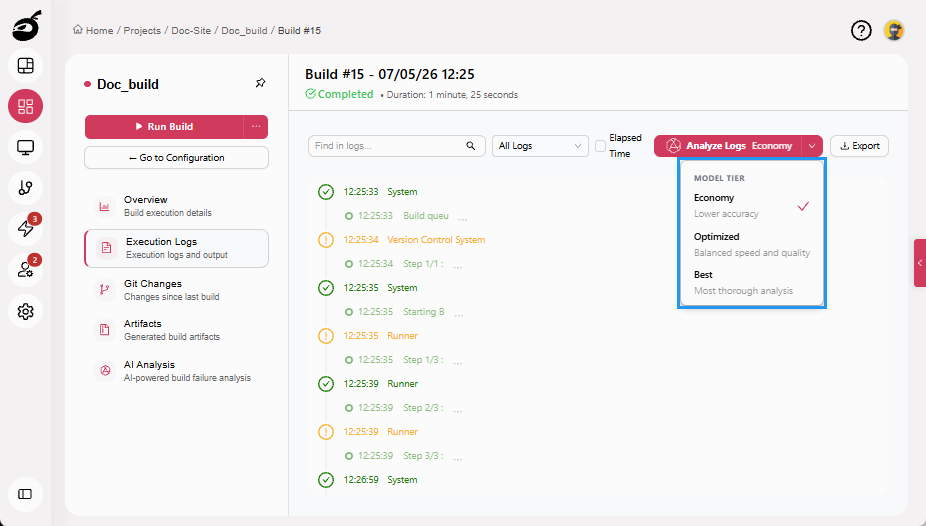
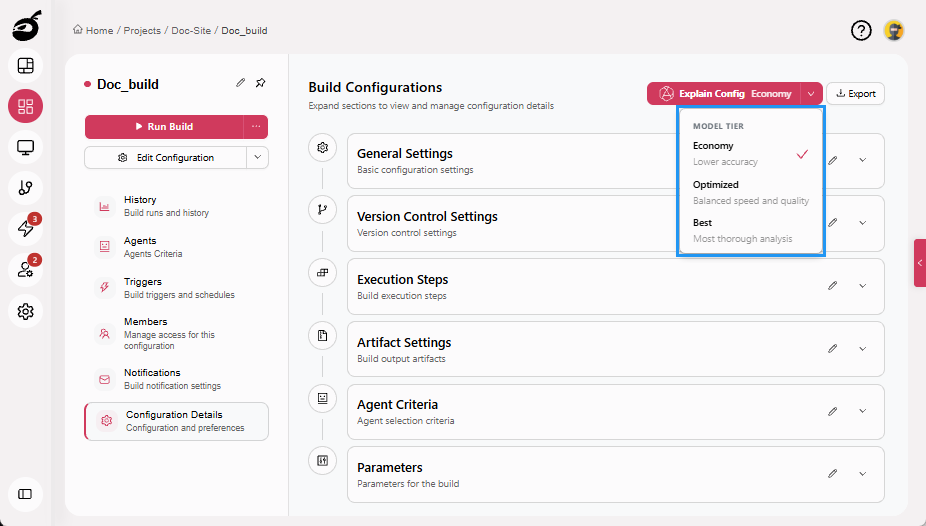
When running these analyses, users can select the appropriate model tier based on the required depth and urgency of insight:
- Economy: Provides faster responses with lower processing cost, suitable for quick checks and routine analysis.
- Optimized: Balances analysis depth and performance, recommended for most CI/CD workflows.
- Best: Delivers the deepest reasoning and most comprehensive insights for complex or high-impact investigations.
In addition to reviewing the initial results, users can continue the investigation by asking follow-up questions directly in the BuildNinja AI Side PanelBuildNinja AI Side Panel is a persistent, global AI assistant available throughout the BuildNinja application. It provides real-time, context-aware support to help users analyze builds, understand configurations, and inv…, enabling deeper analysis within the same execution context.
Perform Log Analysis
-
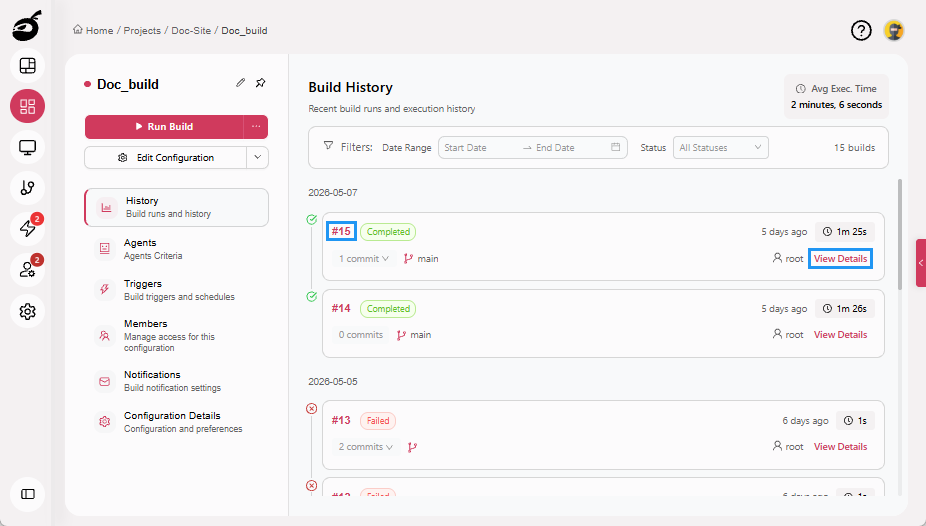
After the build completes, click Build Number or View Details to open build results.
-
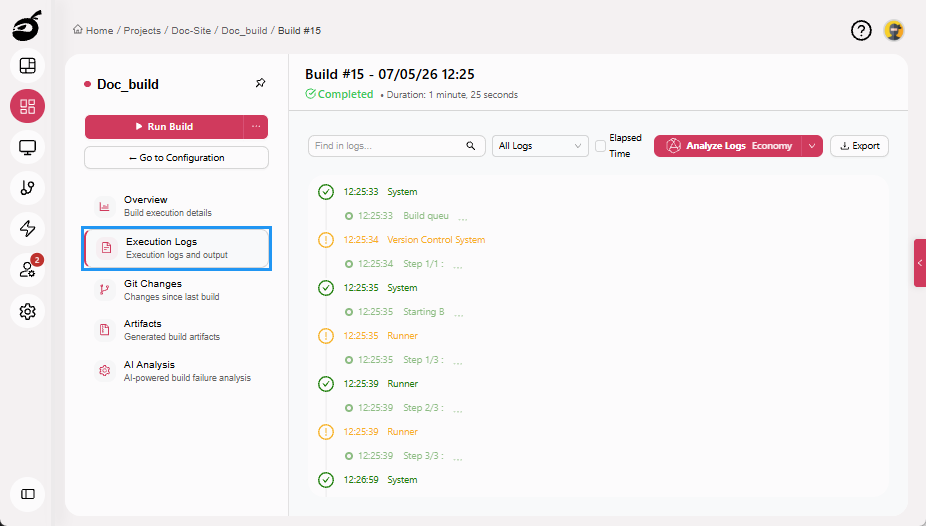
Navigate to Execution Logs tab.
-
Click Analyze Logs to start log analysis.
-
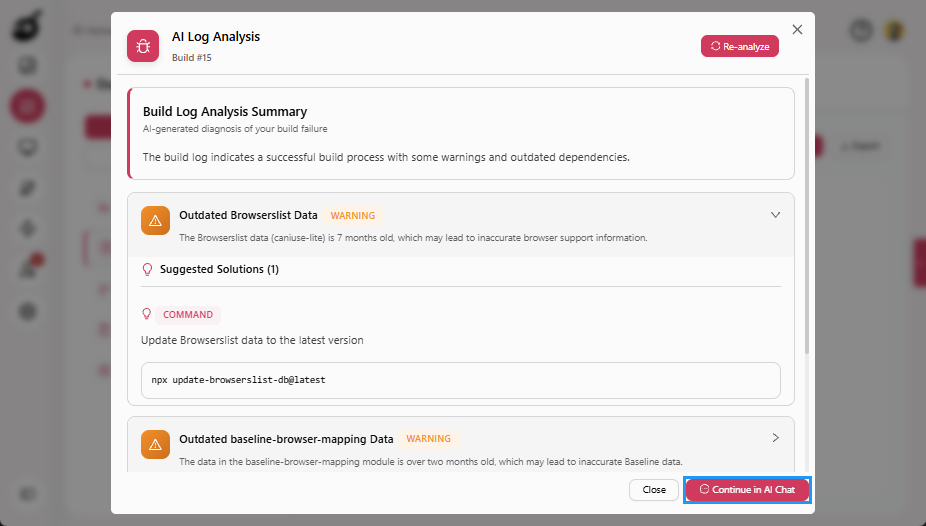
Review the initial findings, including detected errors and suspected root causes. Click Continue in AI Chat to ask follow-up questions in the AI Side Panel.
Generate Configuration Explanation
-
Navigate to Configuration Details tab.
-
Click Explain Config to generate the configuration explanation. The AI analyzes the configuration used in the build.
-
Review the results, which include a structured configuration breakdown, explanations of key parameters and their impact, and context on how settings interact during execution. Click Continue in AI Chat to continue the investigation in the AI Side Panel.