Configure and Edit Builds
Builds in a CI/CD environment represent a defined set of execution steps that run automatically to build, test, package, or prepare an application for deployment. In BuildNinja, a build configuration defines how a build runs, including source code retrieval, execution steps, parameters, artifacts, and agent requirements.
Build configurations can be created, edited, and updated at any time to reflect changes in development workflows or infrastructure.
Build Configuration Overview
A build configuration is composed of multiple configuration tabs, each responsible for a specific aspect of the build lifecycle. Together, these tabs define:
- Where the source code is fetched from
- What actions are executed during the build
- Where the build runs
- Which outputs are preserved
- How the build can be customized at runtime
Changes to a build configuration take effect only after the configuration is saved and apply to subsequent build executions.
Create Build Configuration
-
Navigate to Projects
 to access the project management interface.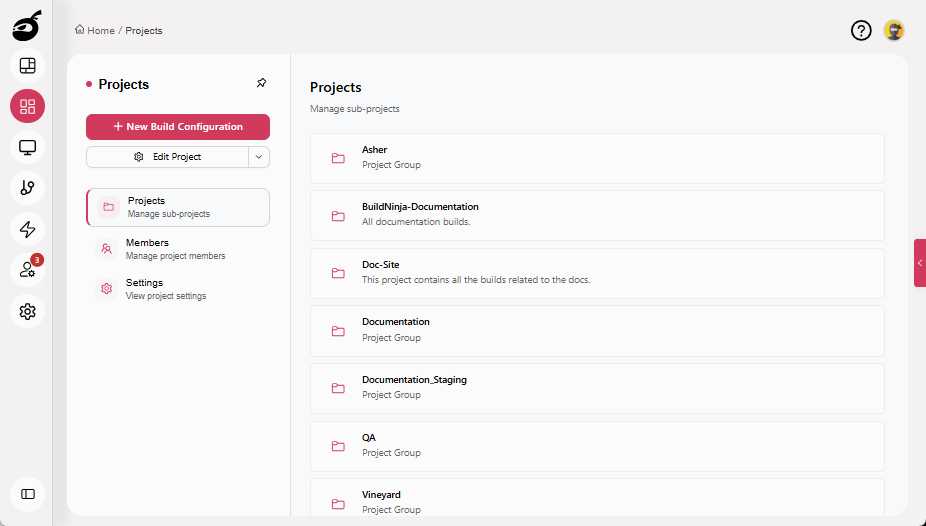
-
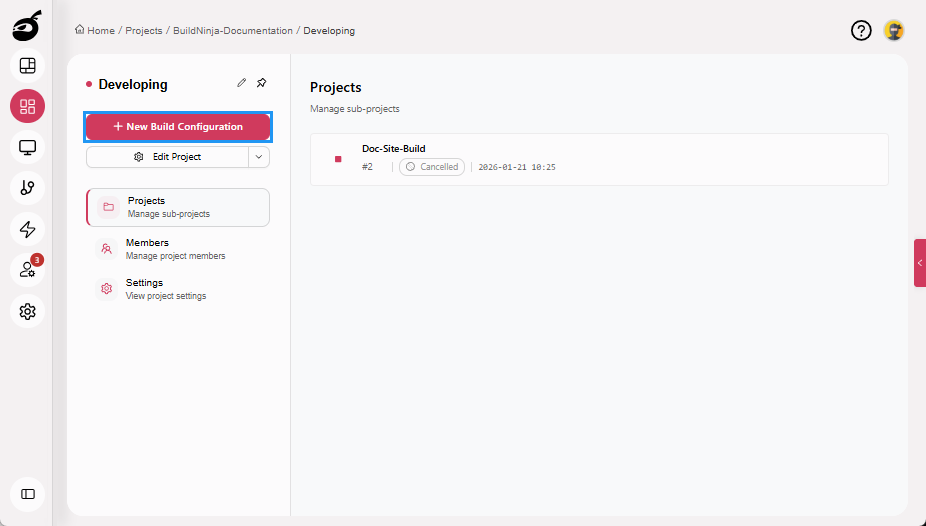
Select the project where you want to create the build and click New Build Configuration.
-
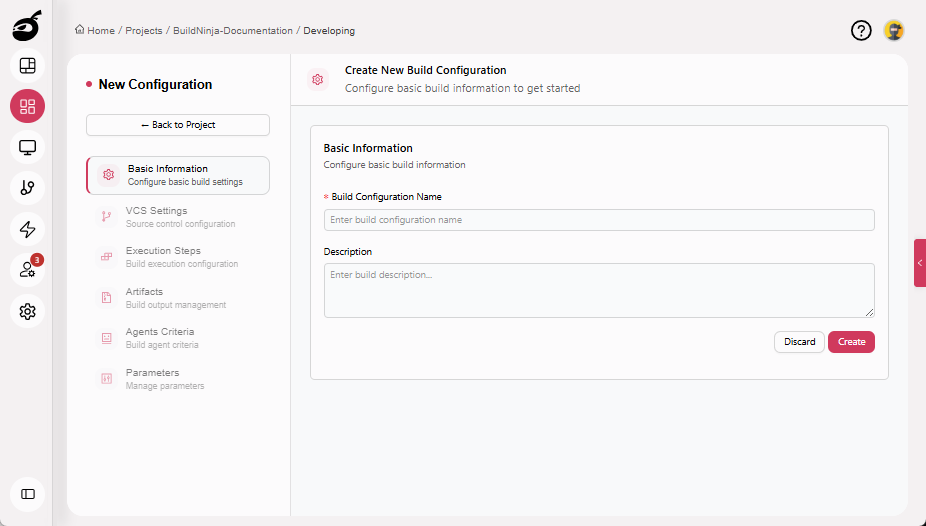
Enter Build Configuration Name and an optional Description.
-
Click Create to create the build configuration.
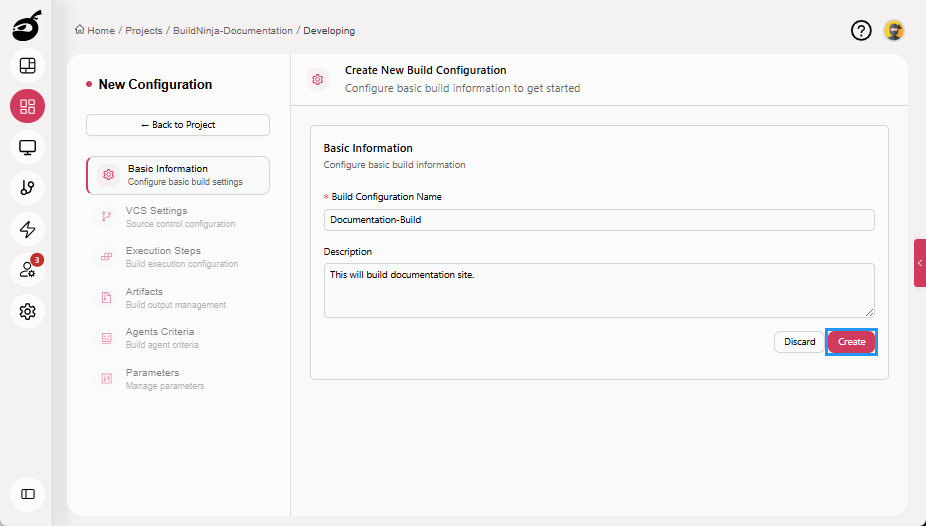
After creation, configure the build using the available configuration tabs.
Build Configuration Tabs
BuildNinja uses a tab-based configuration model to organize build settings into clear, functional sections. Each tab controls a specific part of how the build is configured and executed.
All configuration changes take effect the next time the build is executed after the settings are saved.
Basic Information
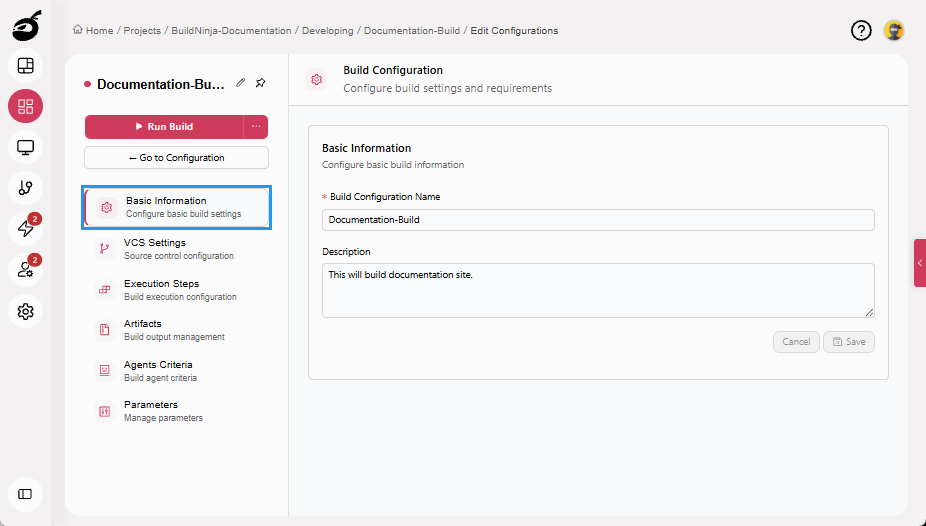
The Basic Information tab defines the identity of the build configuration. This information helps users recognize and manage builds across projects, build history, and execution views.
Parameters
- Build Configuration Name: The display name of the build configuration.
- Description: Optional text used to describe the purpose, usage, or ownership of the build.
VCS Settings
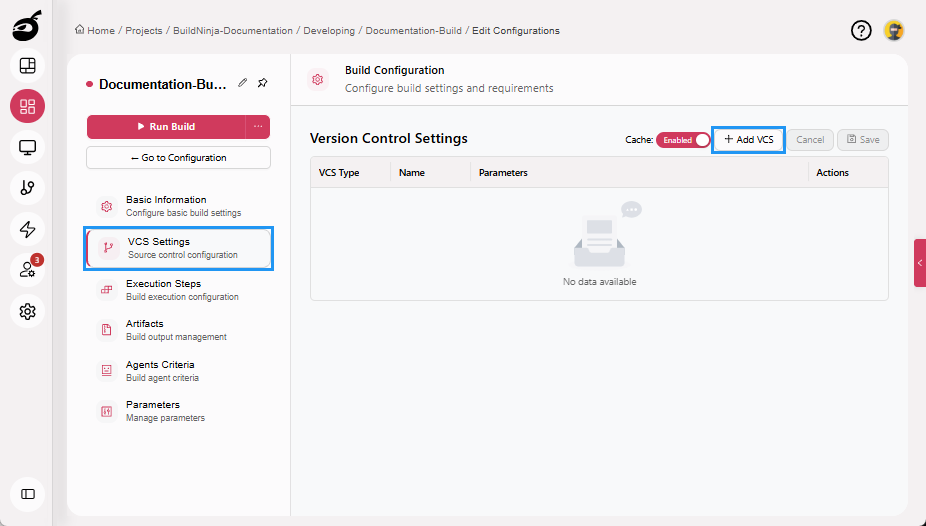
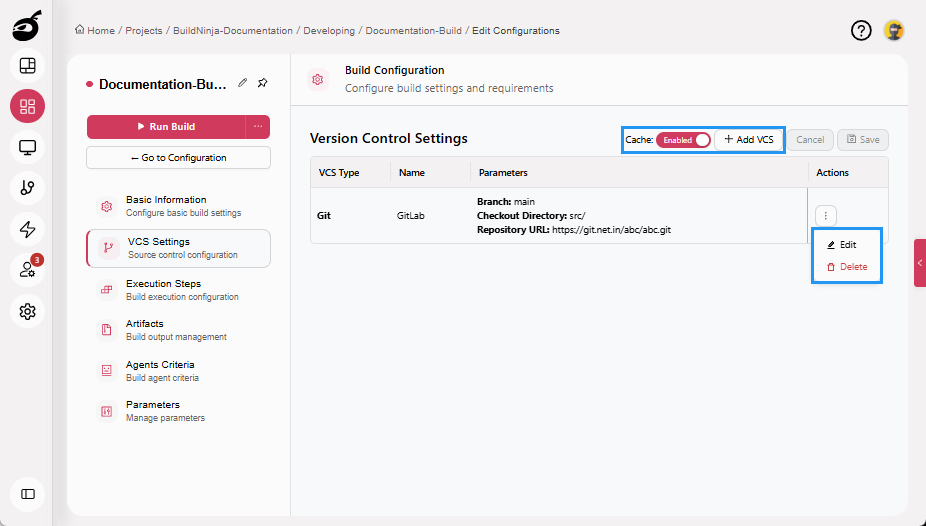
The VCS Settings tab defines how source code is fetched for the build. You can configure one or more Version Control System (VCS) repositories and enable or disable repository caching to improve performance. All repositories are checked out on the build agent before execution steps begin.
Parameters
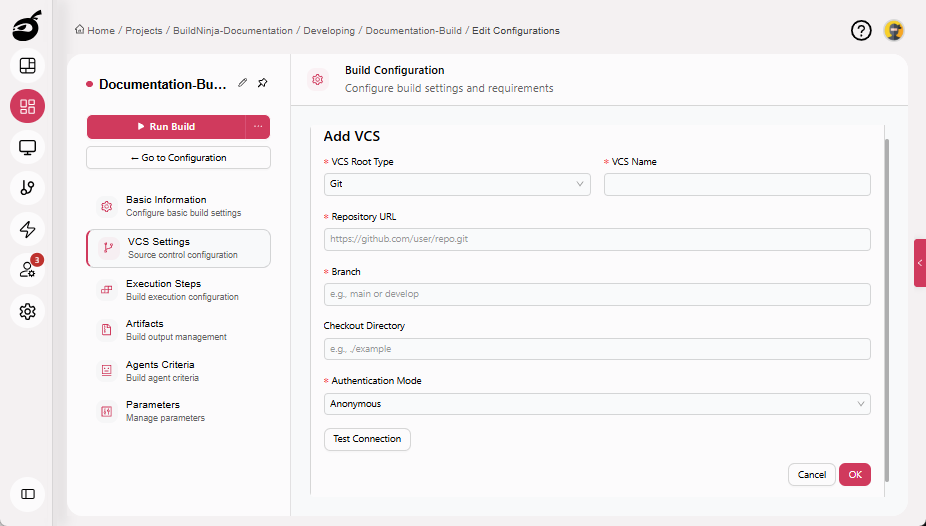
- VCS Root Type: VCS type from where the source code will be fetched, such as Git, GitHub, Bitbucket, or other supported repositories.
- VCS Name: A unique name assigned to the repository configuration.
- Repository URL: URL of the source code repository.
- Branch: The branch to build from (for example, main or develop).
- Checkout Directory: The local directory on the build agent where the repository is checked out.
- Authentication Mode: The method used to authenticate with the repository.
- Anonymous: Access the repository without providing credentials. Use this option only for public repositories that allow anonymous access.
- Password / Personal Access Token: Authenticate using a personal access token (recommended) or a password associated with the repository account. Tokens are preferred for improved security and finer access control.
- Username: The username associated with the repository account used for authentication.
- Password or Token: The password or personal access token linked to the specified username.
Procedure
-
Navigate to VCS Settings and click Add VCS.
-
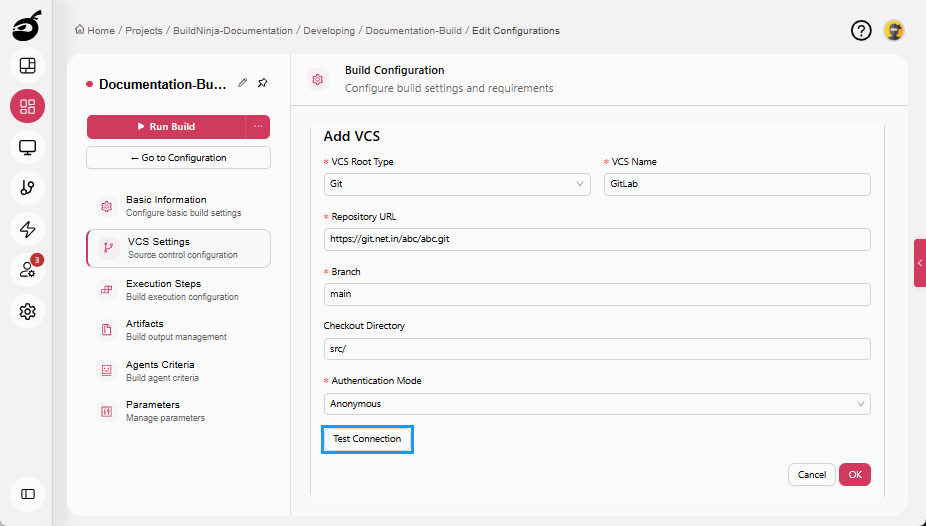
Enter the following details:
- VCS Root Type
- VCS Name
- Repository URL
- Branch
- Checkout Directory
- Authentication Mode
-
Click Test Connection to verify the configuration before saving (optional).
-
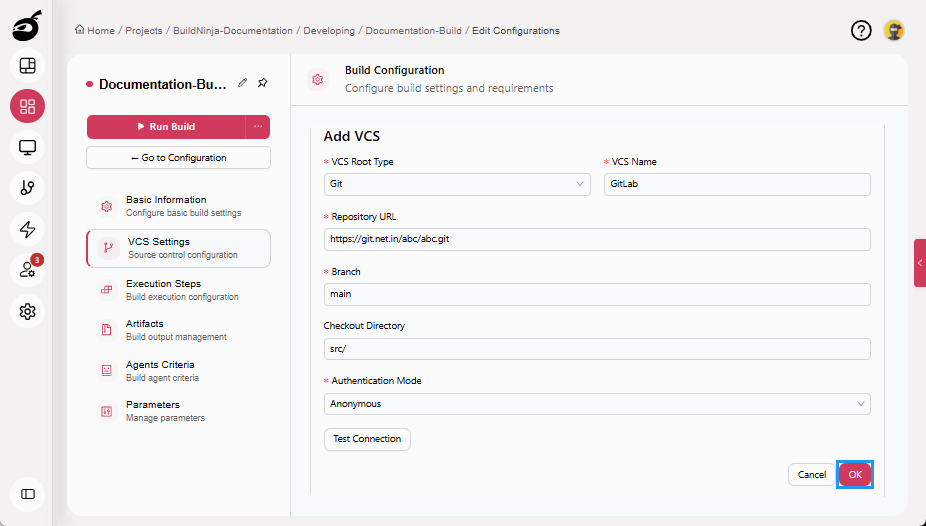
Click OK to add the VCS.
-
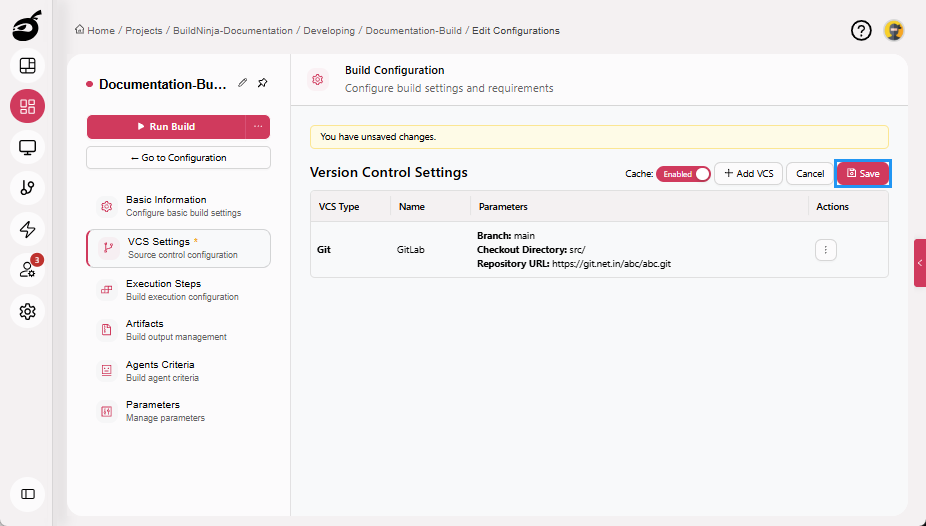
Click Save to save the VCS Settings.
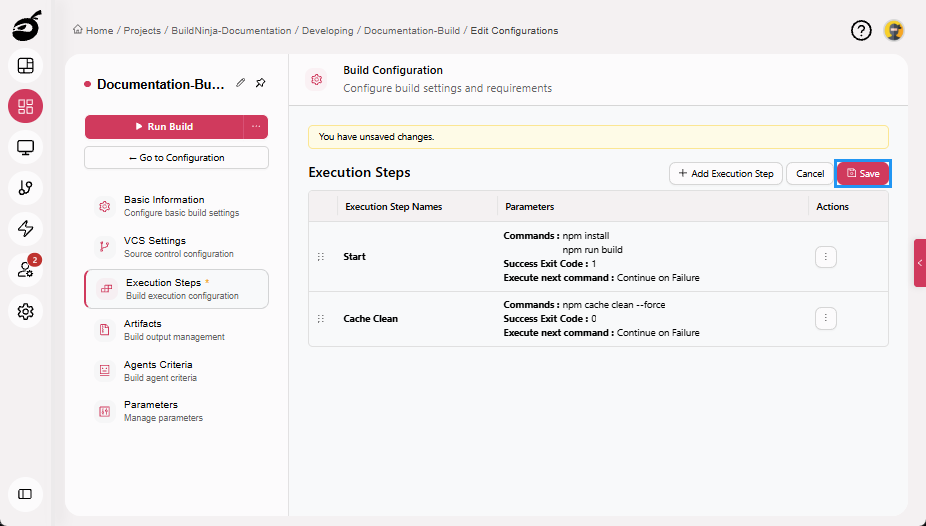
Execution Steps
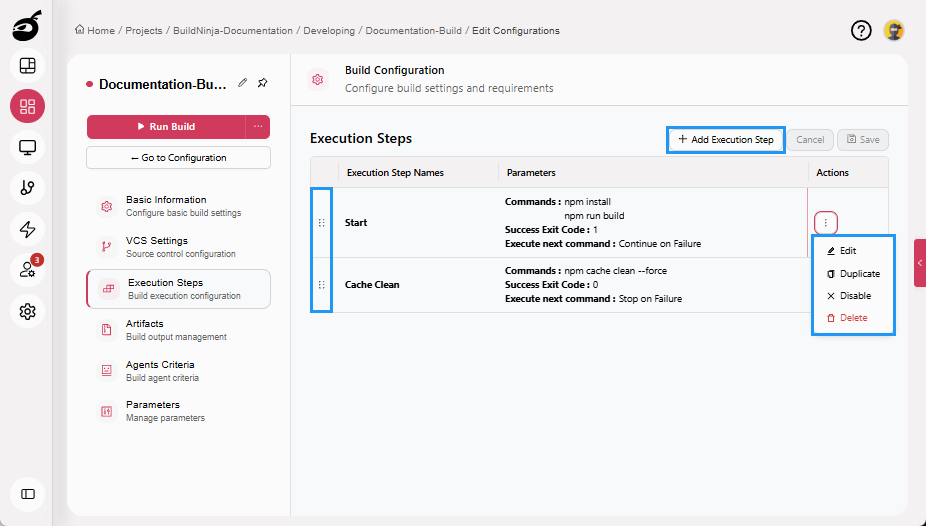
The Execution Steps tab defines the sequence of actions performed during the build, such as building, testing, and deploying the application.
Parameters
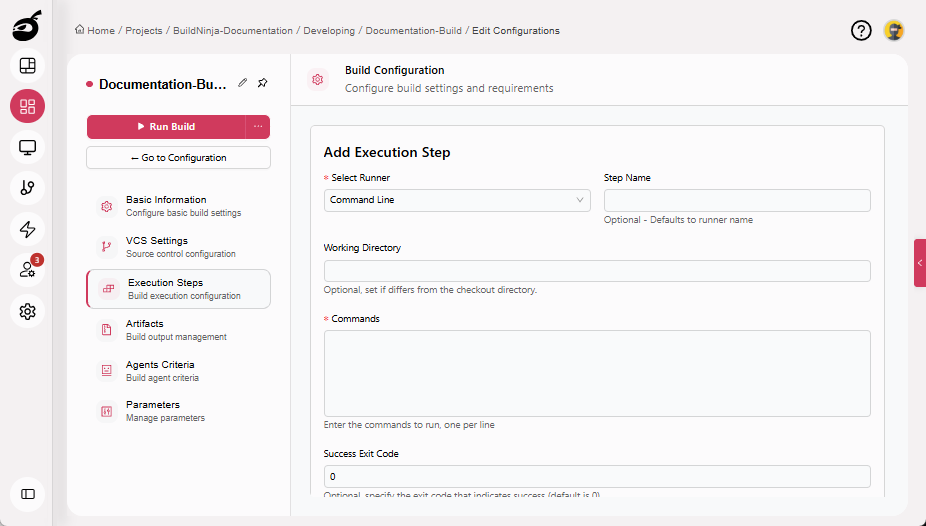
- Select Runner: The machine or environment, such as Command Line, Config File, MS Build, VS Test, SSH, or Script that executes build, test, and deployment steps.
- Step Name: Name of the step (optional).
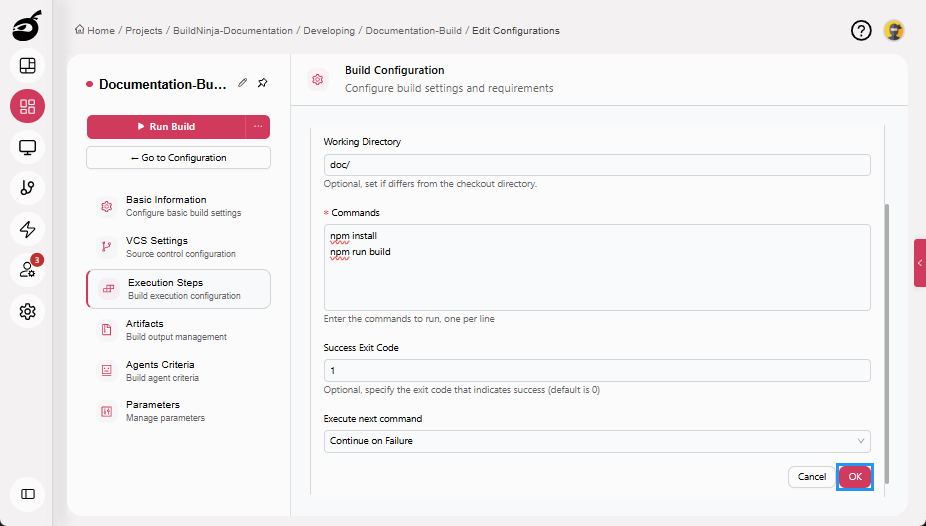
- Working Directory: The directory where the commands will be executed. This is an optional field; if left blank, the default working directory will be used.
- Commands: The shell command(s) executed as part of your build workflow.
- Success Exit Code: Optional. Specifies the exit code that should be treated as a successful execution. The default success exit code is
0. - Execute Next Command: Specifies whether execution continues with the next command in the Commands field (when multiple commands are defined) if the previous command fails.
The available configuration fields and parameters may vary depending on the selected build runner. This example uses the Command Line RunnerThe Command Line Runner executes one or more shell or batch commands directly on the BuildNinja agent machine. It provides a flexible way to run command-line tools, scripts, and system utilities, making it well suited fo…. For details about other runners and their supported options, see Build RunnersBuild Runners define how a build step is executed inside BuildNinja. Each runner encapsulates a specific execution strategy, such as running shell commands, building ..
Procedure
-
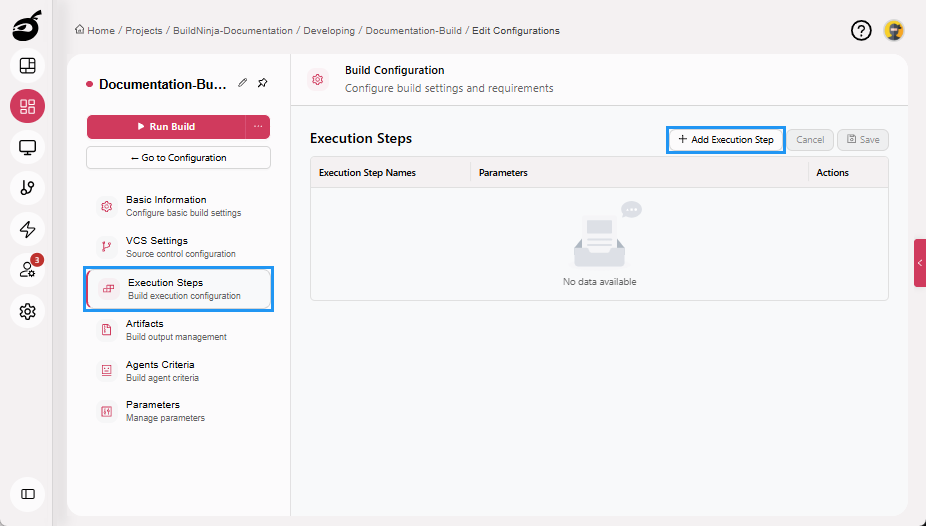
Navigate to Execution Steps and click Add Execution Step.
-
Enter the following details:
- Select Runner
- Step Name
- Working Directory
- Commands
- Success Exit Code
- Execute Next Command
-
Click OK to add the execution step.
-
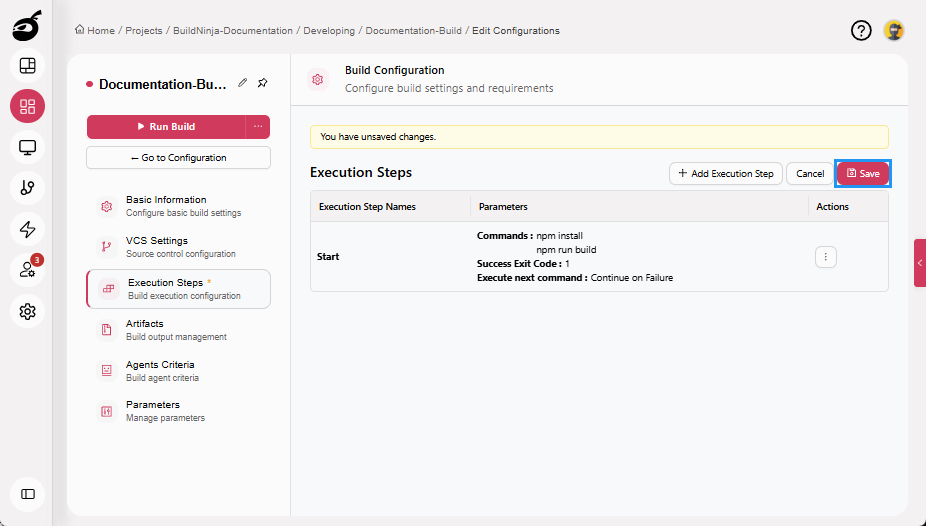
Click Save to save the Execution Steps.
Artifacts
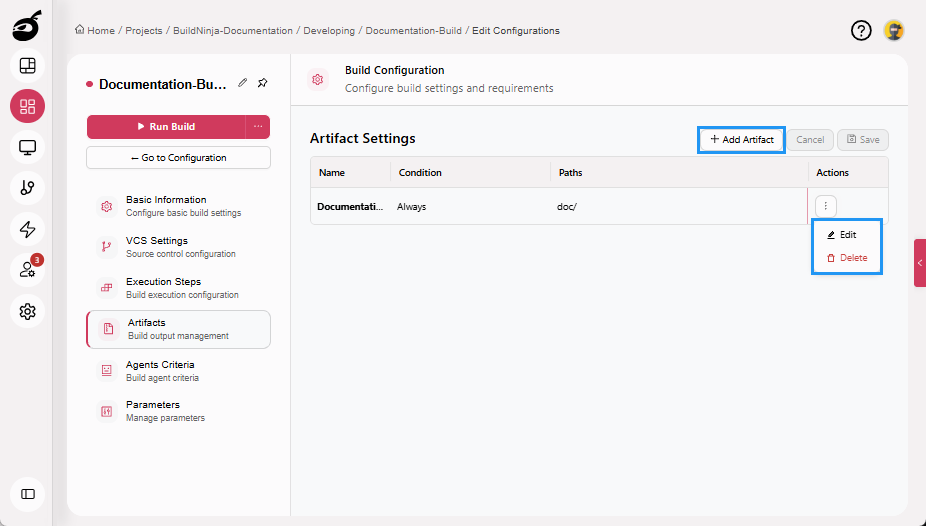
The Artifacts tab specifies which files or directories generated during the build are collected and preserved after execution.
Parameters
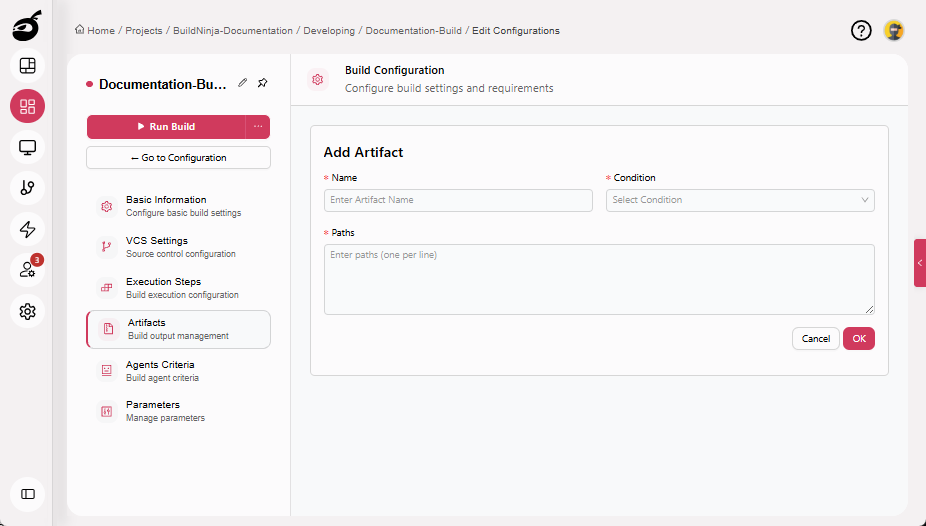
- Name: Name of the artifact.
- Condition: Defines when the build artifact will be published.
- Paths: The location of files that the BuildNinja will save, upload, or pass to later steps or jobs.
Procedure
-
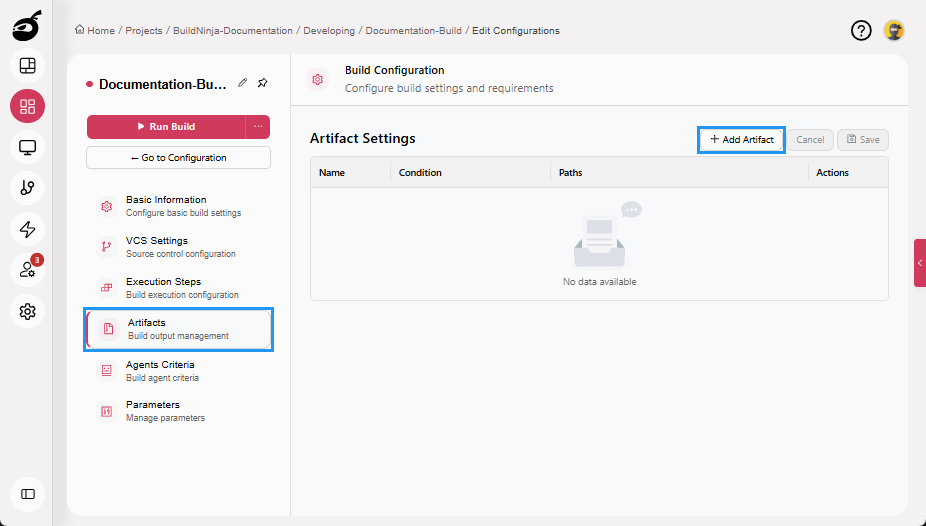
Navigate to Artifacts and click Add Artifact.
-
Enter the following details:
- Name
- Condition
- Paths
-
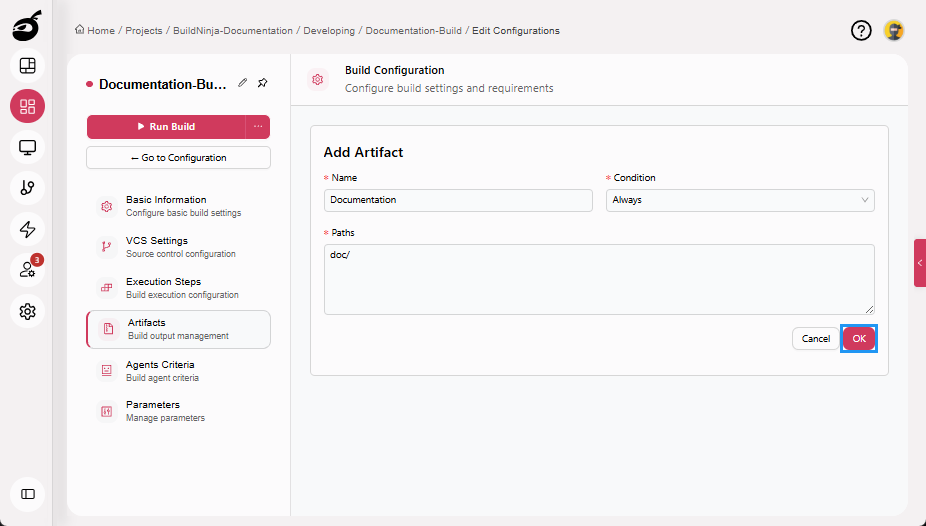
Click OK to add the artifact.
-
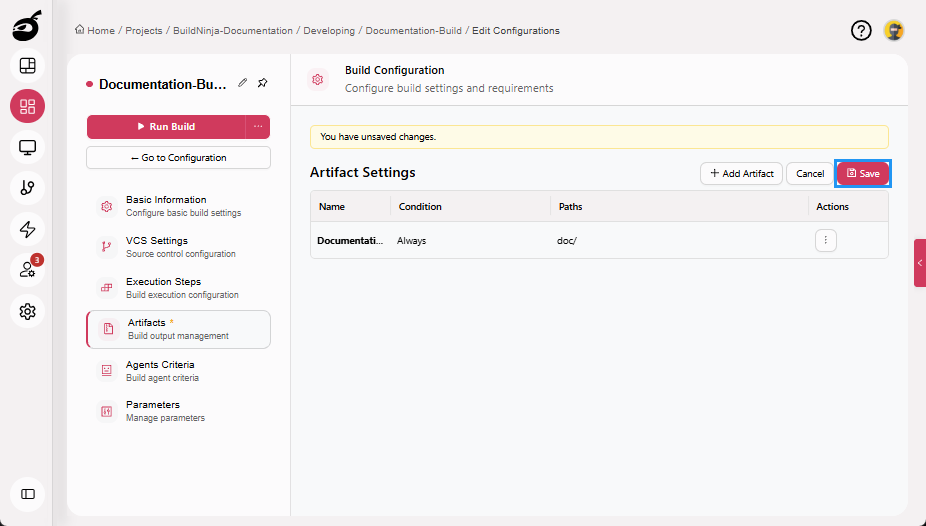
Click Save to save the Artifacts.
Agents Criteria
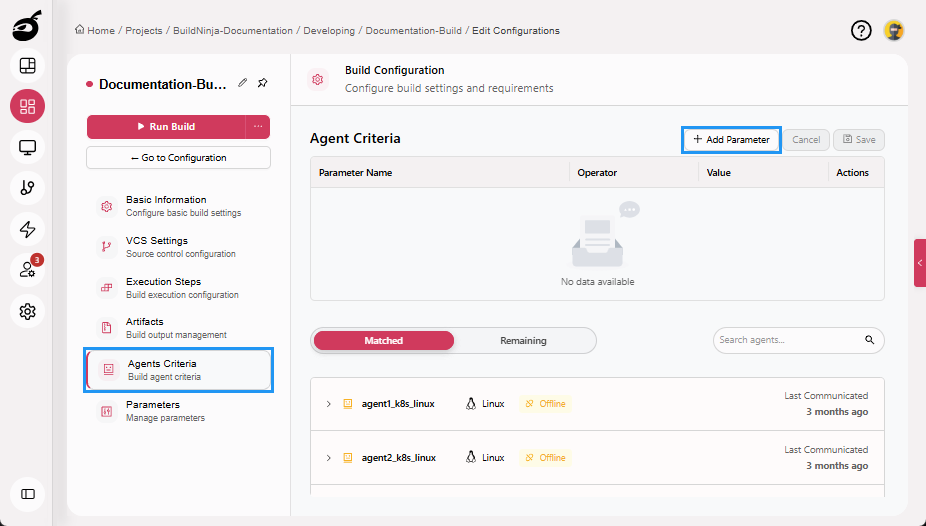
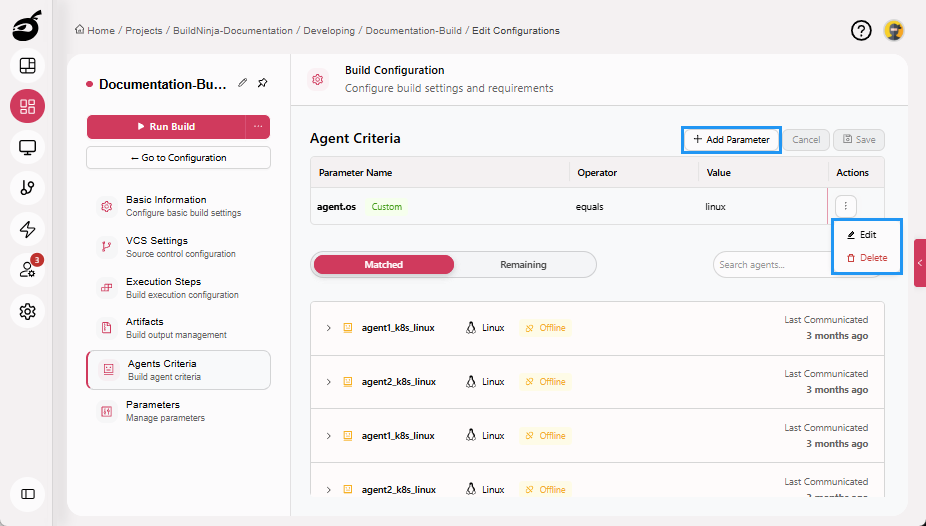
The Agents Criteria tab defines rules used to select suitable build agents for execution.
Parameters
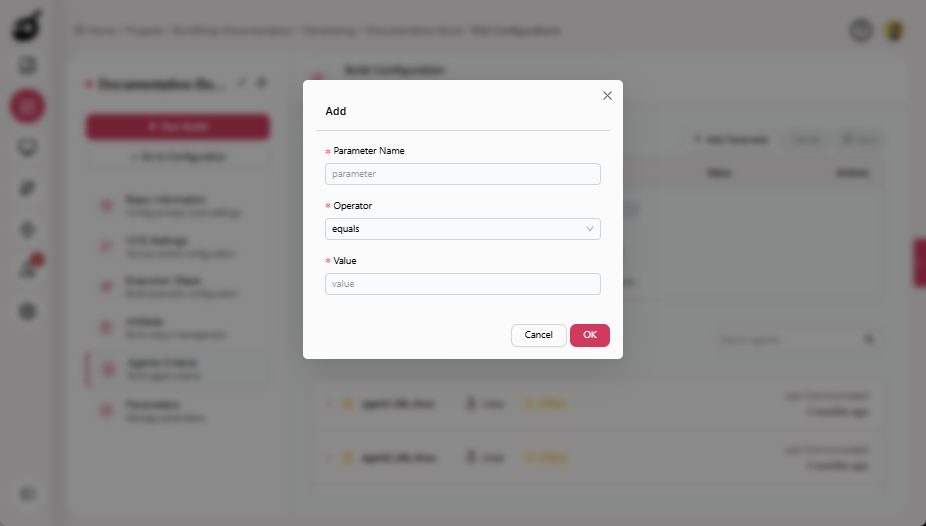
- Parameter Name: The name of a property or capability that the build agent must have.
- Operator: The condition to check between the parameter and the value.
- Value: The expected value to compare against the parameter.
Procedure
-
Navigate to Agents Criteria and click Add Parameter.
-
Enter the following details:
- Parameter Name
- Operator
- Value
-
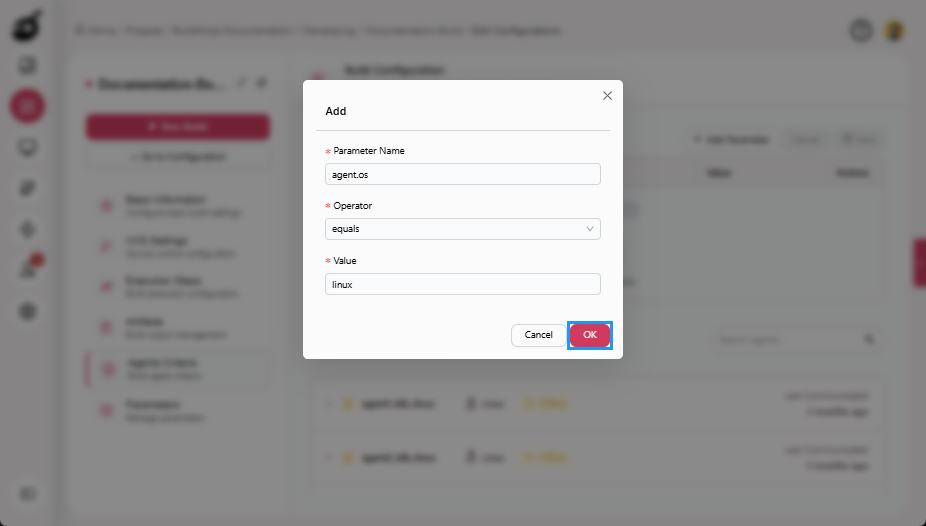
Click OK to add the parameter.
-
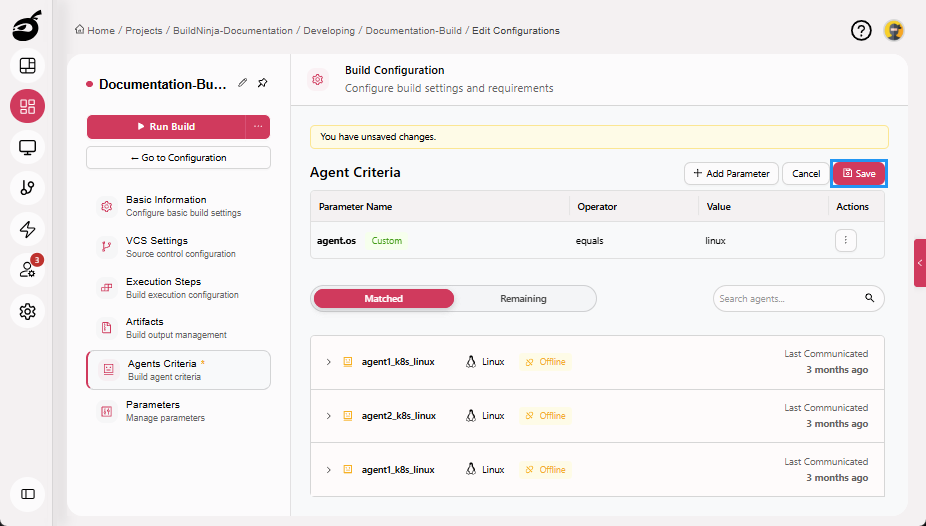
Click Save to save the Agents Criteria.
Parameters
The Parameters tab defines variables that can be reused across execution steps to customize build behavior.
Parameters
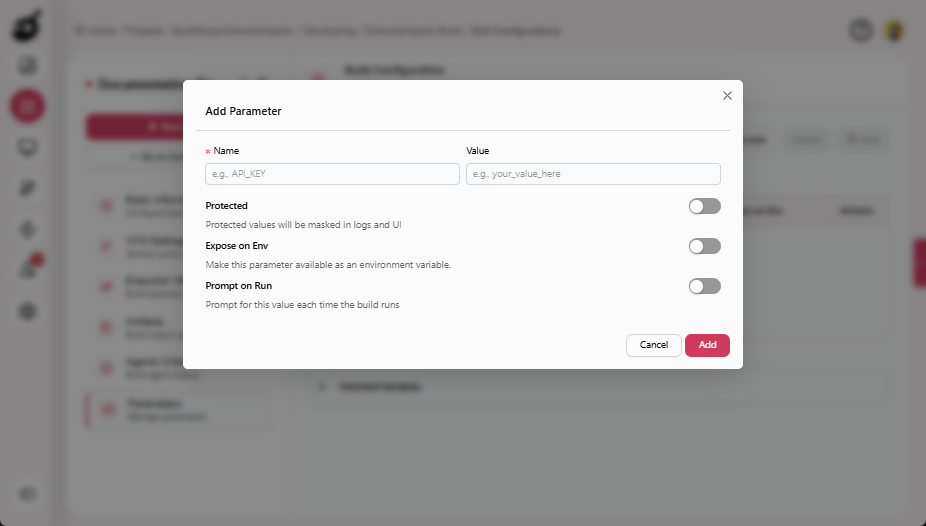
- Name: Unique identifier of the parameter within its scope.
- Value: The value used unless overridden.
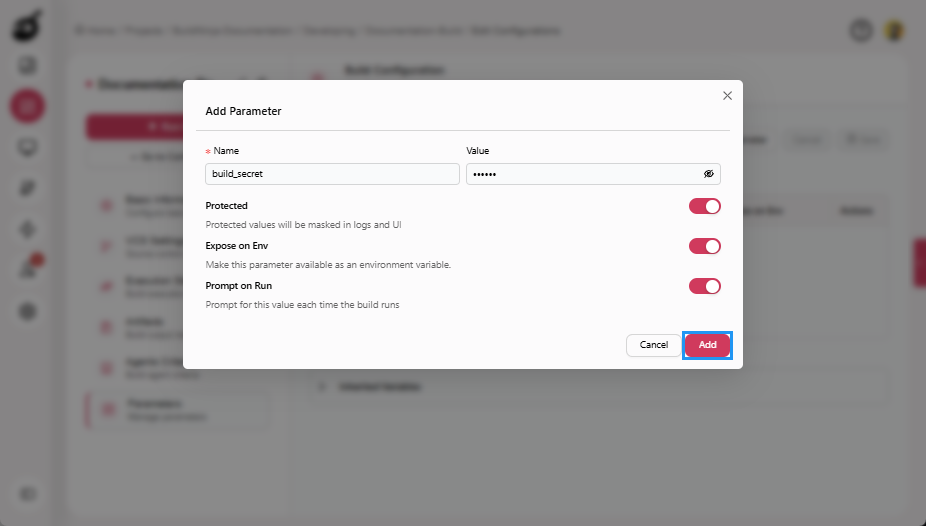
- Protected: Encrypts and masks sensitive values in the UI and logs. Protected values cannot be retrieved in plaintext after creation.
- Expose on Env: Makes the parameter available to all build steps as a standard OS environment variable.
- Prompt on Run: Prompts the user to provide a value when a build is manually triggered.
Only parameters with Prompt on Run enabled can be edited during manual build execution.
Build parameters can be defined at both the project and build configuration levels and may be inherited across project hierarchies. Only parameters defined at the build configuration level with Prompt on Run enabled can be overridden during manual execution. For details on parameter scope, inheritance, protection, and runtime behavior, see Configure Build ParametersBuildNinja allows you to define Build Parameters that define reusable variables that control how a build executes. These parameters help eliminate hardcoded values inside build steps, improve security, and enable flexibl….
Procedure
-
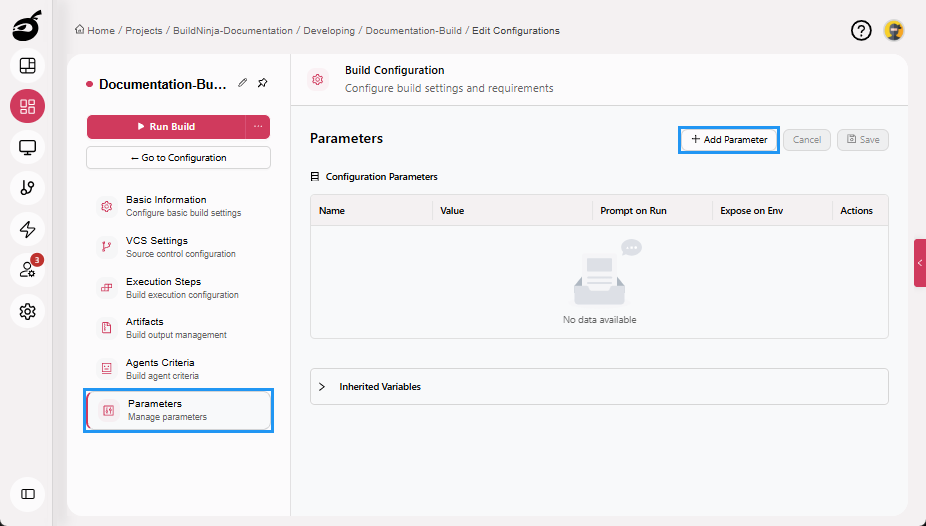
Navigate to Parameters and click Add Parameter.
-
Enter the following details:
- Name
- Value
- Protected
- Expose on Env
- Prompt on Run
-
Click Add to add the parameter.
-
Click Save to save the Parameters.
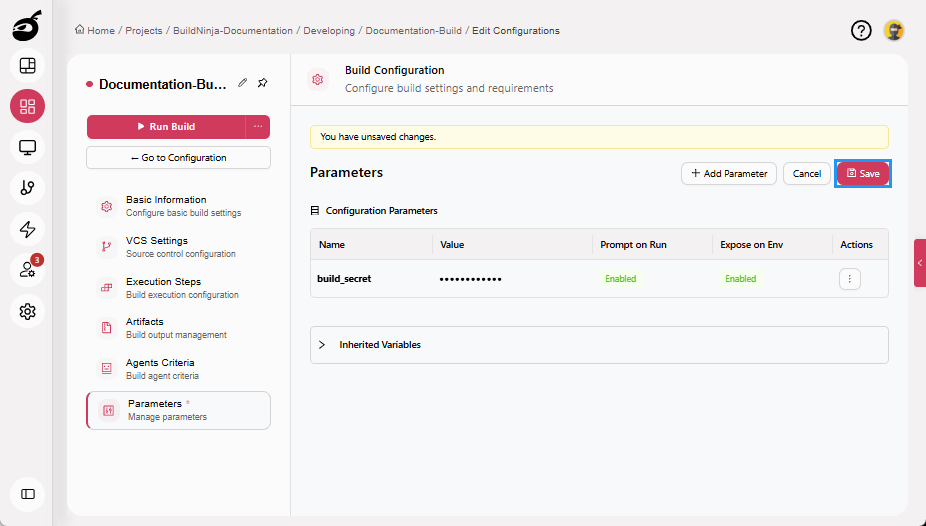
The build configuration is now complete and ready to be executed.
Edit Existing Build Configuration
BuildNinja allows build configurations to be updated at any time to reflect changes in source control, build logic, infrastructure, or deployment requirements. All changes apply only to future build executions and do not affect completed builds.
Editable Build Configuration Settings
Each build configuration is organized into tabs, and each tab represents a specific category of settings that can be modified independently. The following settings can be updated:
Basic Information
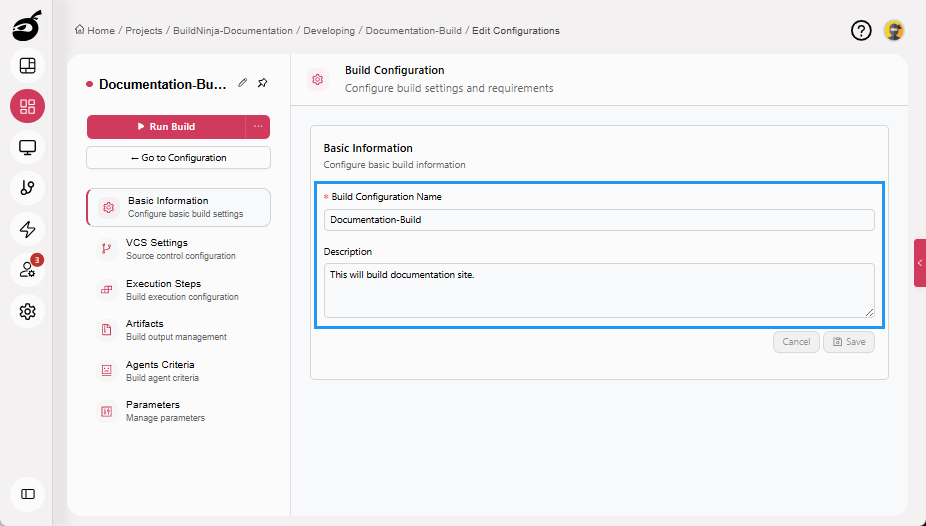
Edit your basic build information using the following options:
- Build Configuration Name: Update the display name of the build configuration.
- Description: Add or change the description to clarify purpose, usage, or ownership.
VCS Settings
Edit your VCS configuration using the following options:
- Cache: Enable or disable configuration caching to control whether cloned repositories and dependencies are reused for faster build execution.
- Add VCS: Connect a new repository.
- Edit: Modify repository details such as URL, branch, or authentication method.
- Delete: Remove VCS settings that are no longer needed.
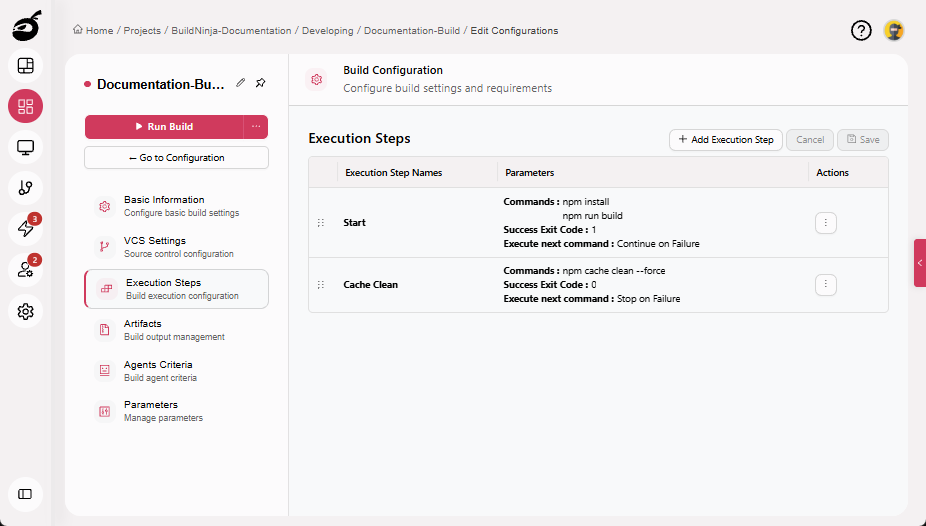
Execution Steps
Edit your execution steps to define how your code is built, tested, and deployed using the following options:
- Add Execution Step: Add a new step to the process.
- Reorder: Change the execution order using drag-and-drop.
- Edit: Update the configuration of an existing step.
- Duplicate: Copy a step to reuse its configuration.
- Disable: Temporarily turn off a step without deleting it.
- Delete: Remove steps you no longer need.
Artifacts
Edit your artifact settings to manage the files generated during builds using the following options:
- Add Artifact: Define new rules for what gets saved or shared.
- Edit: Update existing artifact rules or destination paths.
- Delete: Remove outdated or unused rules.
Agents Criteria
Edit your agents criteria to control where builds run using the following options:
- Add Parameter: Add filters to match specific build agents.
- Edit: Update existing filters (e.g., OS, tools, tags).
- Delete: Remove parameters that are no longer applicable.
Parameters
Manage your build parameters to customize build behavior using the following options:
- Add Parameter: Define a new variable for use in build steps.
- Edit: Update parameter values and configuration options.
- Delete: Remove unused or obsolete parameters.
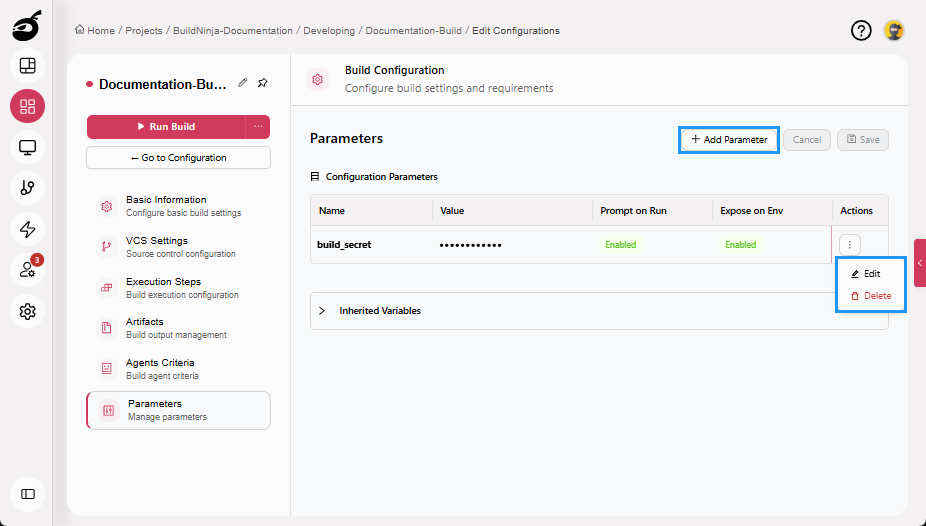
Edit Build Configuration
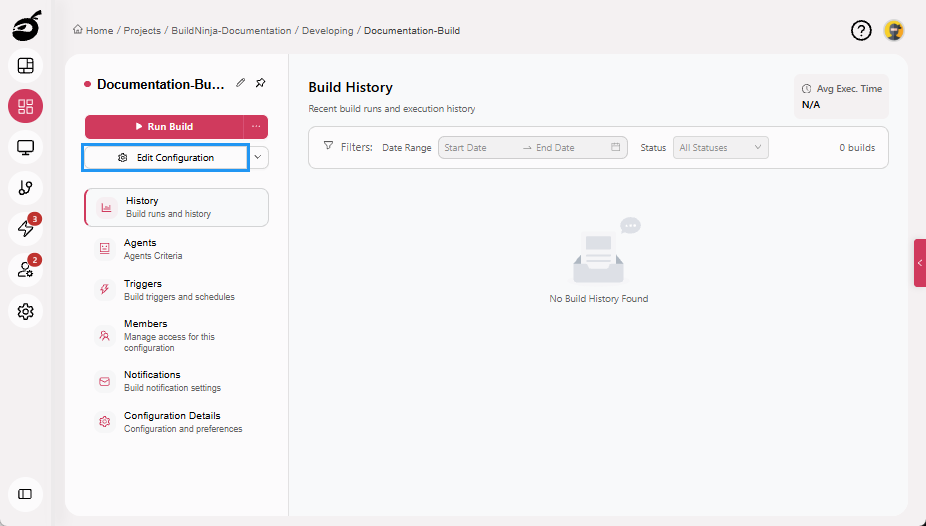
-
Select the build configuration you want to edit and click Edit Configuration.
-
Select the setting you want to edit.
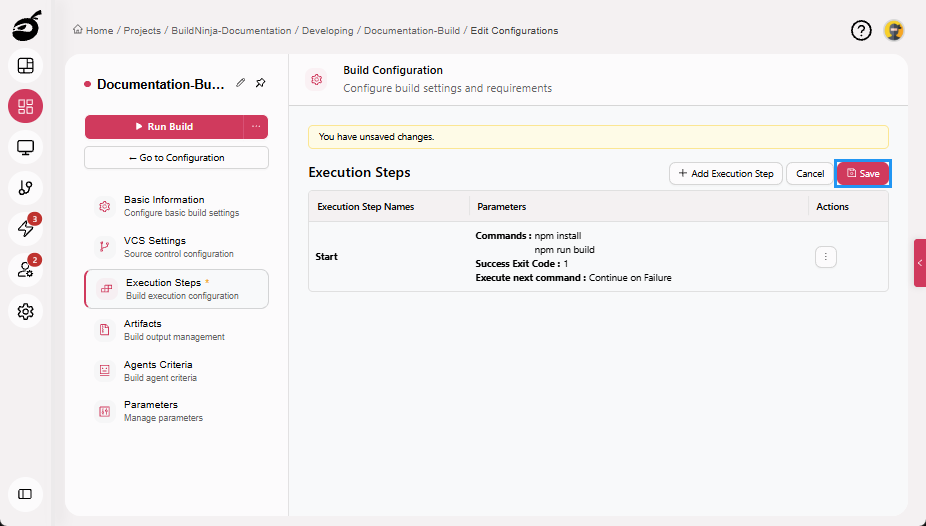
-
Make the necessary edits and click Save to save the updated build configuration.
Edit Build Configuration via Configuration Details Tab
-
Select the build configuration you want to edit.
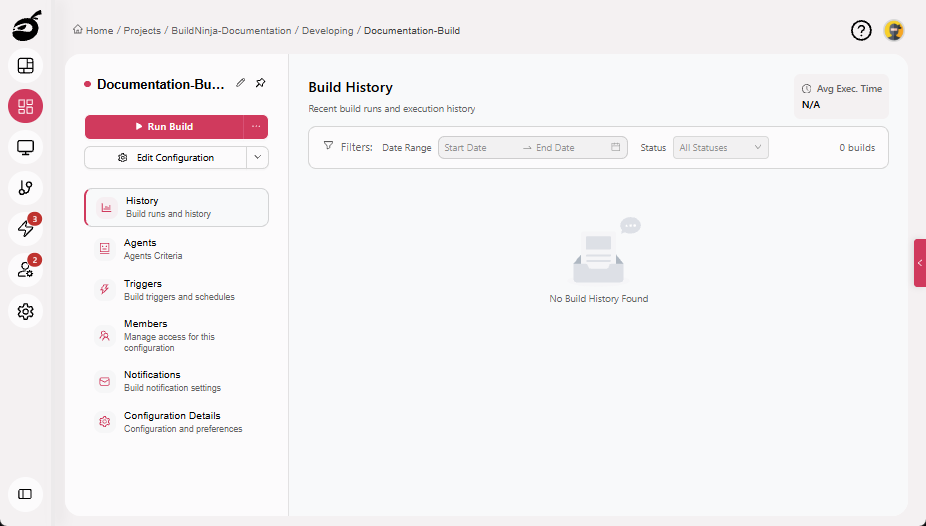
-
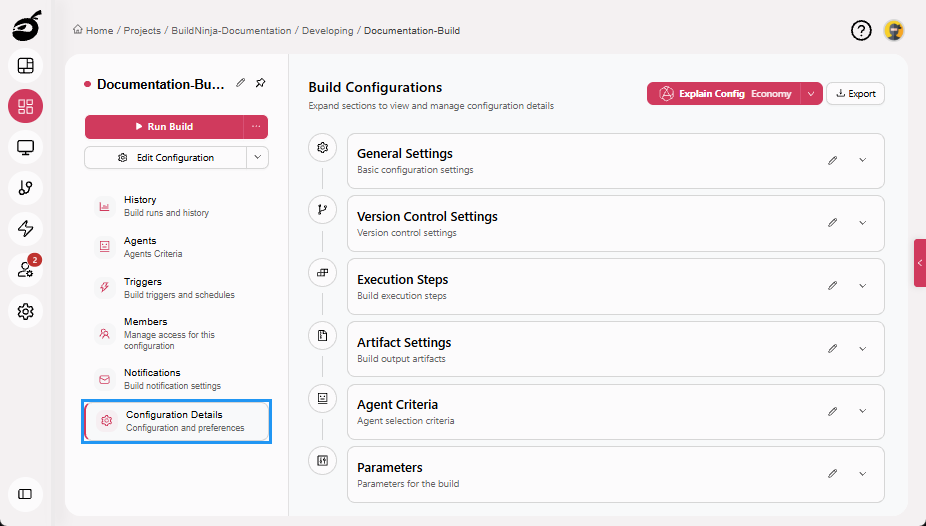
Navigate to Configuration Details tab. You can modify the following settings in the Configuration Details tab:
- General Settings
- VCS Settings
- Execution Steps
- Artifact Settings
- Agent Criteria
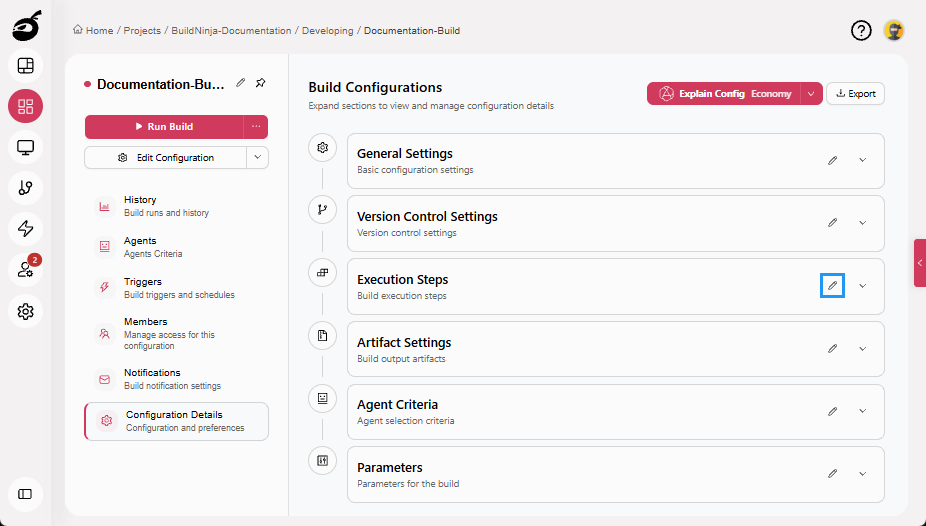
-
Click Edit icon next to the setting name to open its main settings page.
-
Make the necessary edits and click Save to save the updated build configuration.