View Build Results
Build results provide detailed insights into each successful or failed build in BuildNinja. You can review execution outcomes, analyze logs, understand source code changes, and access any generated artifacts. The build results include the following tabs:
-
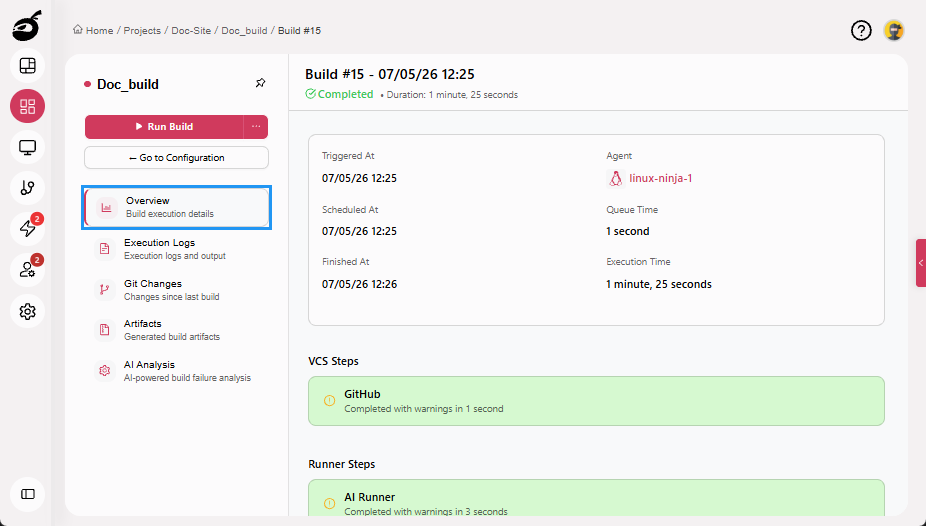
Overview: Displays key build information such as trigger details, build duration, and agent information. It also provides a summary of executed steps, showing which steps completed or failed, their execution time, and whether they finished with or without warnings.
-
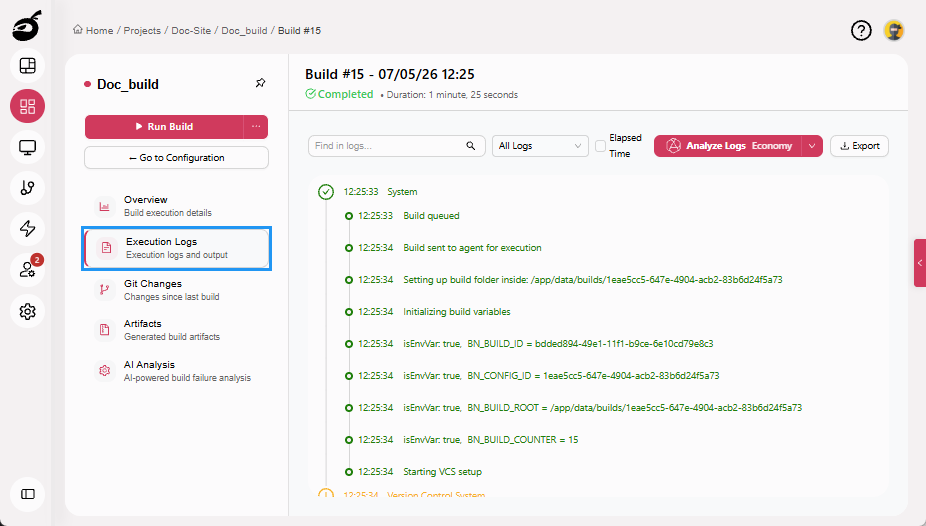
Execution Logs: Provide a step-by-step, timestamped record of the build process for reviewing executed actions and diagnosing errors. In addition to standard log inspection, the Analyze Logs feature uses AI to analyze build logs, identify errors and patterns, and surface likely root causes to accelerate troubleshooting. You can find, filter, export, and analyze logs to investigate issues more efficiently. For more information on AI Log Analysis, see Specialized Analysis ModulesSpecialized Analysis Modules provide focused, AI-powered insights for specific build artifacts, helping teams diagnose failures and understand complex build behavior without manually inspecting logs or configuration file….
-
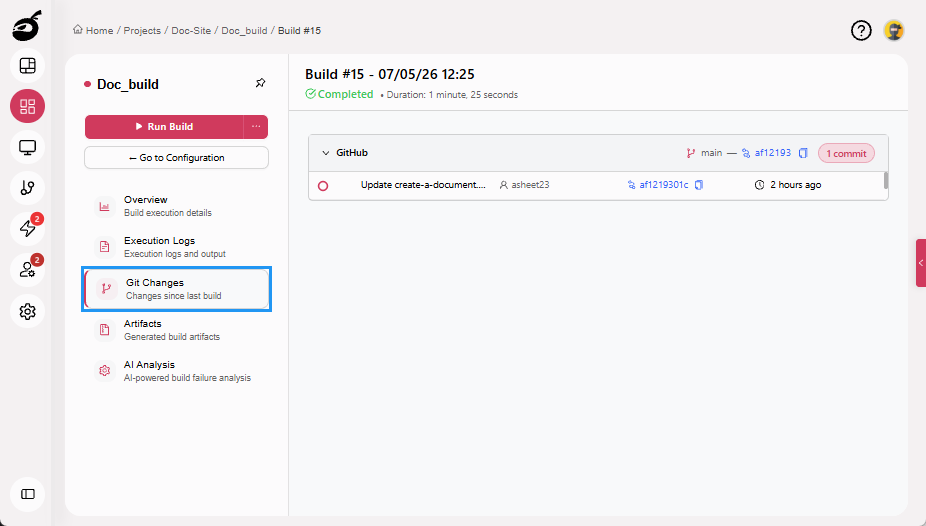
Git Changes: Visualizes all Git changes between the current build and the previous commit. It shows commit-level changes for the build across supported VCS repositories. Each repository is displayed as a collapsible section with commit history and a visual commit graph. If Git data is unavailable, the tab displays an appropriate loading, empty, or error state and updates automatically when data becomes available.
-
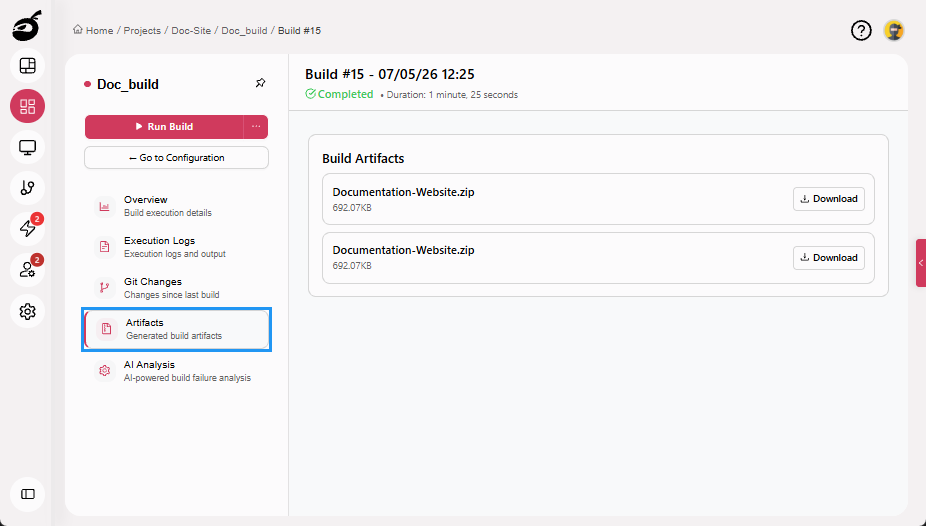
Artifacts: Lists the files generated during the build, if artifact settings are configured. Generated artifacts can be downloaded for further use, review, or distribution.
-
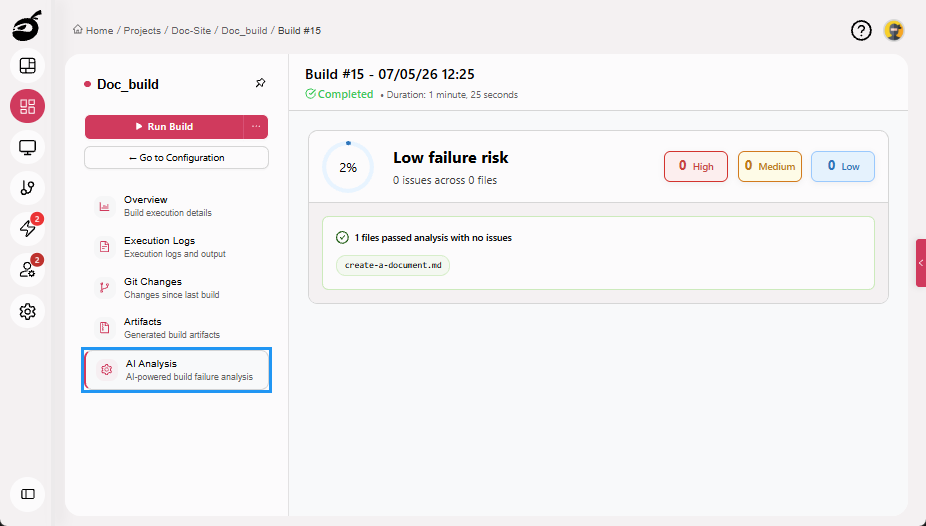
AI Analysis: Provides a document-style report for completed builds by analyzing code changes introduced in the build to surface potential risks and key insights. The report is generated only when an execution step uses the AI Runner. For more information, see AI Build Analysis ReportAI Build Analysis Report is a document-style report integrated into the Build Results in AI Analysis tab. It provides automated build risk assessment along with detailed file-level and code-level insights for completed b….
Accessing Build Results
-
Navigate to Projects
 to access the project management interface.
 -
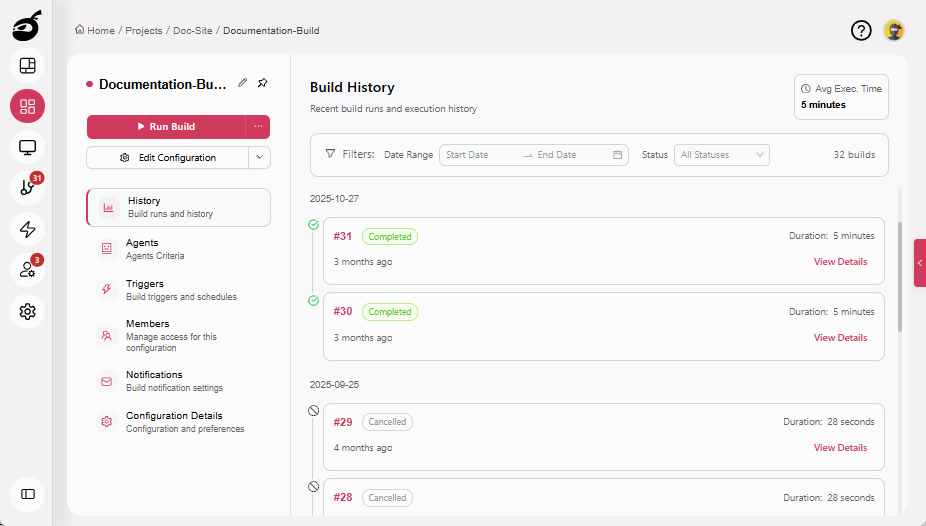
Select the build configuration for which you want to view the results.
-
Click Build Number or View Details to view results.
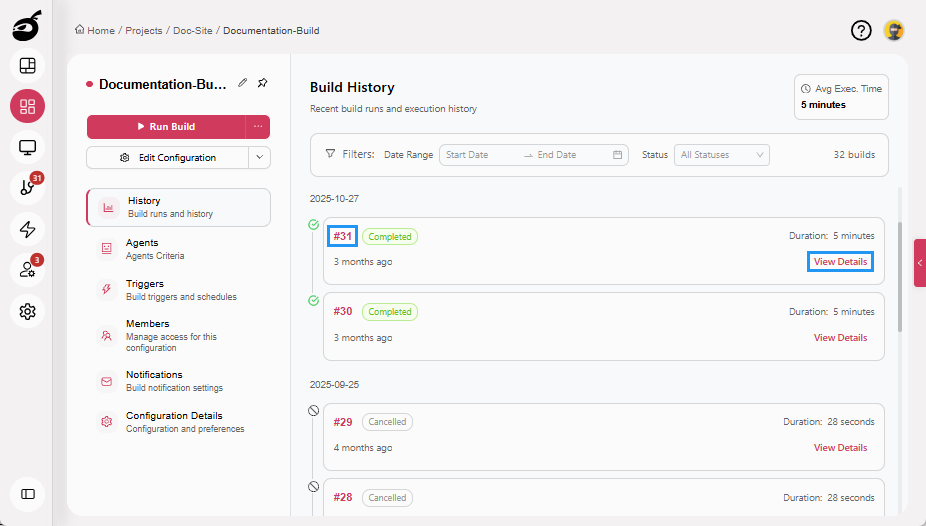 This opens the Overview tab, where you can view key details such as trigger information, duration, and agent information.
View Build Log
The Build Log tab provides a detailed, timestamped view of the build’s execution process. It allows you to trace execution steps, identify issues, and analyze logs through filtering and search tools.
Search Logs
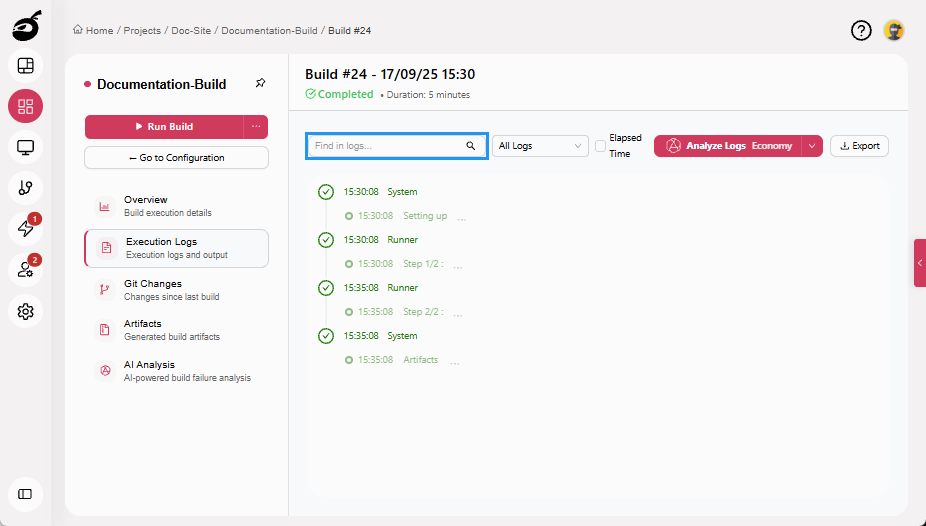
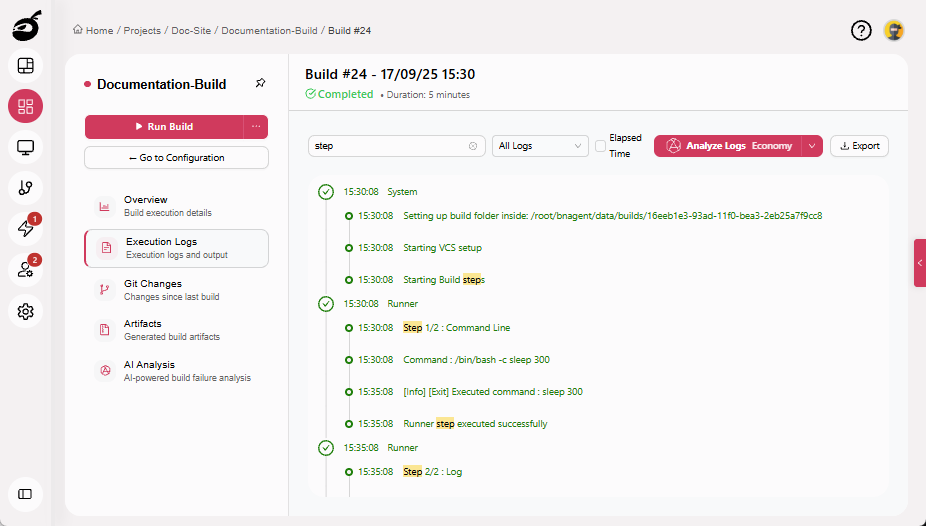
Use the search bar to quickly locate specific keywords or messages within the log. To search within the build log:
-
Locate the Search Bar at the top of the log viewer.
-
Enter a keyword or phrase. Matching words will be highlighted, allowing for quick navigation through the log.
Filter Logs
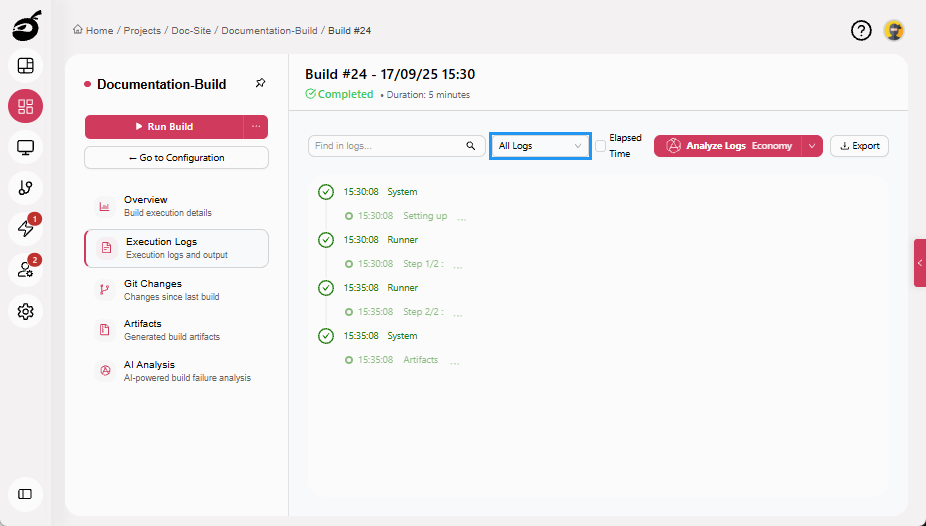
Filtering helps you focus on issues related to a specific system without manually scanning the entire log. You can filter the log by VCS, Runner, or System to view only the relevant entries. To filter the log:
-
Locate the Filter dropdown menu.
-
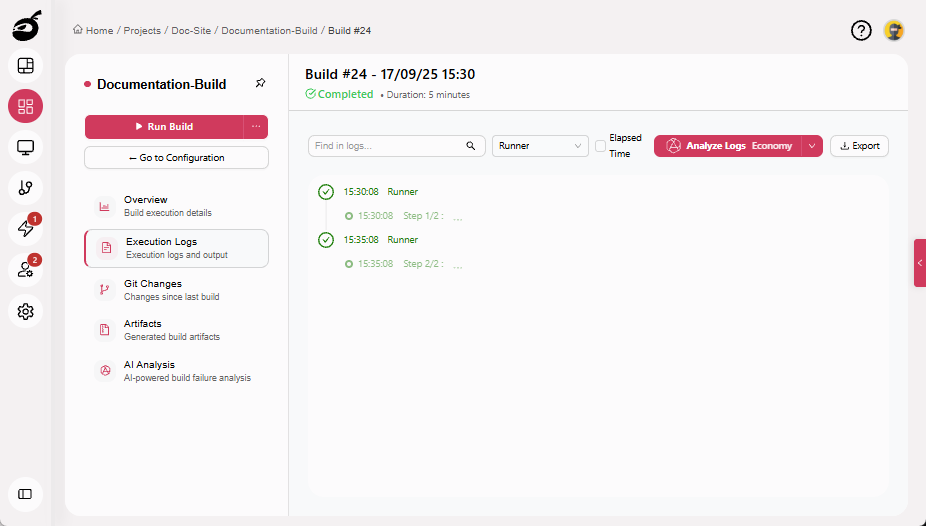
Choose one of the following options:
- All Logs: Displays the complete build log.
- VCS: Shows logs related to version control operations.
- Runner: Shows logs generated during build execution.
- System: Displays logs and events from the build system or infrastructure.
Export Logs
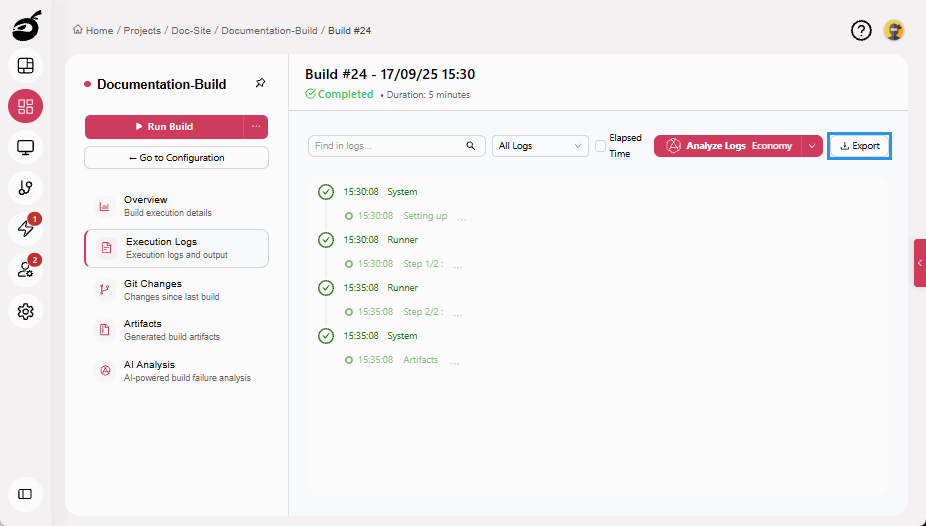
Download the complete build log for offline analysis or archival. To download the build log:
-
Click Export. A CSV file will be downloaded to your system for offline review or sharing.
Limitations
The system limits log data and metadata to a maximum size of 16 MiB. When this threshold is exceeded, it does not save additional logs.