Projects and Builds
Projects and Builds help you organize your work and run builds in BuildNinja. Projects group related applications and settings, while Builds define how your code is compiled, tested, and packaged.
Projects
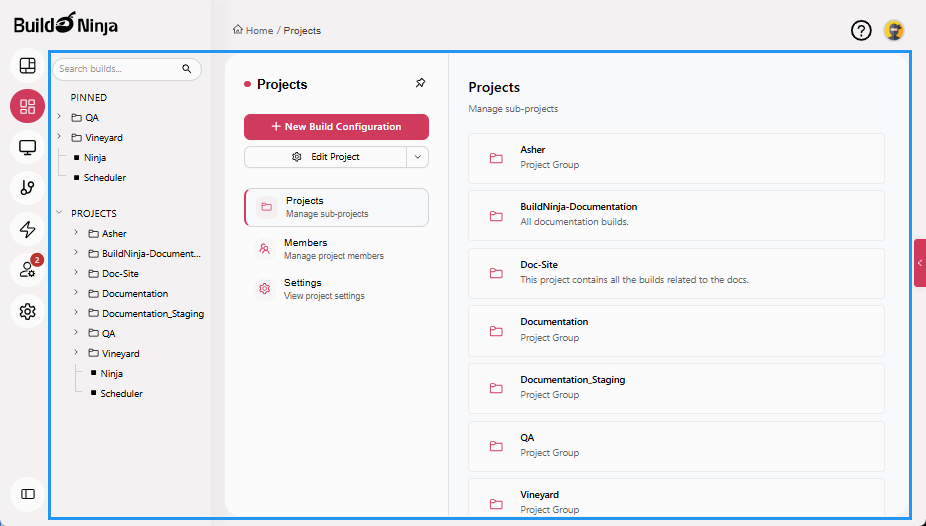
Projects  organizes individual projects, each serving as a container for related sub-projects and build configurations. Within Projects, you can:
- View a list of active projects and sub-projects
- Add, copy, and delete projects
- Add and view build configurations
- Pin frequently accessed projects and build configurations
- Manage user access to projects and build configurations
- Define and manage build parameters
Each project serves as a container for its build configurations, execution history, and related records.
Projects Tabs
The following tabs are available to help you manage and configure projects:
-
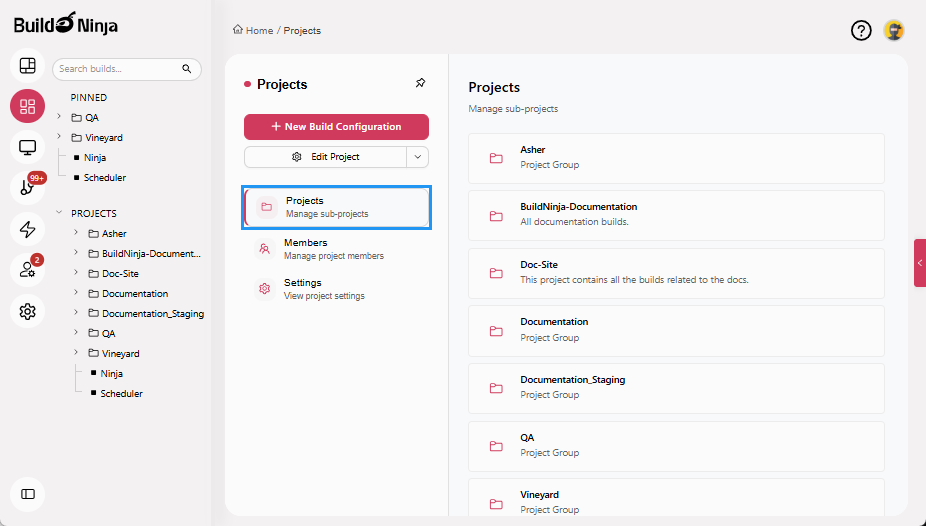
Projects: Organizes projects, sub-projects, and build configurations in a hierarchical structure. You can create, copy, delete, and pin projects, as well as add and view build configurations.
-
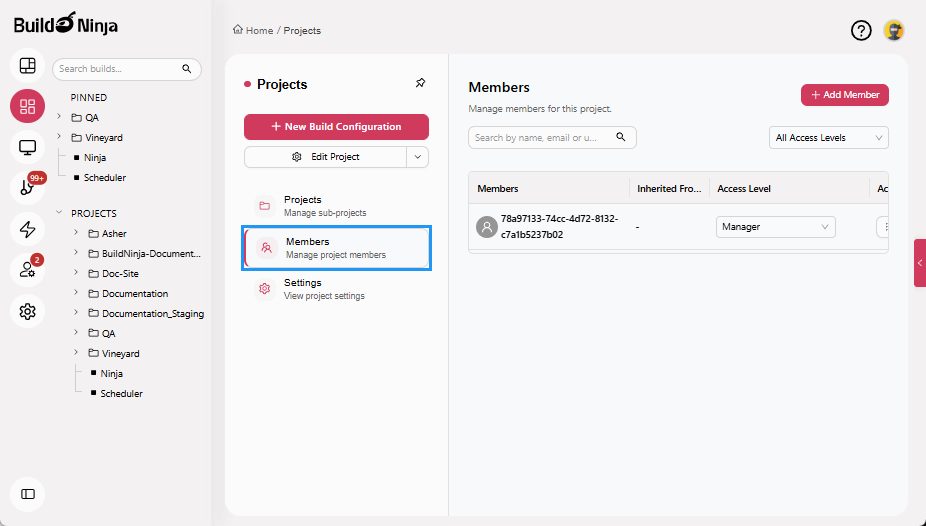
Members: Controls user access to projects and build configurations using Role-Based Access Control (RBAC). You can add users, assign roles, and manage permissions at the project level.
-
Settings: Provides access to project-level configuration options.
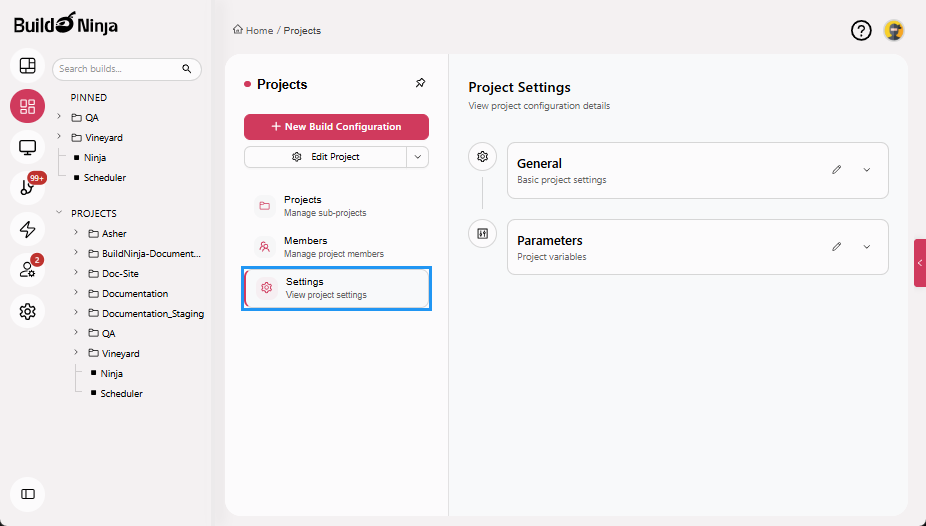
Projects Settings Tabs
The following tabs are available to help you manage project settings:
-
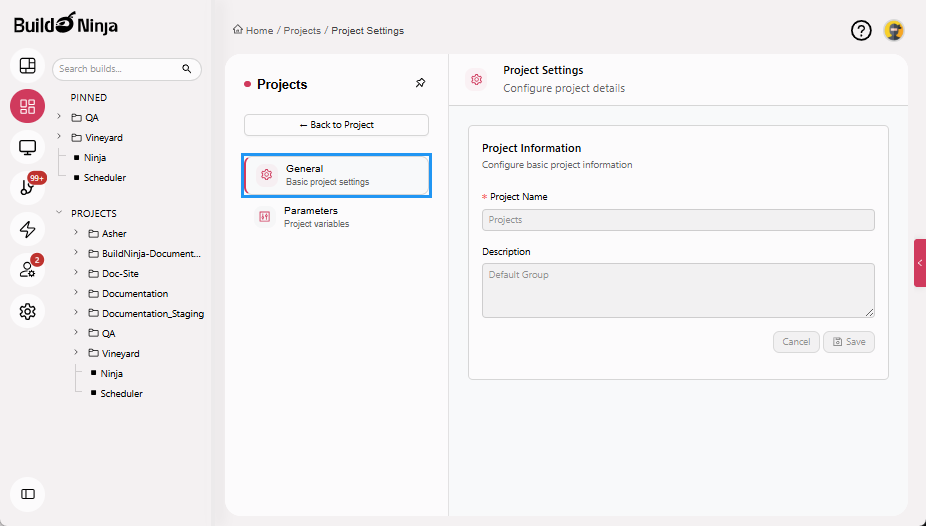
General: Allows you to update the project name and description.
-
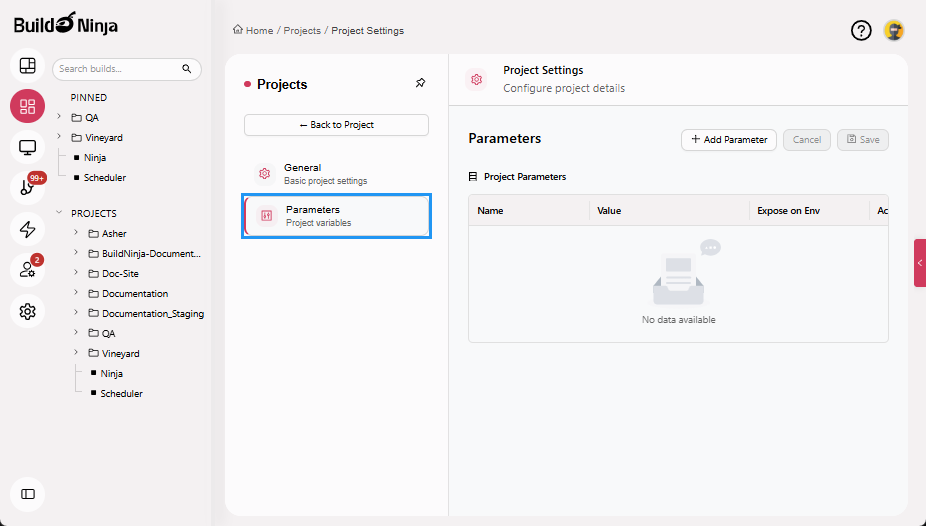
Parameters: Allows you to define and manage build parameters used by build configurations within the project.
Build
Build provides detailed insight into individual build processes, allowing you to manage, monitor, and troubleshoot builds effectively. It enables you to:
- Browse the history of past builds
- View logs for each step in the build process
- Analyze execution logs using AI to identify likely failure causes
- Review and analyze build configuration using AI for better understanding and validation
- Check and update configuration details
- Define and manage build parameters to customize build behavior
- Identify and troubleshoot build failures
- Download build artifacts
- View compatible agents for the build
- Configure triggers to automate build execution
- Manage user access to the build using RBAC
- Manually run builds when needed
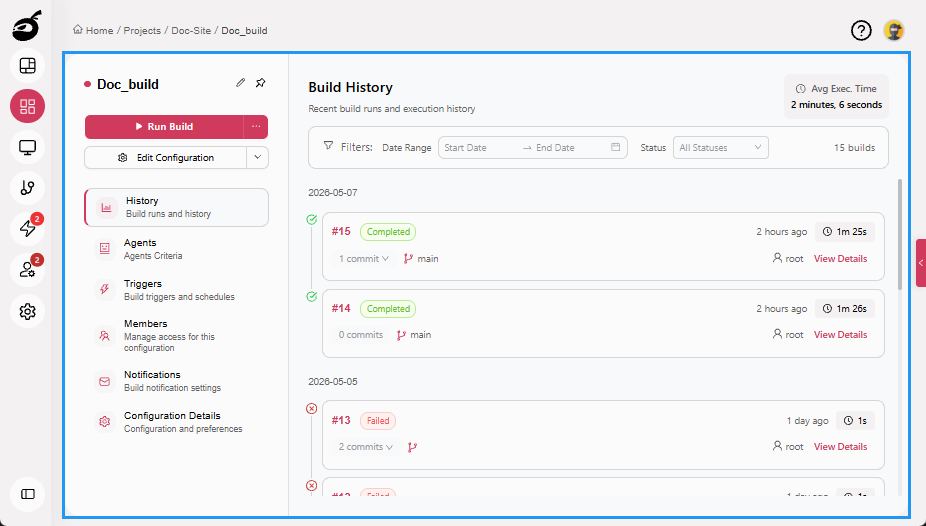
Build Tabs
The following tabs are available to help you interact with and configure builds:
-
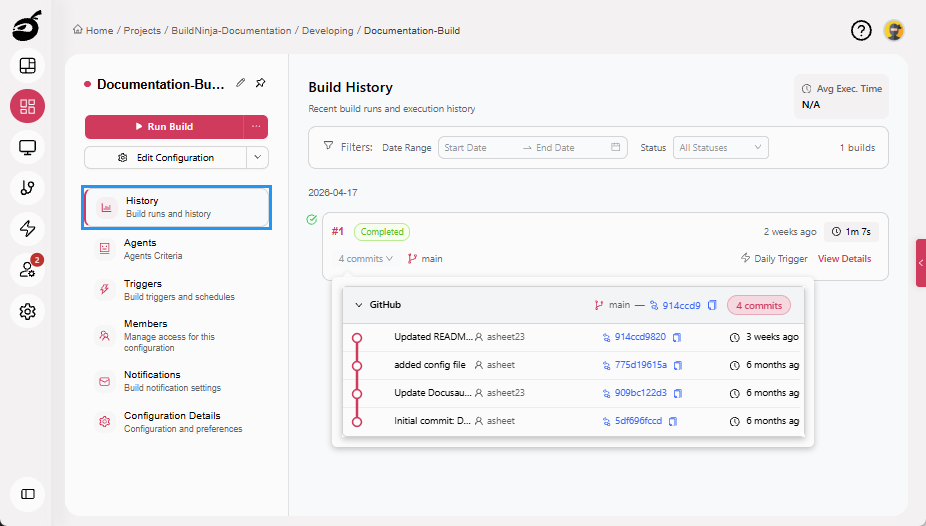
History: Displays high-level build information such as status, trigger time, and duration, along with Git insights including commit count per build, recent commits, associated branches, and aggregated changes across multiple VCS repositories. The History tab also allows users to open the build results for a specific build and filter the builds by date and build status.
-
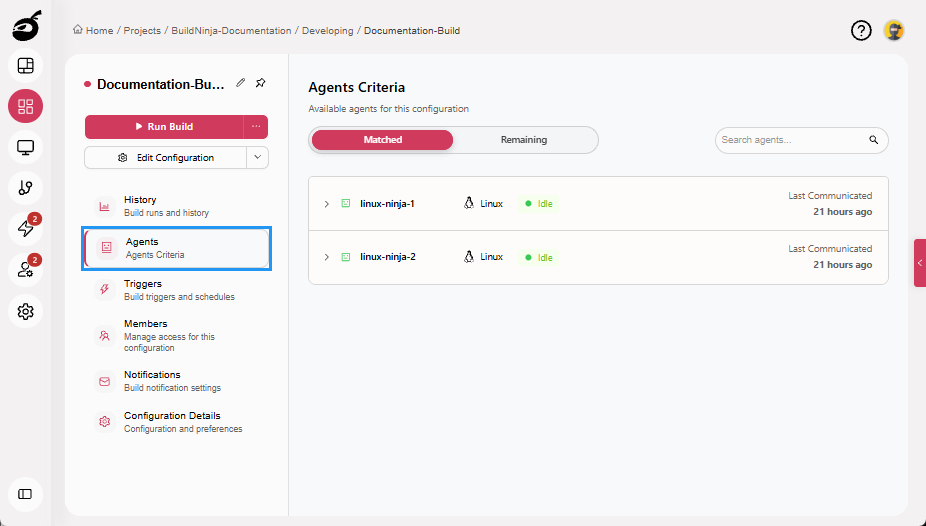
Agents: Lists available build agents capable of running the build, based on platform, capacity, and configuration.
-
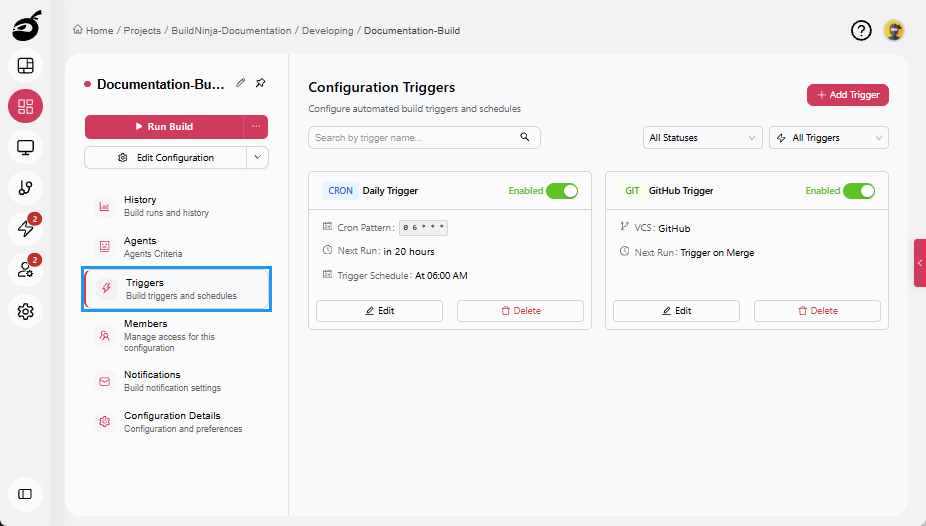
Triggers: Allows you to define when builds should be triggered.
-
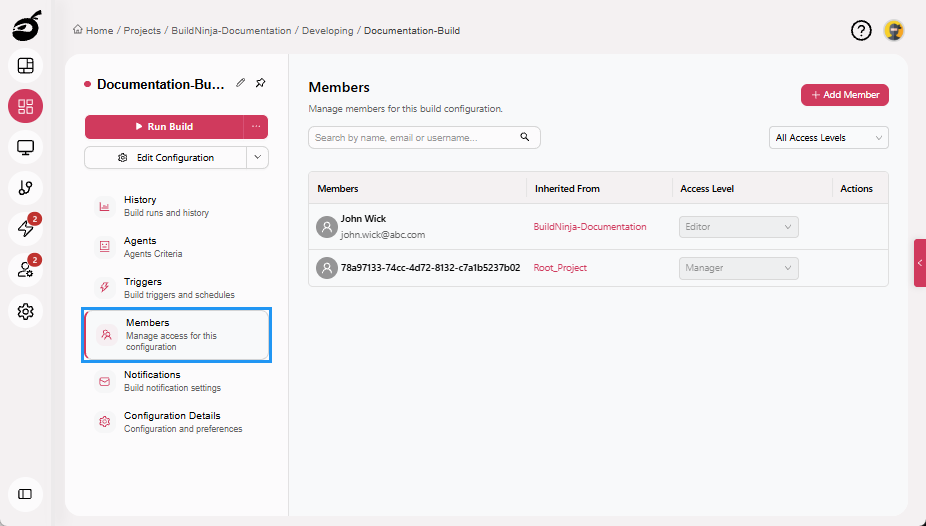
Members: Controls user access to the build configuration using RBAC. You can add users, assign roles, and manage permissions specific to the build configuration.
-
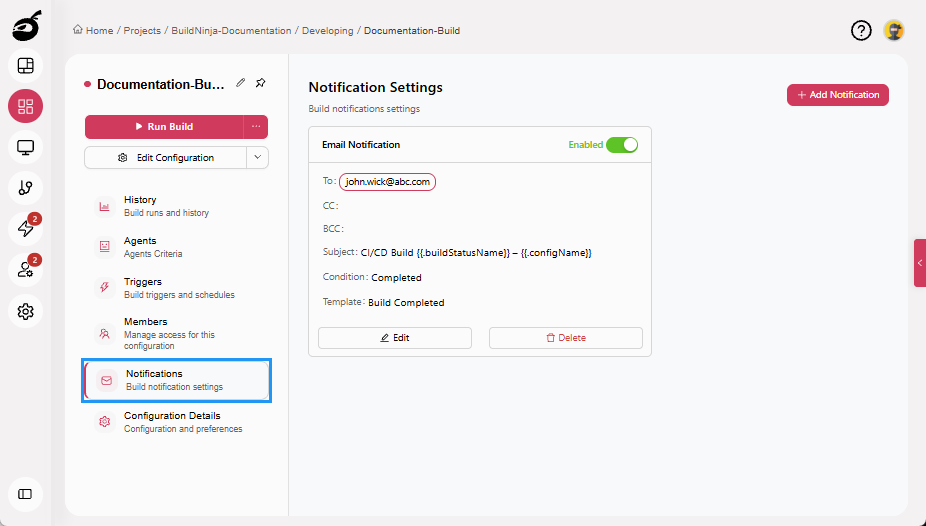
Notifications: Allows you to define how and when you receive alerts for your builds.
-
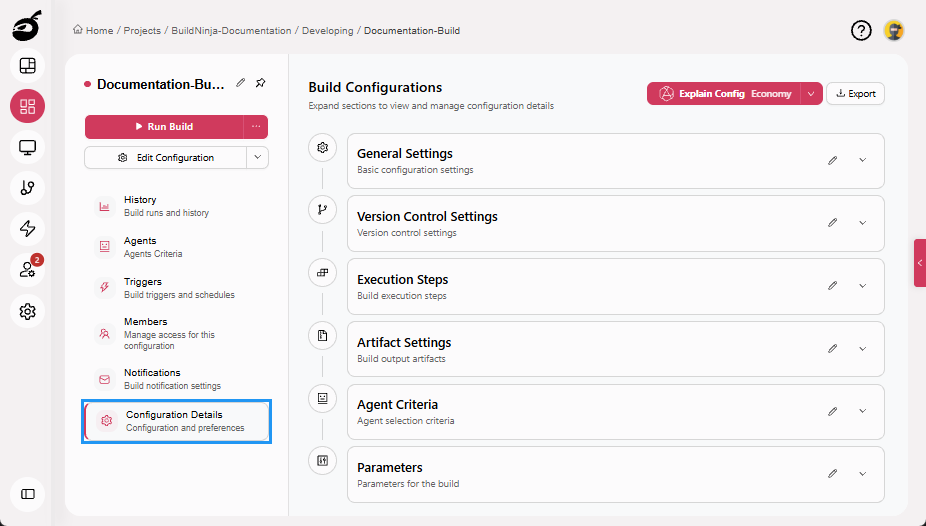
Configuration Details: Provides access to the build’s configuration options, including repository settings, execution steps, artifact settings, and agent criteria. It also supports Explain Build Configuration with AI for contextual explanations of configuration parameters and structures.
Build Configuration Tabs
The following tabs are available to configure and manage your build settings and requirements:
-
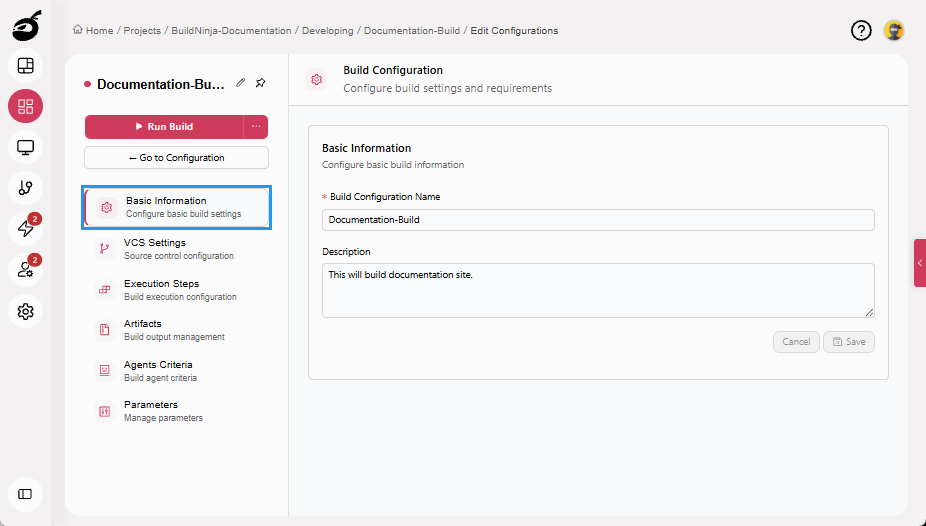
Basic Information: Manage the build name and description.
-
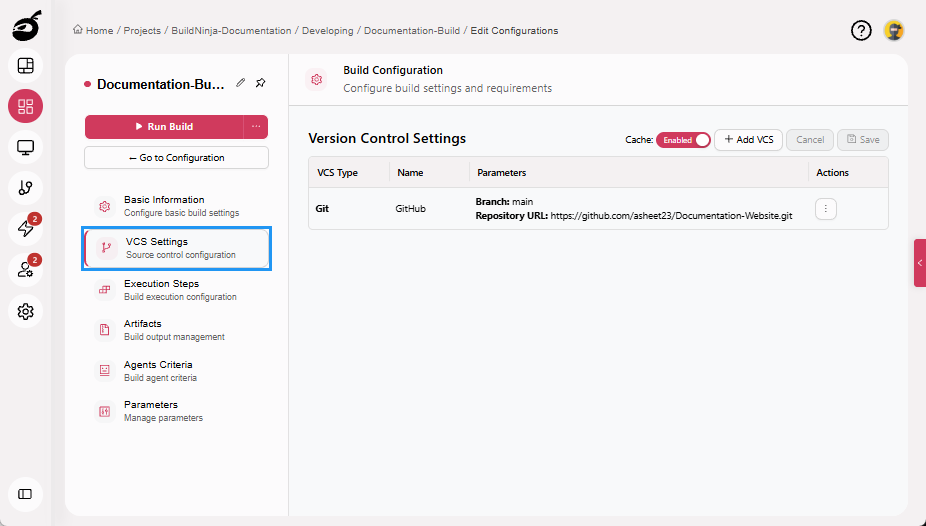
VCS Settings: Configure version control repositories and caching.
-
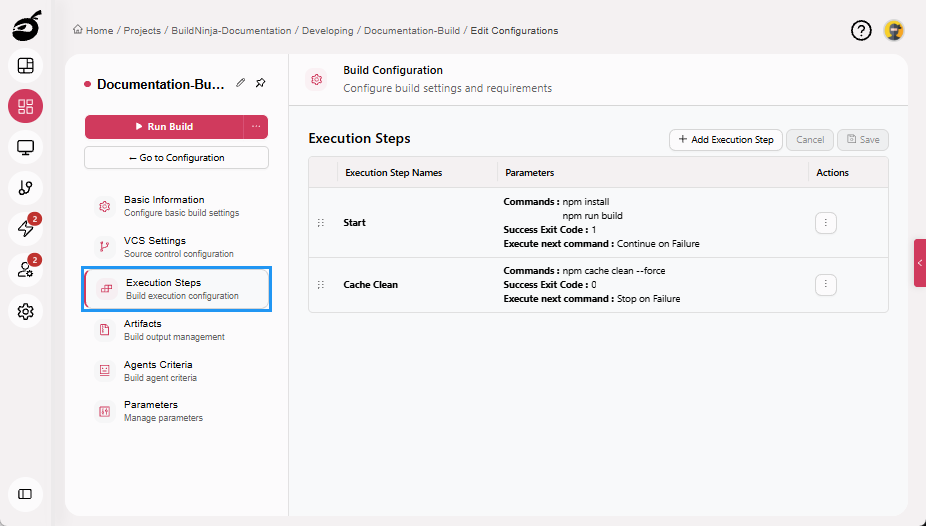
Execution Steps: Define the sequence of actions for building, testing, and deploying code.
-
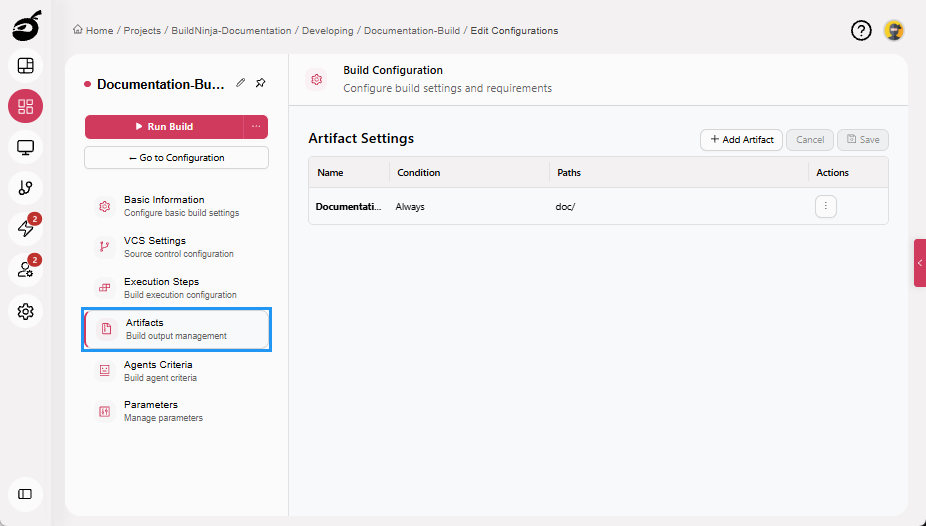
Artifacts: Specify the directories where build artifacts will be stored after the build process completes.
-
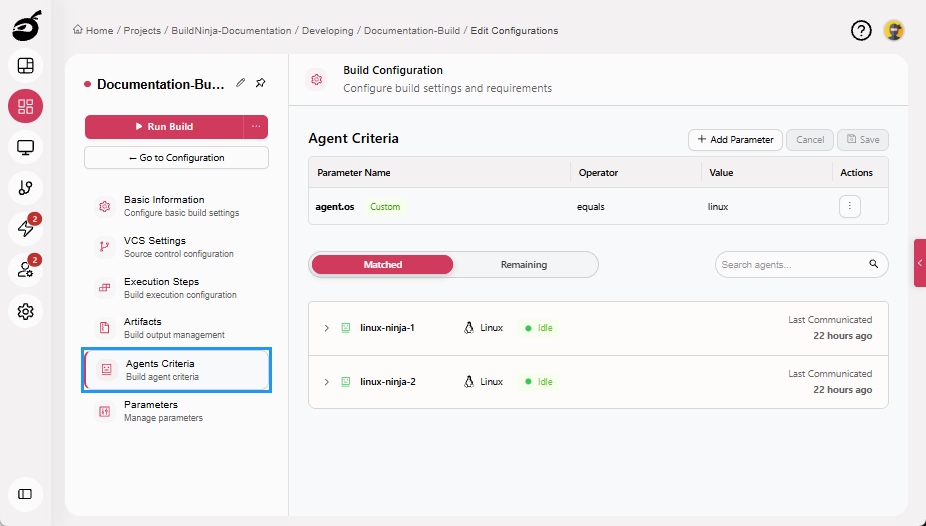
Agents Criteria: Set rules to select suitable build agents based on OS, tools, or tags.
-
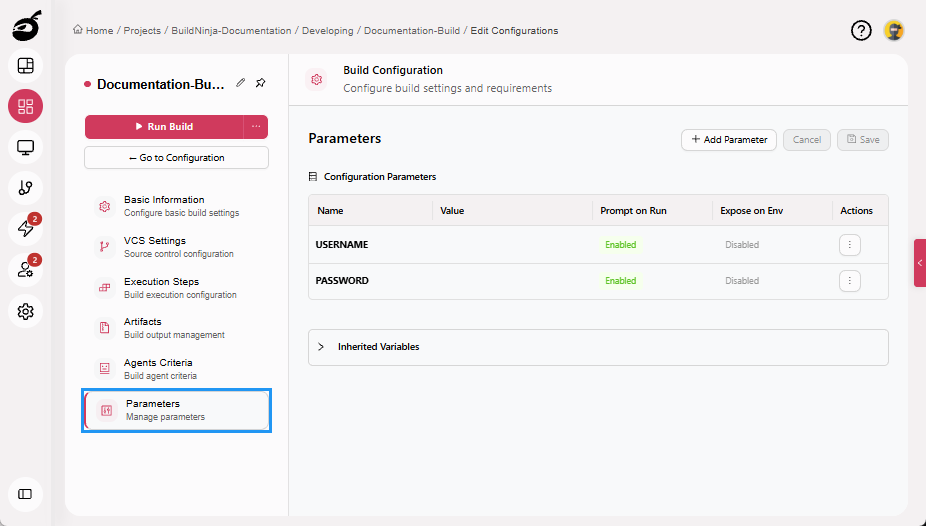
Parameters: Define and manage build parameters that can be used within the build configuration. These parameters allow you to customize build behavior and reuse values across execution steps.
Build Result Tabs
The following tabs are available to view build results that provide detailed insights into each successful or failed build:
-
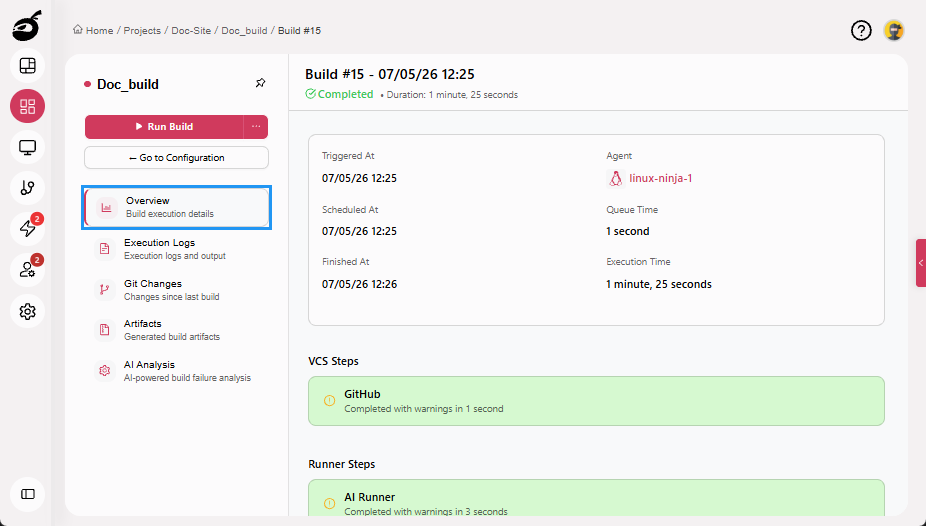
Overview: Displays key details such as trigger information, build duration, agent details, and step details.
-
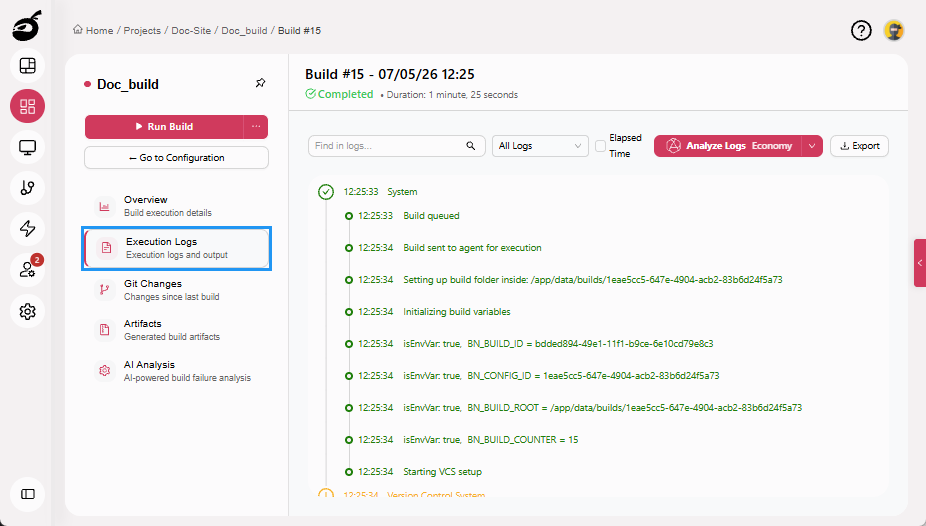
Execution Logs: Provides a step-by-step record of the build process for reviewing executed actions and diagnosing errors. It also supports Analyze Logs, which uses AI to identify likely root causes of build failures and simplify troubleshooting.
-
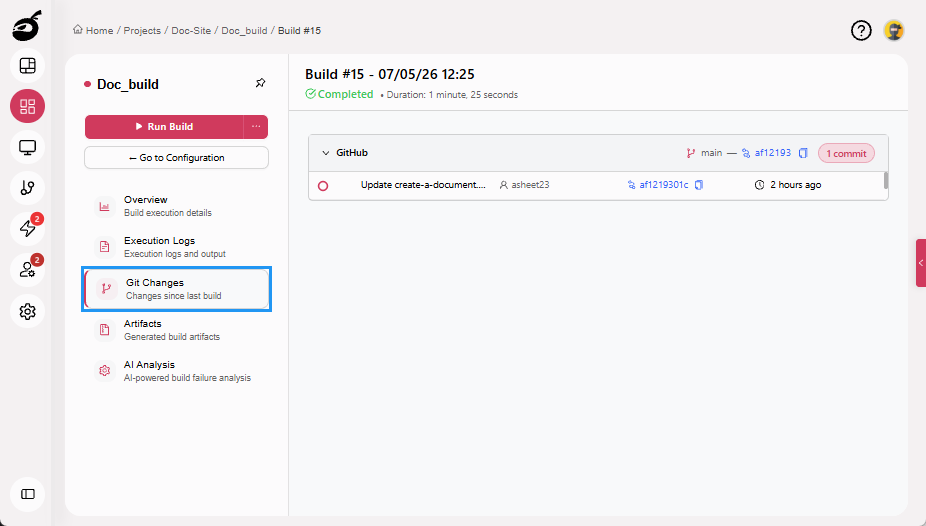
Git Changes: Visualizes all Git changes between the current build and the previous commit.
-
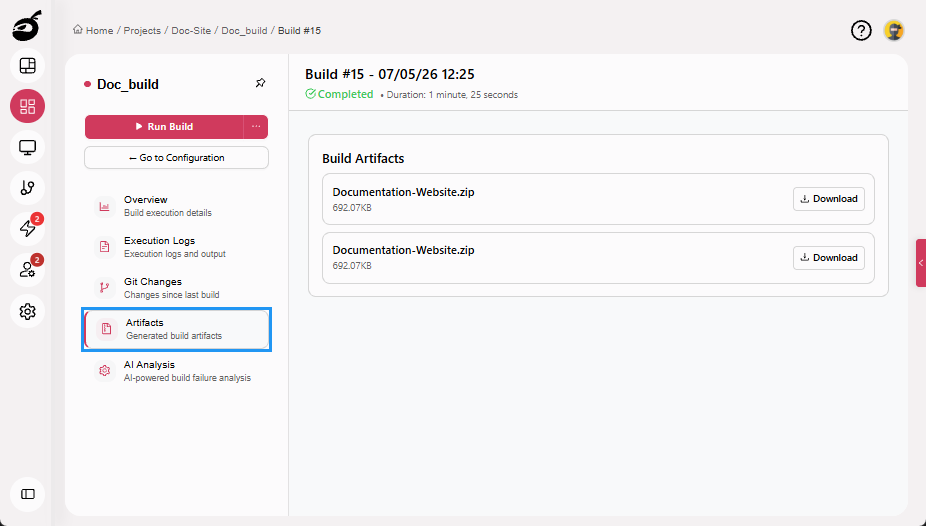
Artifacts: Lists the files generated during the build, if artifact publishing is configured.
-
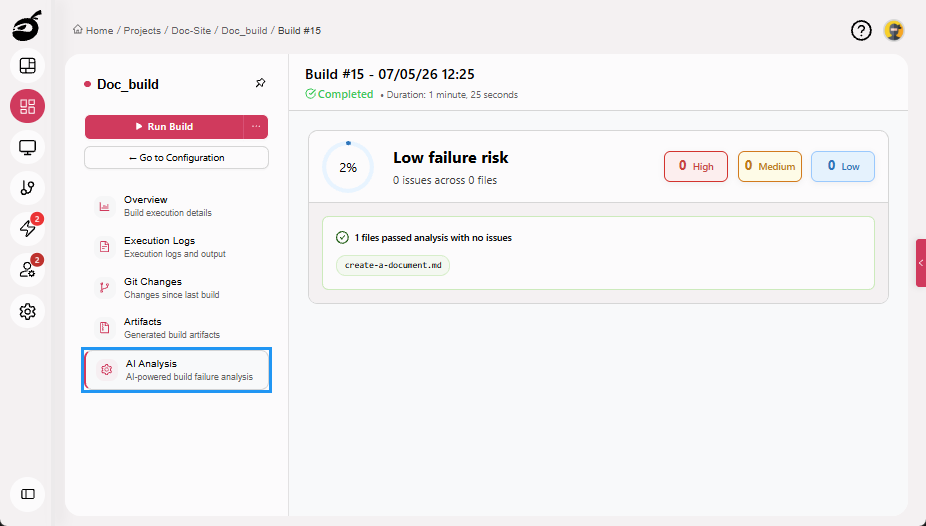
AI Analysis: Provides a document-style report for completed builds, analyzing code changes introduced in the build to surface potential risks and key insights. This report is generated only when an execution step is configured with the AI Runner.