How to Configure Email Alerts for Failed Builds
Configure email alerts in BuildNinja to notify your development team immediately when a build fails. This helps teams respond quickly to CI failures and reduce downtime in enterprise pipelines. This configuration uses:
- System-level Notifier Settings (SMTP)
- Build Failed Mail Templates
- Build Notification Settings
Prerequisites
Before you begin, ensure that:
- You have administrator access to configure system settings.
- An SMTP server is available for sending emails.
- The target build configuration already exists.
- Recipient email addresses or distribution lists are identified.
Step 1: Set Up Notifier Settings
Notifier Settings act as a global email integration for the entire BuildNinja system. These settings must be configured before any build notifications can be sent.
-
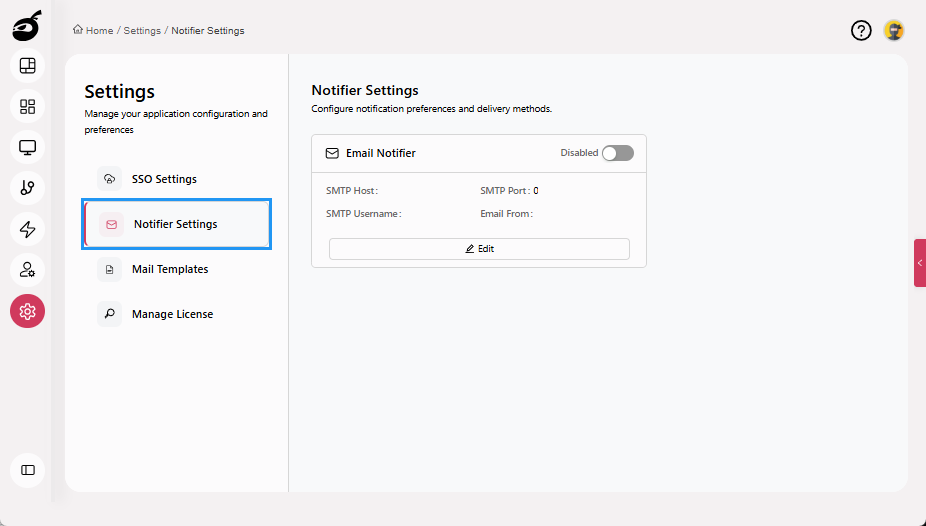
Navigate to Settings and open Notifier Settings.
-
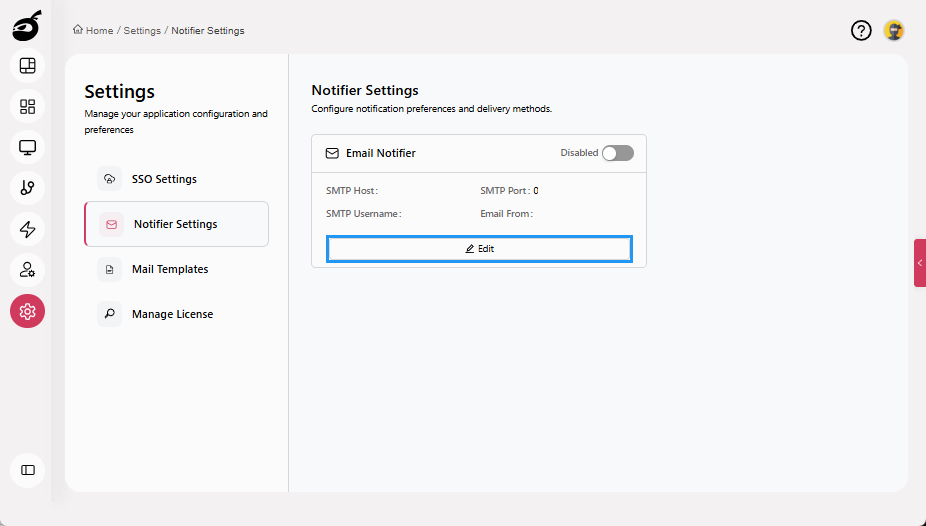
Click Edit on the Email Notifier card.
-
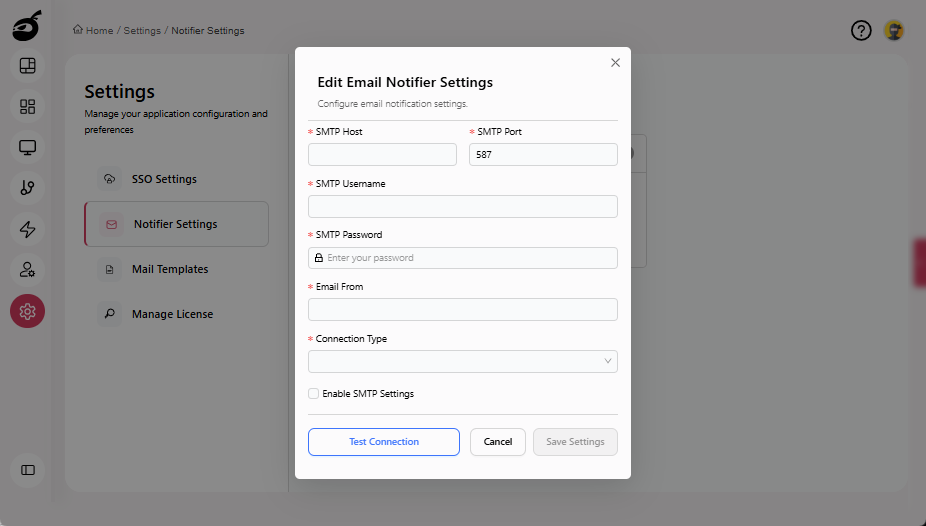
Enter the following details:
- SMTP Host: Hostname or IP of the SMTP server (for example,
smtp.gmail.com) - SMTP Port: Port used by the SMTP server (465 for SSL, 587 for TLS)
- SMTP Username: SMTP authentication username
- SMTP Password: Password or app-specific token
- Email From: Sender email address shown in notifications
- Connection Type: SSL/TLS, STARTTLS, or None
- SMTP Host: Hostname or IP of the SMTP server (for example,
-
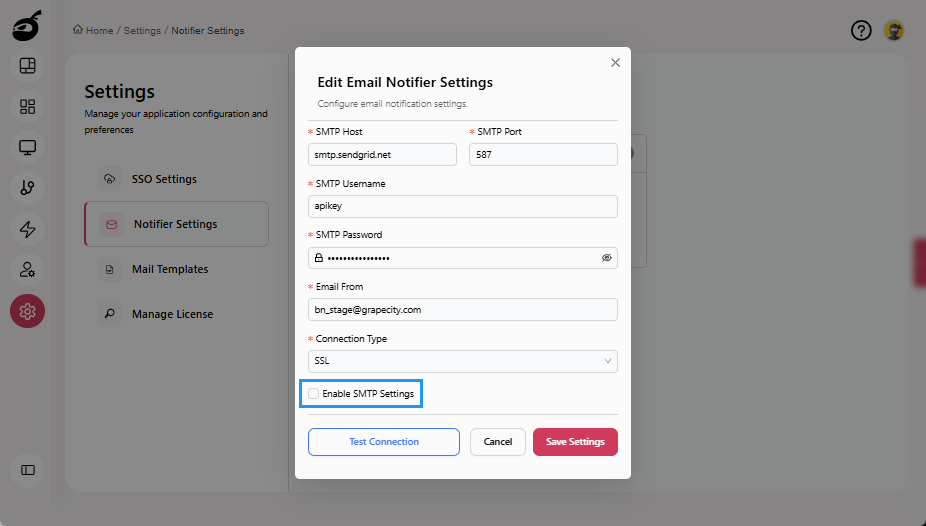
Select Enable SMTP Settings to activate the notifier immediately (optional).
-
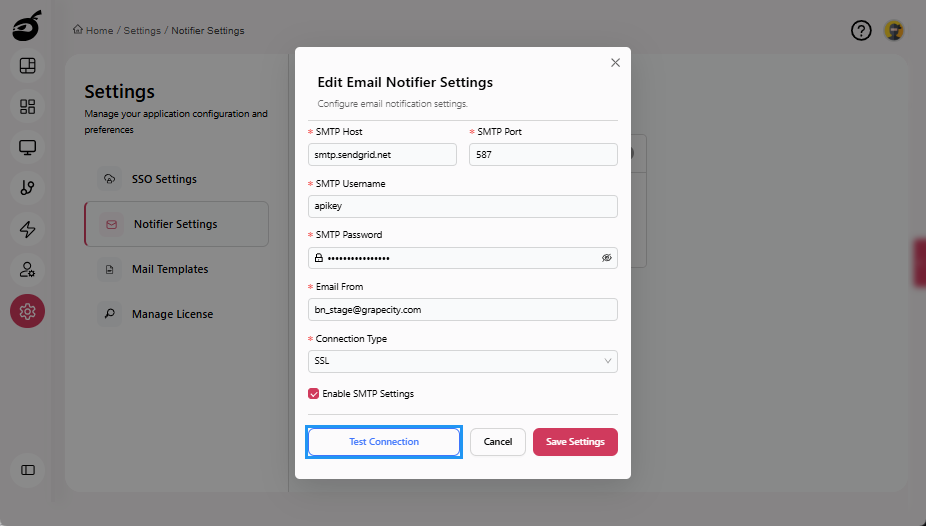
Click Test Connection to validate the SMTP configuration (optional).
-
Click Save Settings.
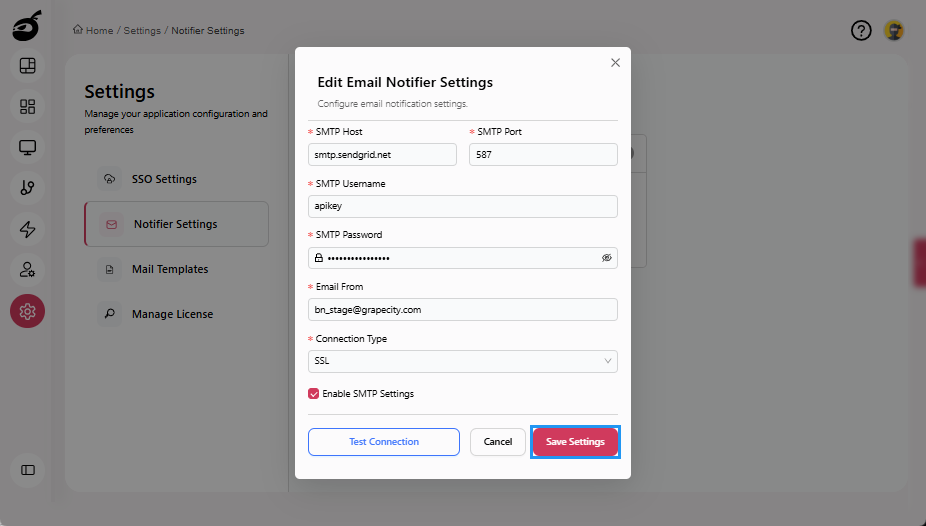
The email notifier is now configured and available to all projects.
Step 2: Create or Customize a Build Failed Mail Template
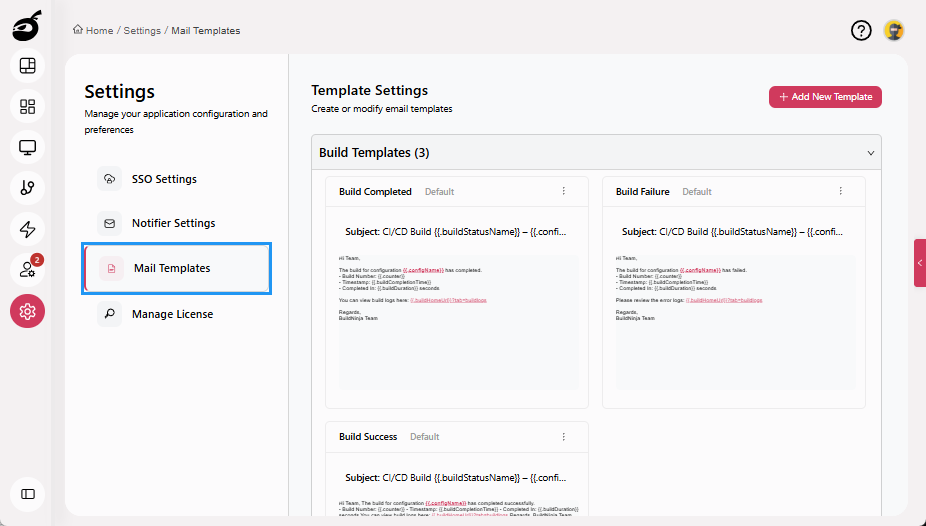
Mail Templates define the subject and content of build notification emails. For failed builds, a Build Failed template is used.
-
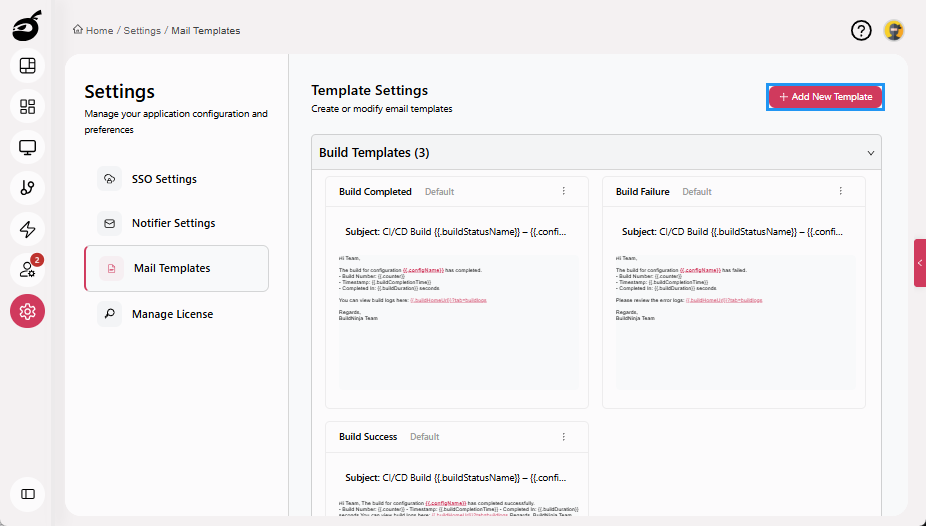
Navigate to Settings and open Mail Templates.
-
Click Add New Template.
-
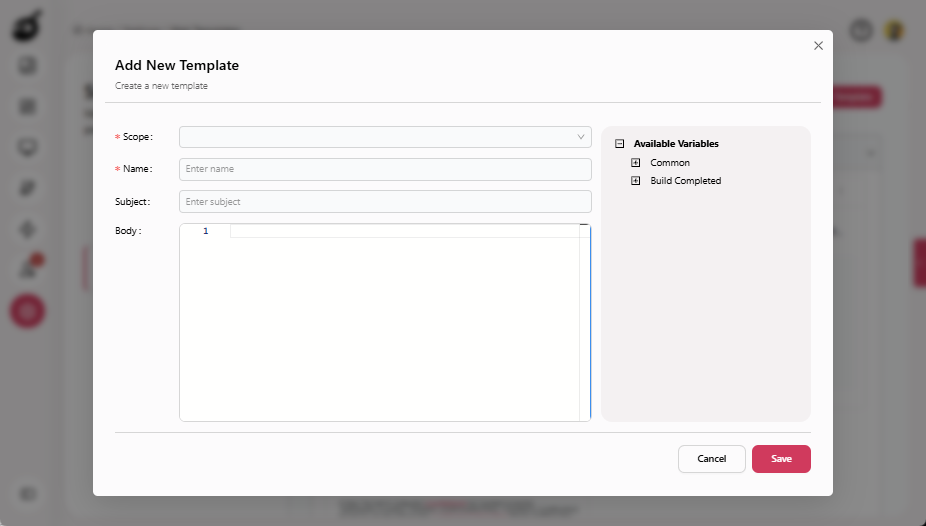
Enter the following details:
- Scope: Build Failed
- Name: Build Failed Alert - Engineering
- Subject:
Build Failed: {{.configName}} #{{.counter}} - Body (HTML example):
<h3>Build Failed</h3>
<p>
  <b>Configuration:</b> {{.configName}}<br/>
  <b>Status:</b> {{.buildStatusName}}<br/>
  <b>Triggered At:</b> {{.buildTriggerTime}}<br/>
  <b>Duration:</b> {{.buildDuration}} seconds
</p>
<p>
  <a href="{{.buildHomeUrl}}">View Build Details</a>
</p>
<br/>
Regards,<br/>
BuildNinja Team<br/>
-
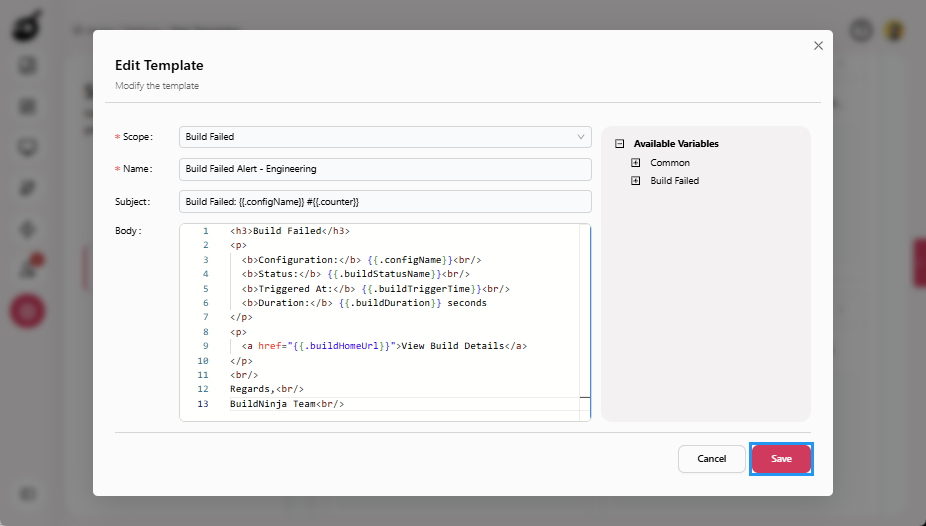
Click Save to create the template.
 note
noteThe email body must be valid HTML. Unsupported variables cannot be saved. For more information, see Configure Mail TemplatesMail Templates define the subject and body of email notifications sent by the system for specific events such as user registration, password resets, build status changes, and system-level actions..
Step 3: Configure Build Notification Settings
Notification Settings determine when and to whom emails are sent for a specific build configuration.
-
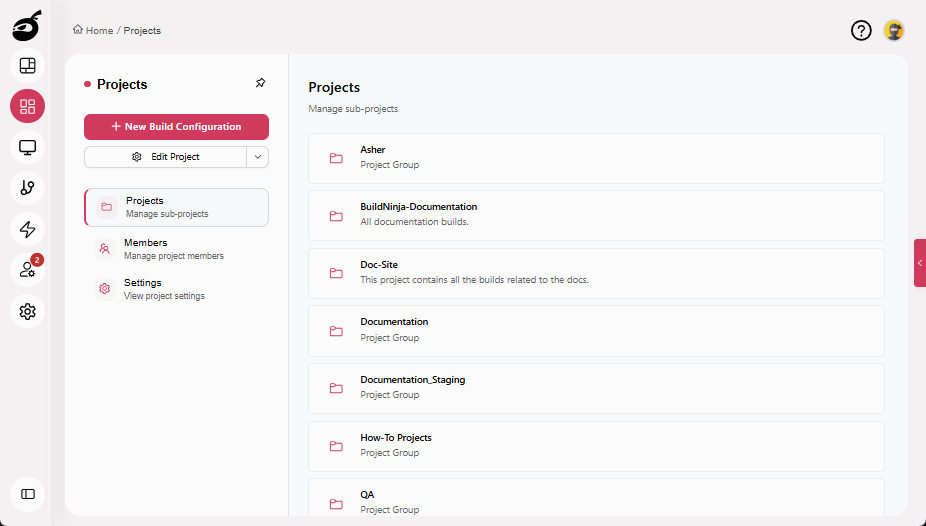
Navigate to Projects.
-
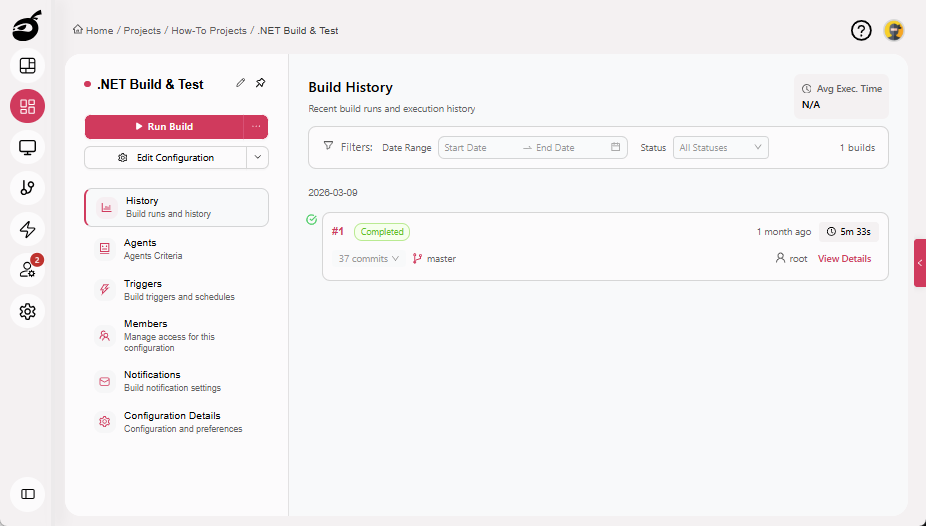
Open the target Build Configuration.
-
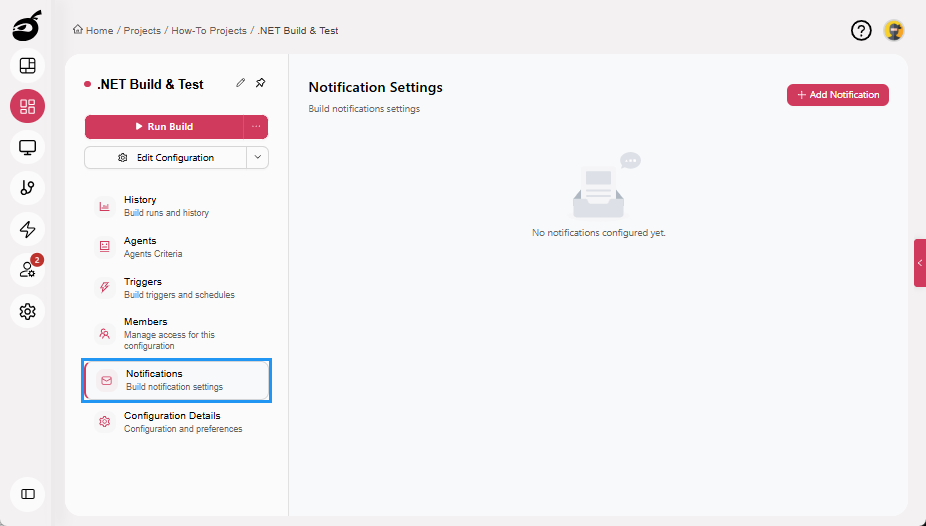
Open the Notifications tab.
-
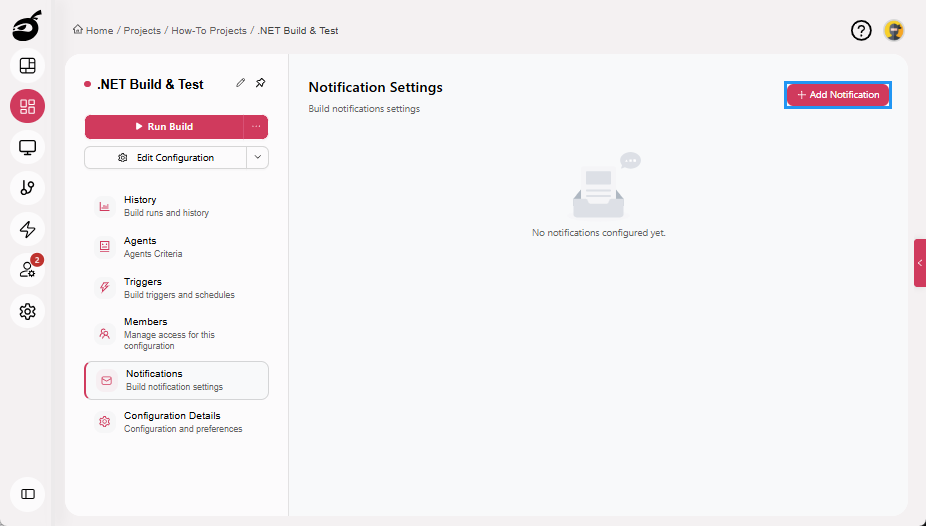
Click Add Notification.
-
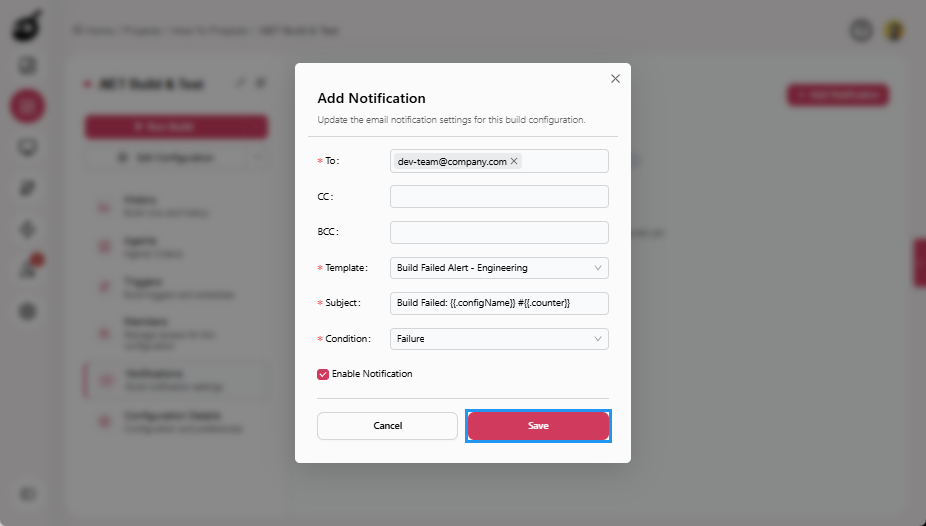
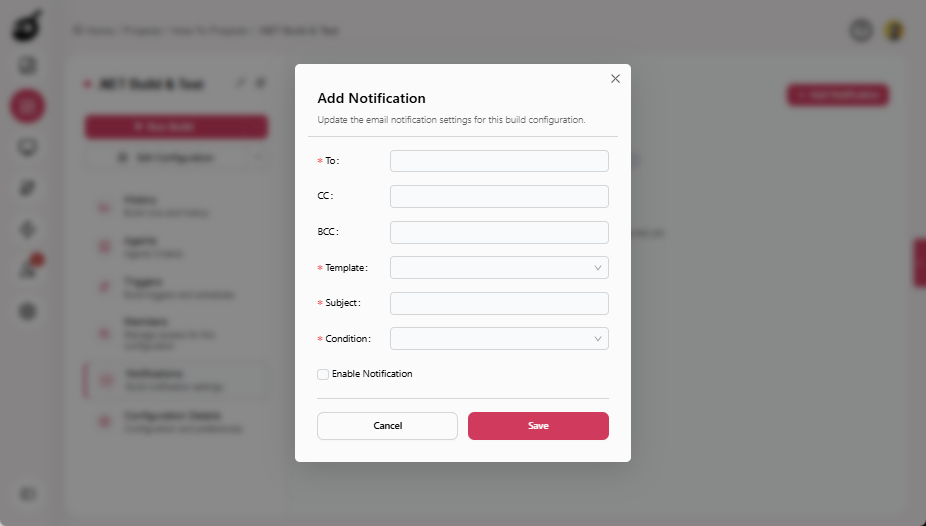
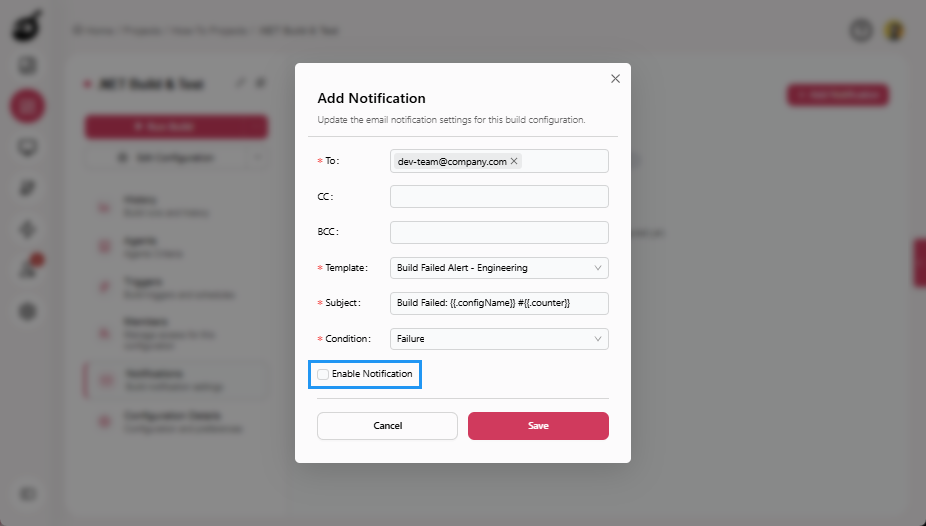
Configure the notification details:
- To: Primary recipients (for example, dev-team@company.com)
- CC: Secondary recipients
- BCC: Hidden recipients
- Template: Build Failed Alert - Engineering
- Subject: Auto-filled from template (editable if needed)
- Condition: Failure
-
Enable Enable Notification to activate immediately (optional).
-
Click Save.