How to Build a Docker Image
Configure a build configuration in BuildNinja to package your application source code into a Docker container image. This guide explains how to build the image and optionally push it to a container registry so it can be deployed to environments such as Kubernetes or other container platforms. This configuration uses:
- Command Line Runner to execute Docker commands.
- Docker Integration to build and manage container images.
- Protected Build Parameters to securely store registry credentials.
Prerequisites
Before you begin, ensure that:
- You have access to a BuildNinja project.
- Your repository contains a valid Dockerfile.
- A BuildNinja agent is registered and online.
- Docker is installed and accessible on the build agent that will execute the build.
- Credentials are available for the container registry (if pushing images).
Step 1: Create Build Configuration
-
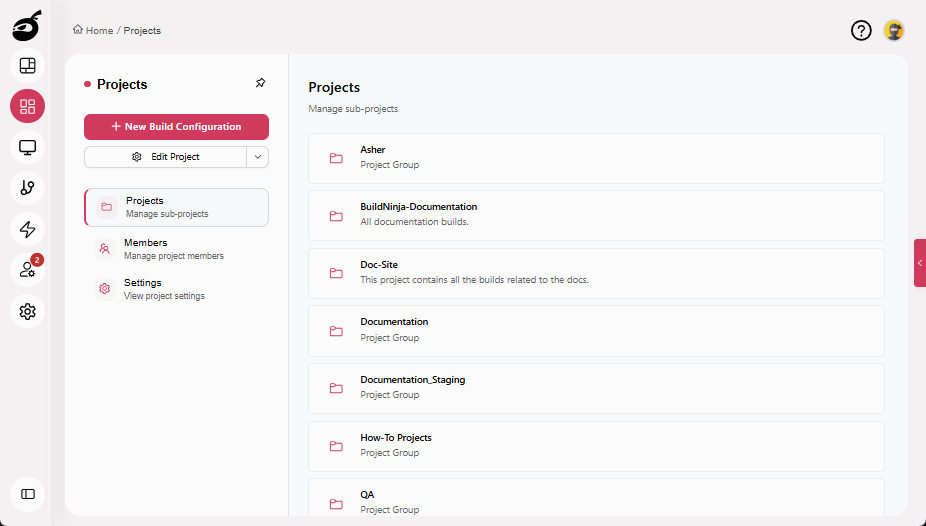
Navigate to Projects.
-
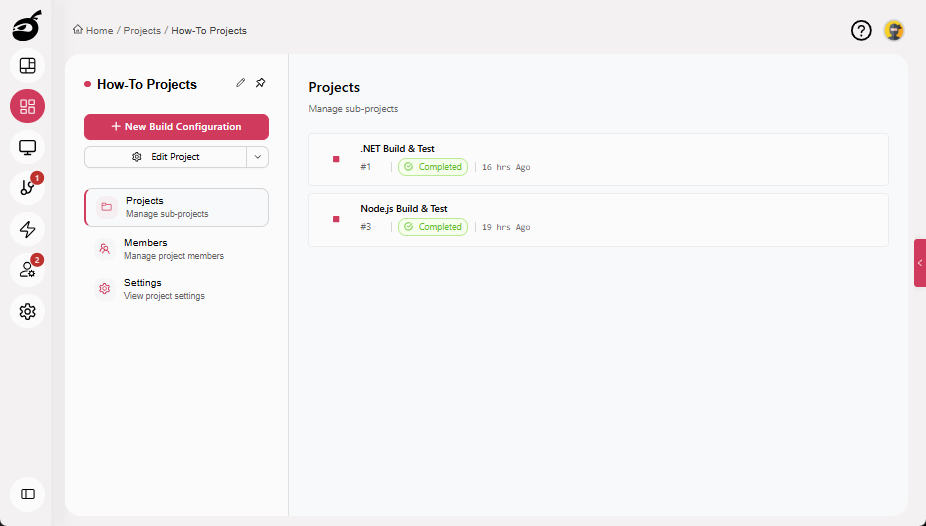
Select the project where you want to configure the build.
-
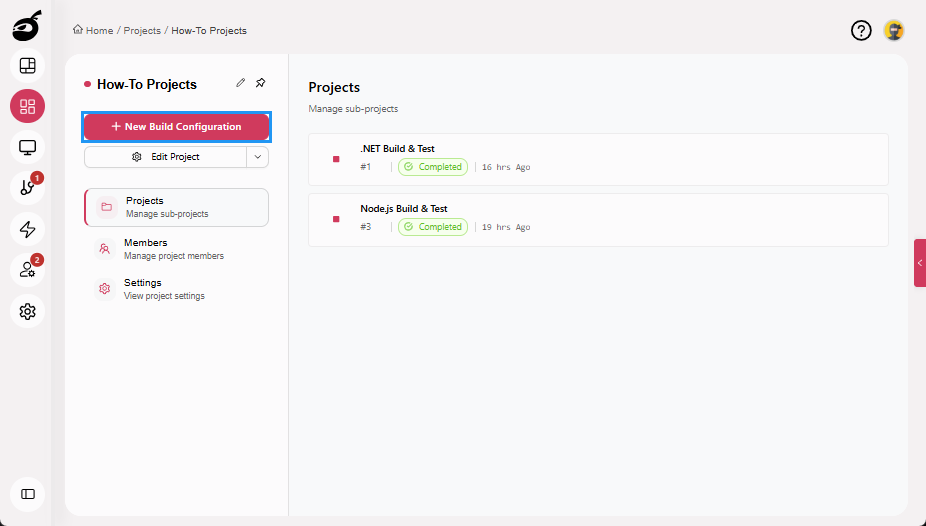
Click New Build Configuration.
-
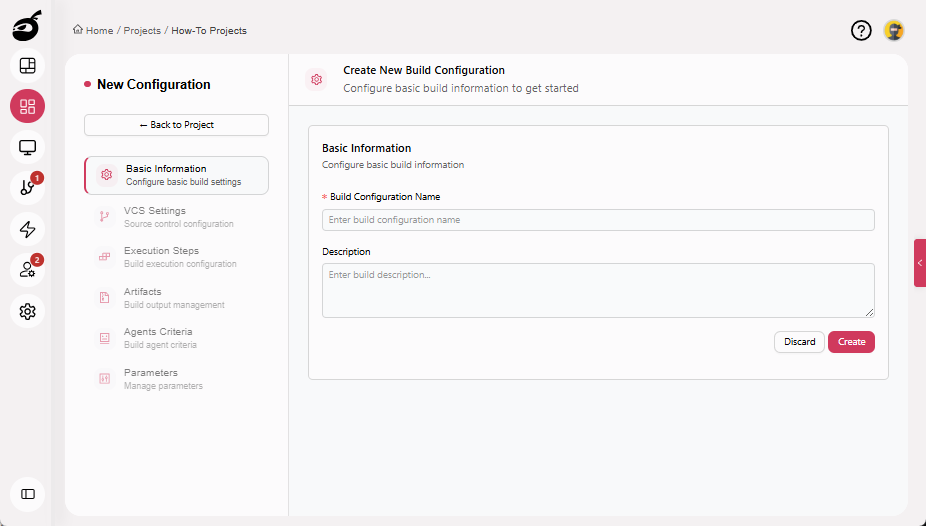
Enter the following details:
- Build Configuration Name (for example,
Docker Build). - Description (optional).
- Build Configuration Name (for example,
-
Click Create.
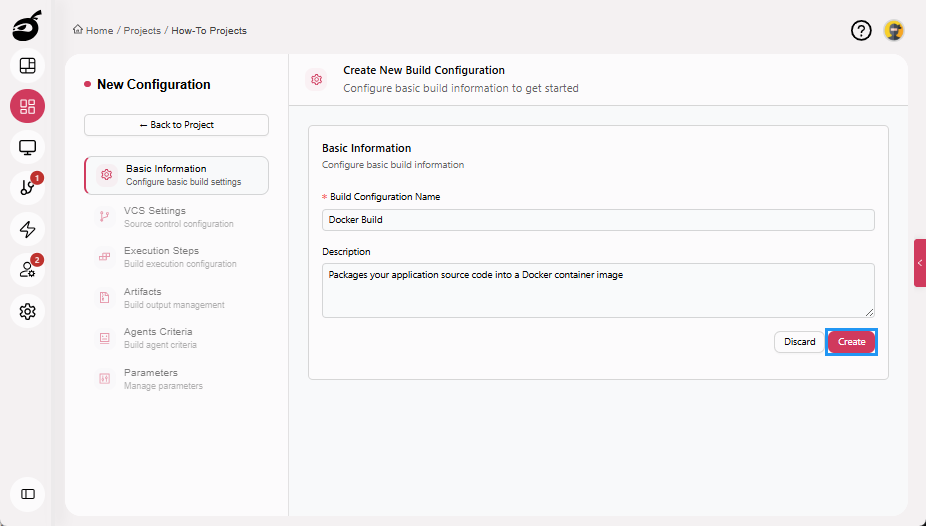
For more information about creating and managing build configurations, see Configure and Edit BuildsBuilds in a CI/CD environment represent a defined set of execution steps that run automatically to build, test, package, or prepare an application for deployment..
Step 2: Configure VCS Settings
-
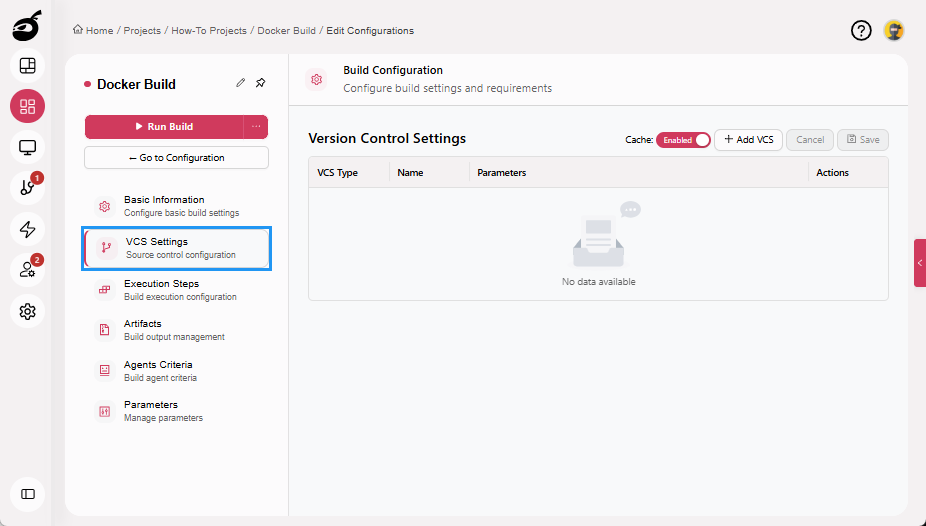
Navigate to VCS Settings.
-
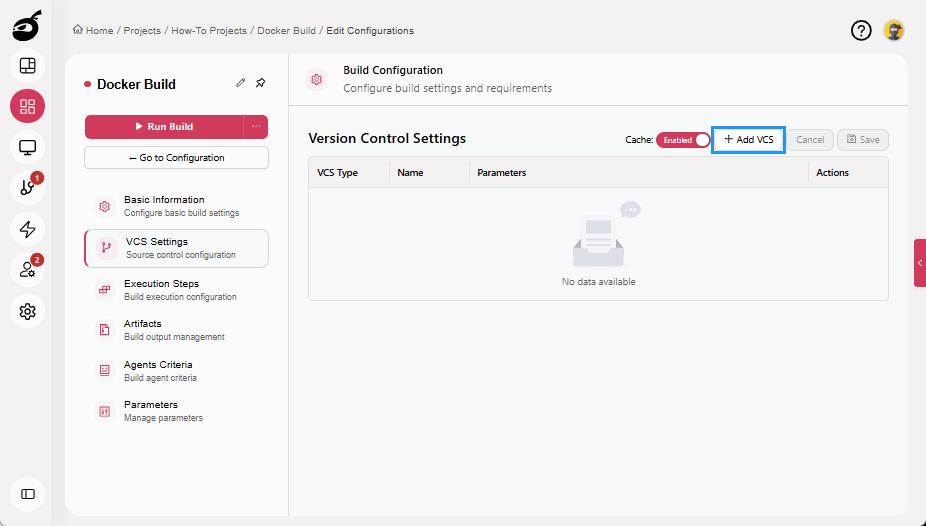
Click Add VCS.
-
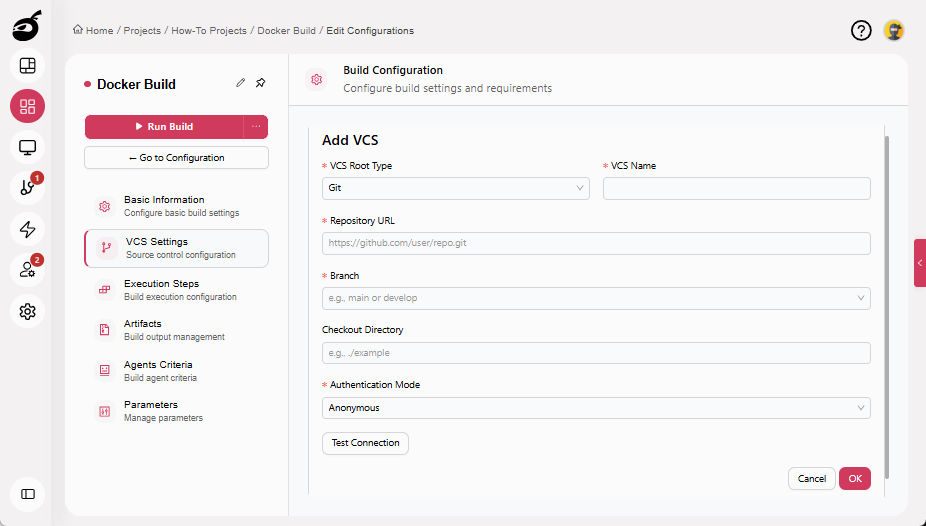
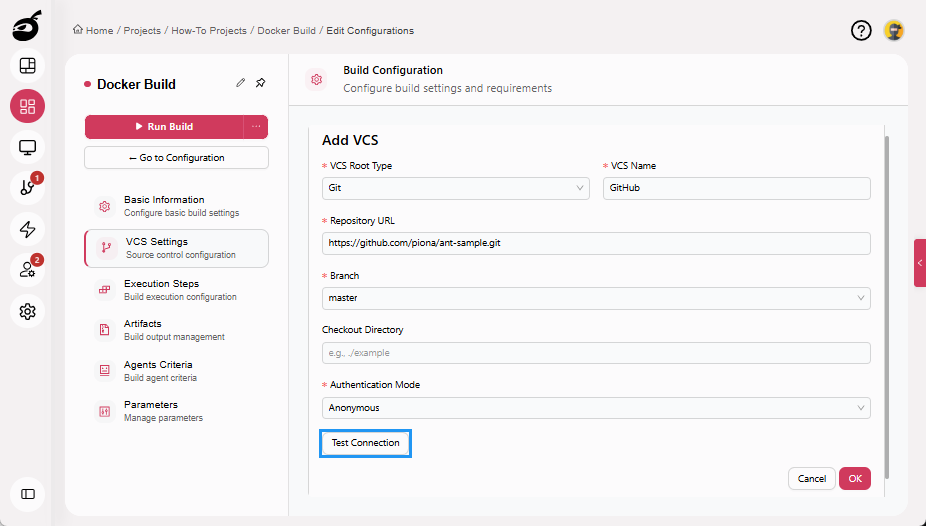
Enter the following details:
- VCS Root Type: Git
- VCS Name: A unique identifier
- Repository URL: Git repository URL
- Branch: main, develop, or your target branch
- Checkout Directory: Optional, default is recommended
- Authentication Mode: Select the required authentication method
-
Click Test Connection to verify access (optional).
-
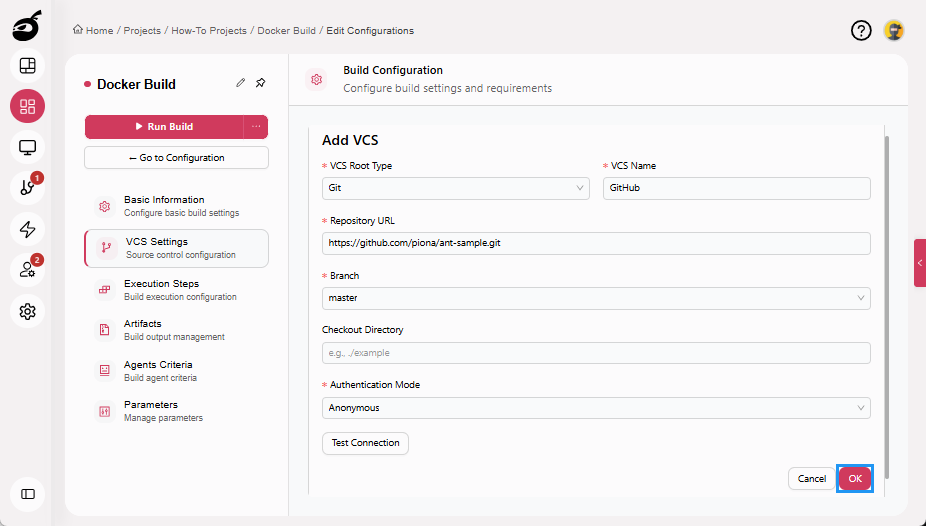
Click OK to add the VCS.
-
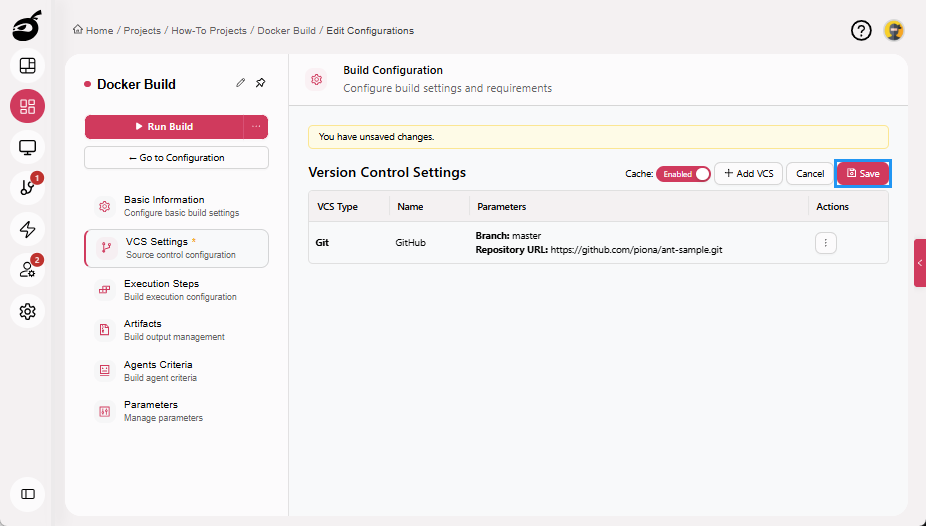
Click Save to save the VCS Settings.
 note
noteBuildNinja will automatically fetch your source code from Git when the build runs.
Step 3: Configure Build Parameters for Registry Credentials (optional)
Store registry credentials securely using Build Parameters to authenticate and push the image if you plan to push the Docker image to a container registry.
-
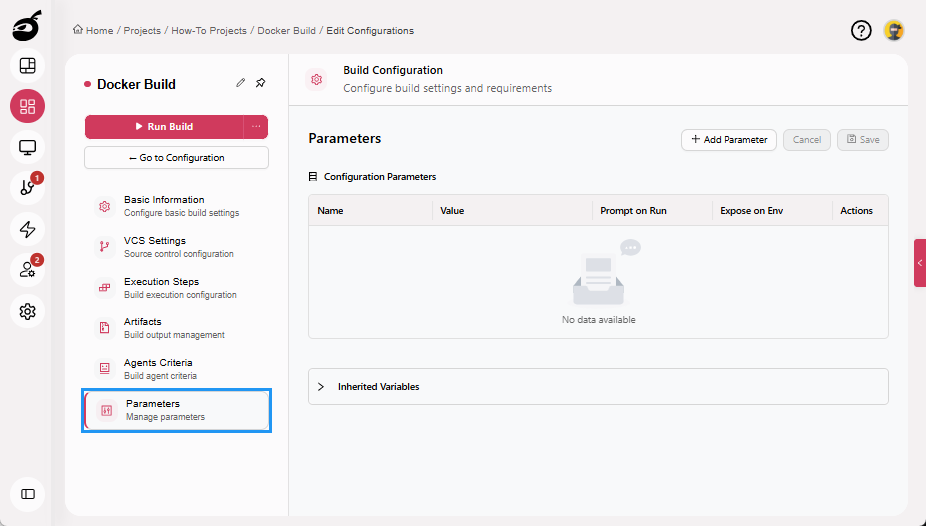
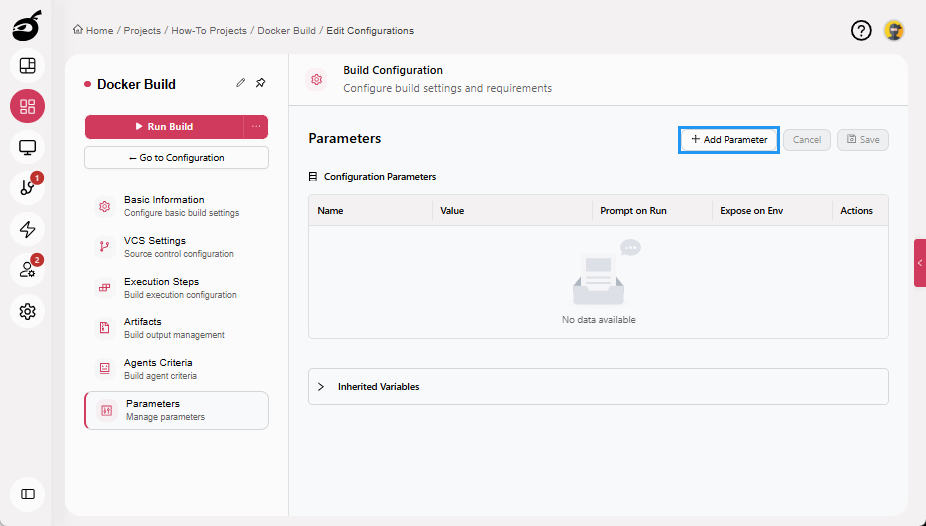
Navigate to Parameters tab.
-
Click Add Parameter.
-
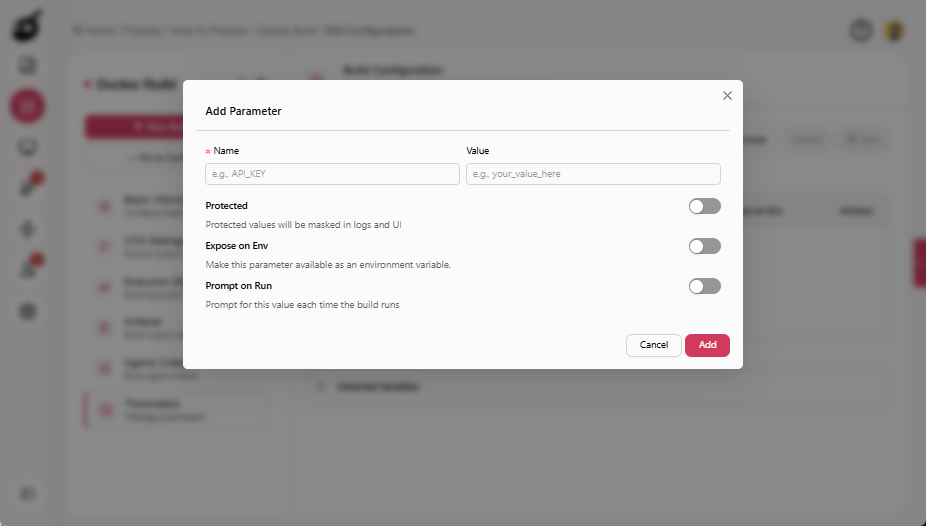
Enter the following details:
- Name: DOCKER_USERNAME
- Value: Your registry username
-
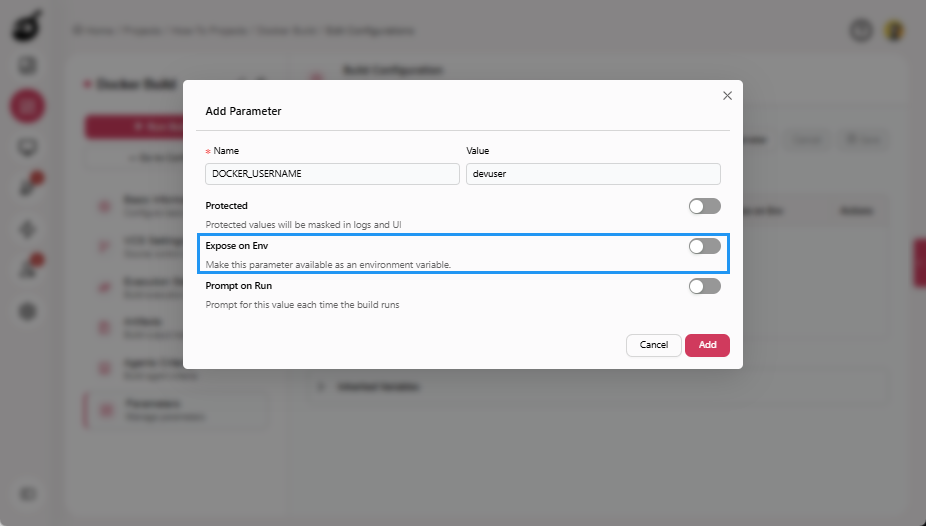
Enable Expose on Env.
-
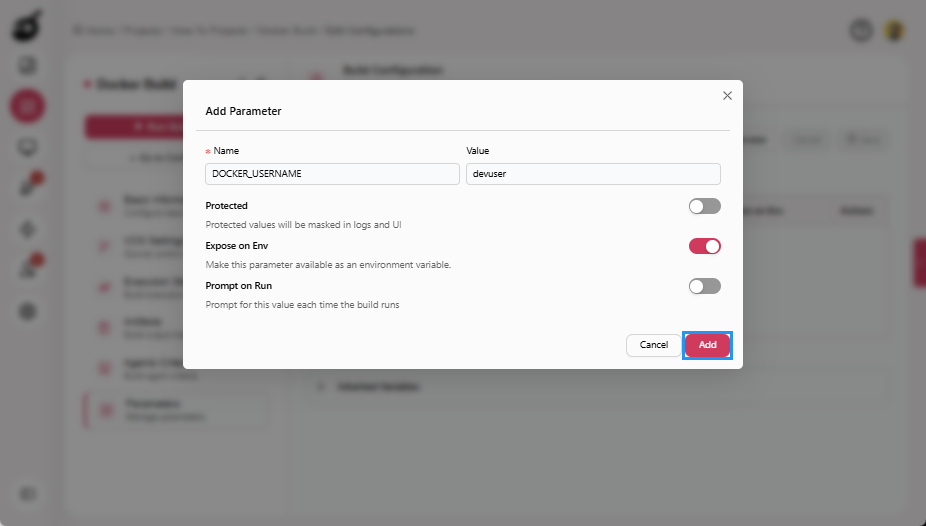
Click Add to add the parameter.
-
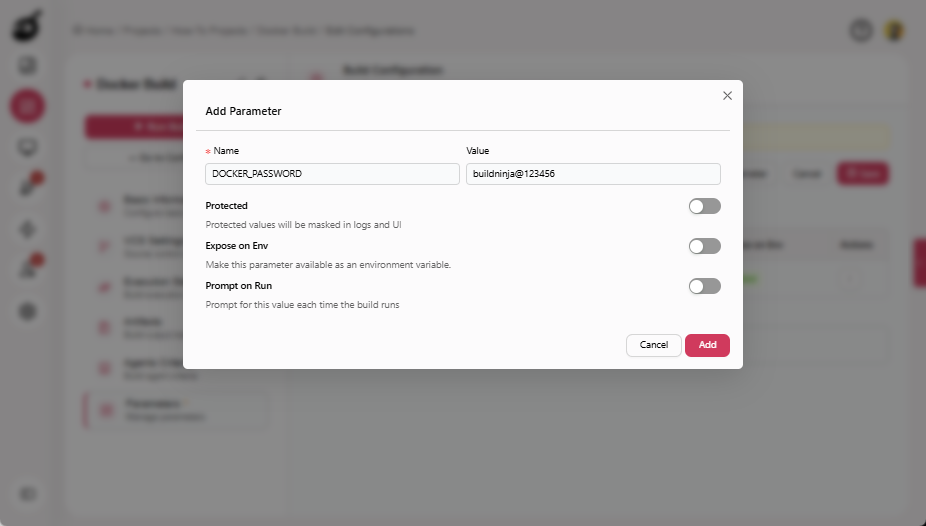
Repeat the same steps to create another parameter:
- Name: DOCKER_PASSWORD
- Value: Your registry password or token
-
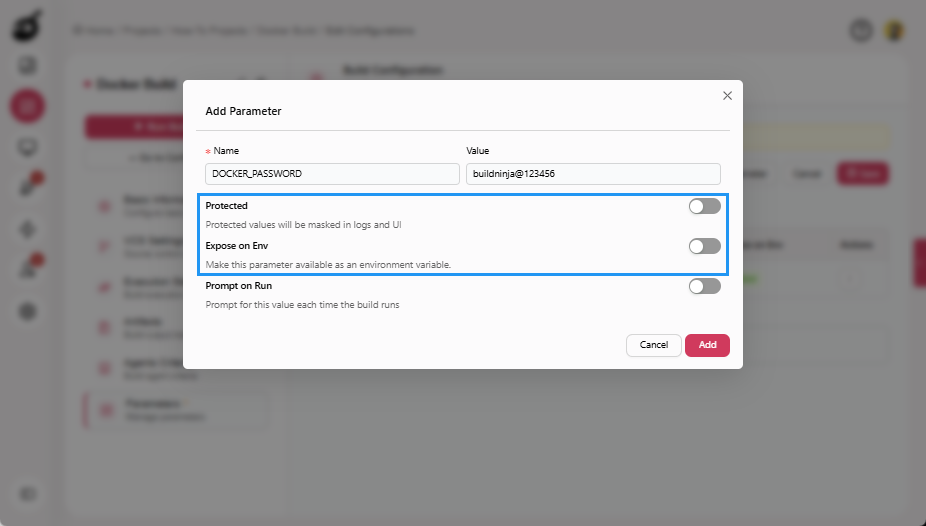
Enable Protected and Expose on Env.
-
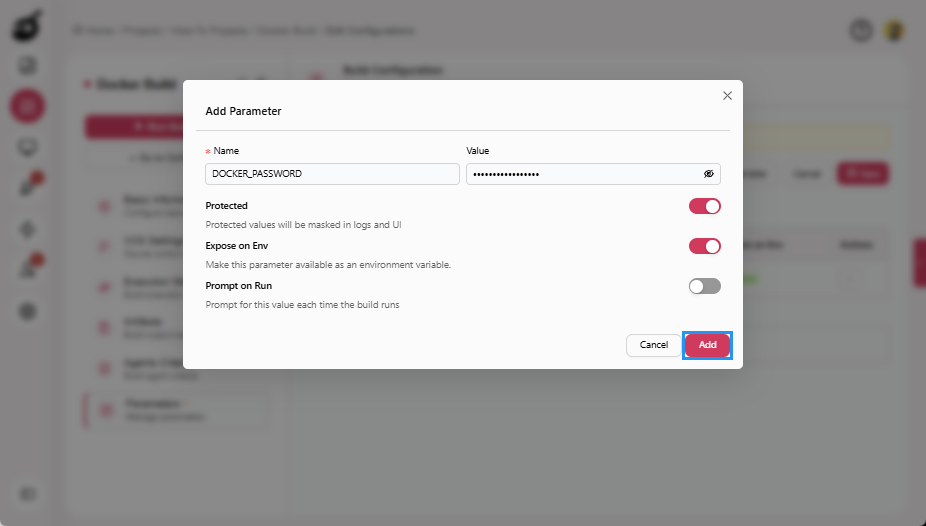
Click Add to add the parameter.
-
Click Save to save the parameters.
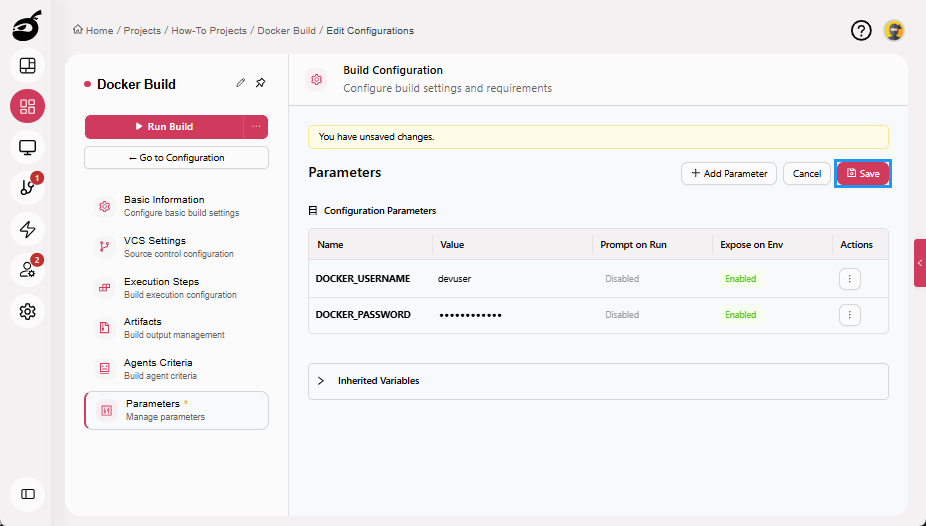
Protected parameters ensure credentials are masked in logs and securely stored. For more information on Build Parameters, see Configure Build ParametersBuildNinja allows you to define Build Parameters that define reusable variables that control how a build executes. These parameters help eliminate hardcoded values inside build steps, improve security, and enable flexibl….
Step 4: Configure Execution Steps
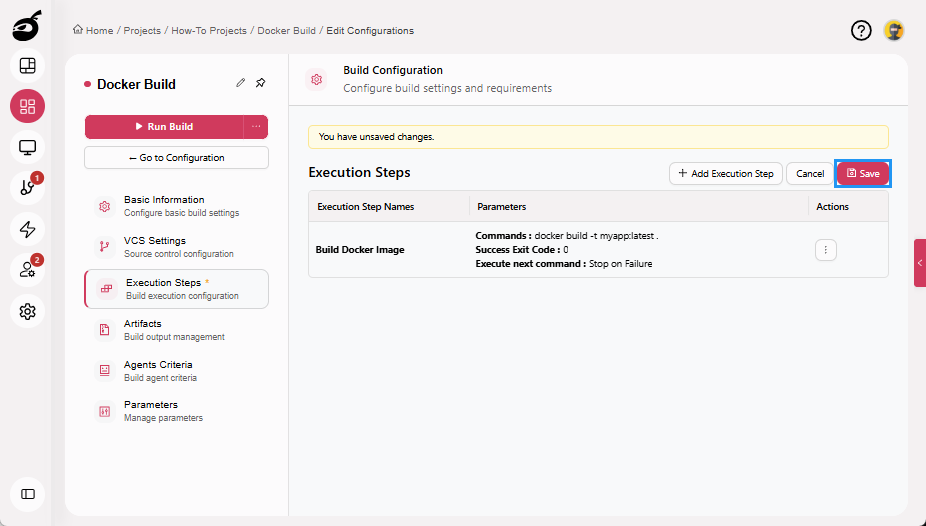
Step 4.1: Build Docker Image
-
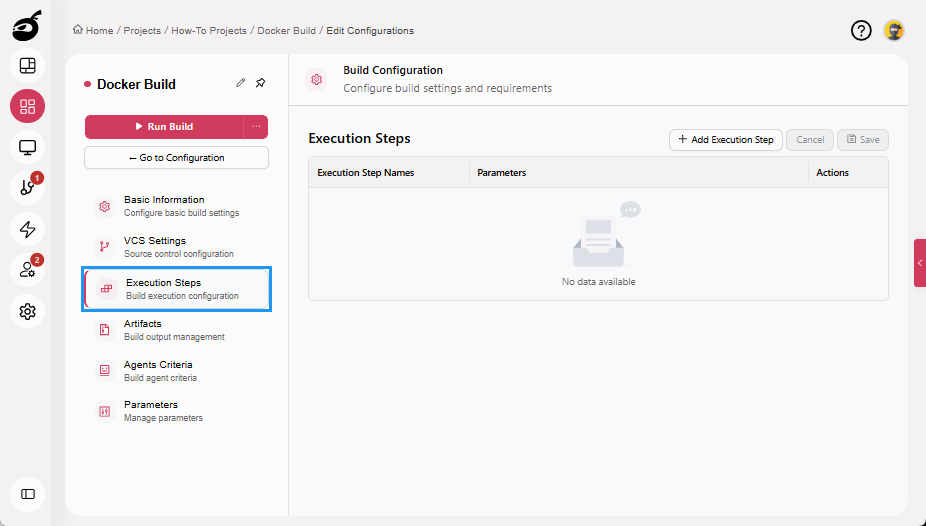
Navigate to Execution Steps.
-
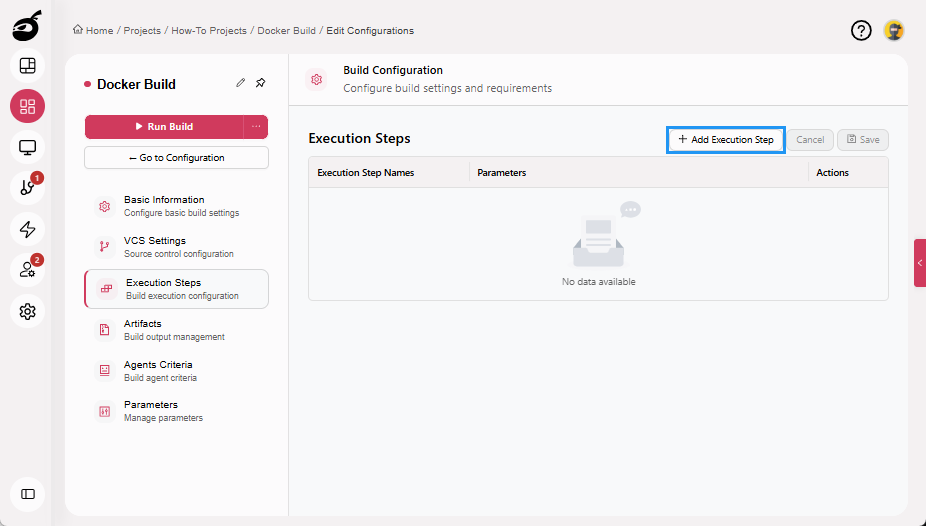
Click Add Execution Step.
-
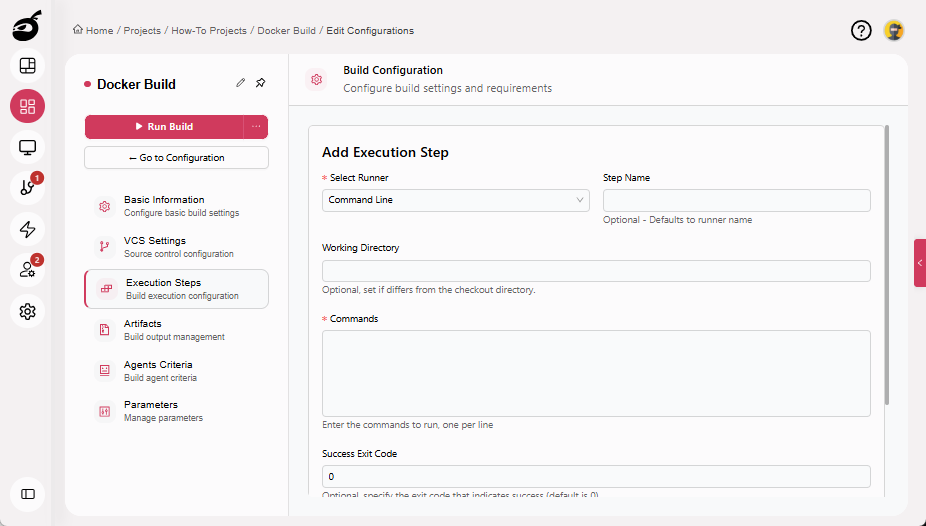
Enter the following details:
- Select Runner: Command Line
- Step Name: Build Docker Image
- Commands:
docker build -t myapp:latest .
-
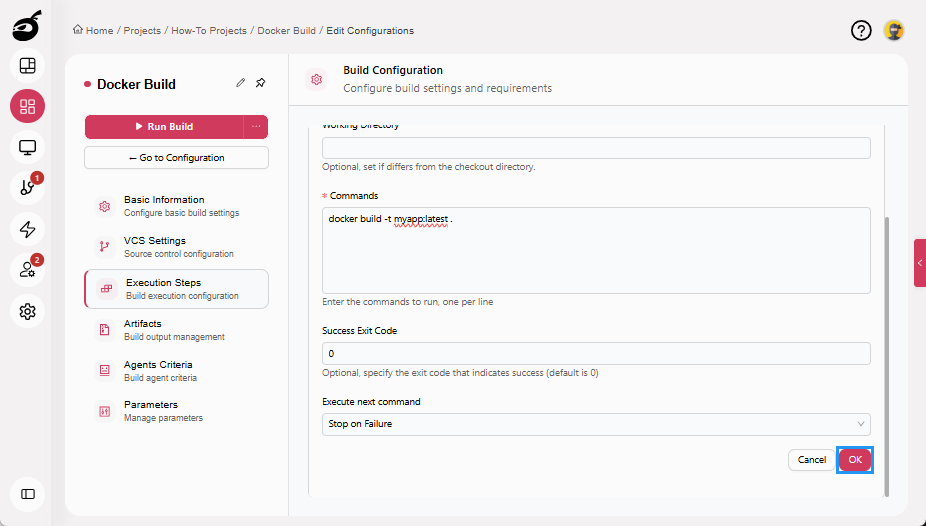
Click OK to add the execution step.
-
Click Save to save the Execution Steps.
Step 4.2: Authenticate with Container Registry (optional)
Add another step for authentication if you are pushing the image to a registry.
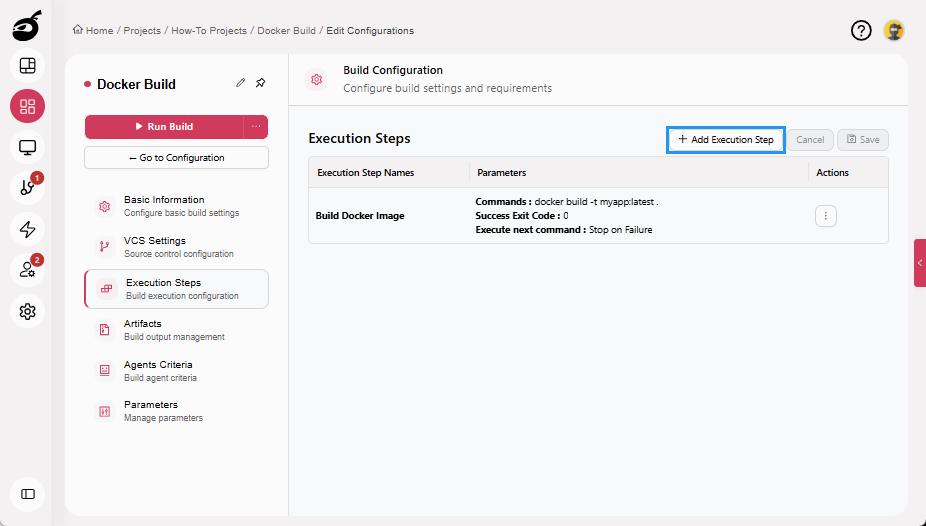
-
Click Add Execution Step.
-
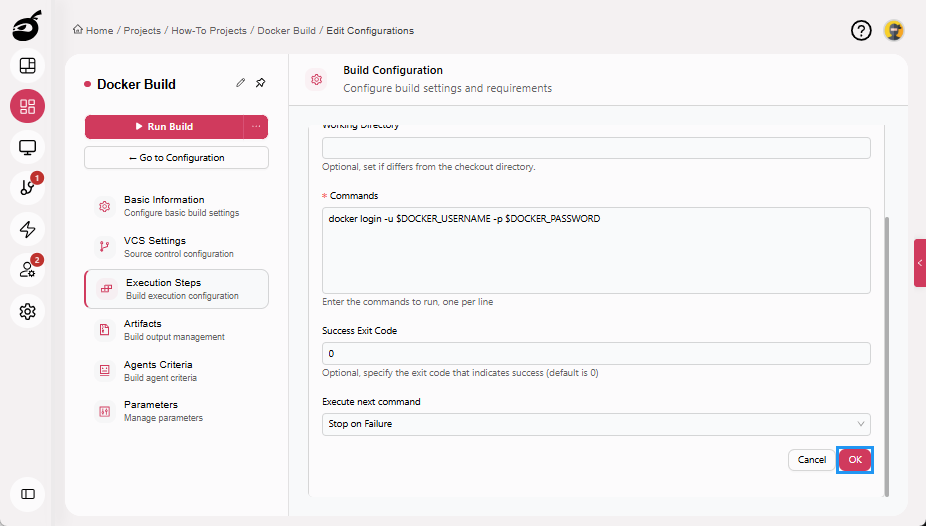
Enter the following details:
- Select Runner: Command Line
- Step Name: Docker Login
- Command:
# For Linux/macOS shell
docker login -u $DOCKER_USERNAME -p $DOCKER_PASSWORD

# For Windows PowerShell
docker login -u $env:DOCKER_USERNAME -p $env:DOCKER_PASSWORD
-
Click OK to add the execution step.
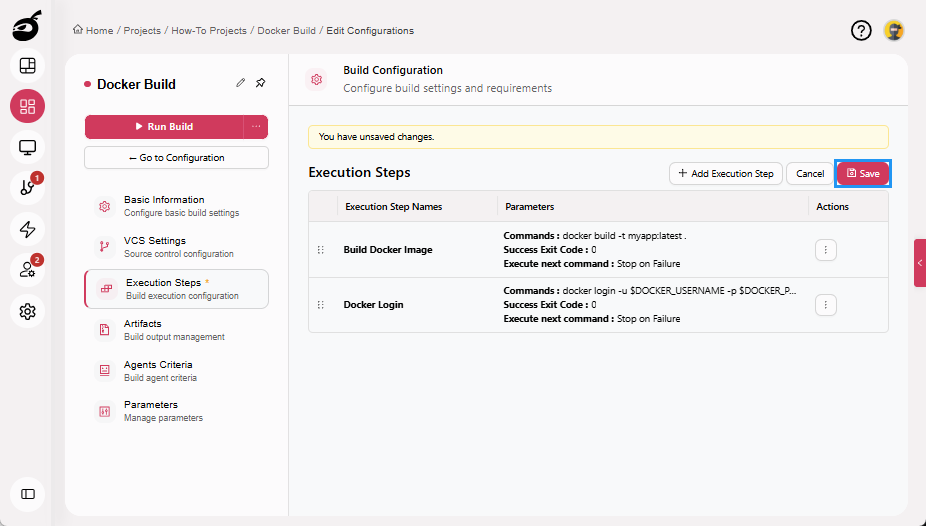
-
Click Save to save the Execution Steps.
 note
noteThe syntax for referencing environment variables depends on the shell used by the build agent.
-
Linux or macOS (Bash / Shell):
docker login -u $DOCKER_USERNAME -p $DOCKER_PASSWORD -
Windows Command Prompt (CMD):
docker login -u %DOCKER_USERNAME% -p %DOCKER_PASSWORD% -
Windows PowerShell:
docker login -u $env:DOCKER_USERNAME -p $env:DOCKER_PASSWORD
Ensure the command syntax matches the shell configured for the Command Line Runner on the build agent.
-
Step 4.3: Push Docker Image to Registry (optional)
Add another execution step to push the built image.
-
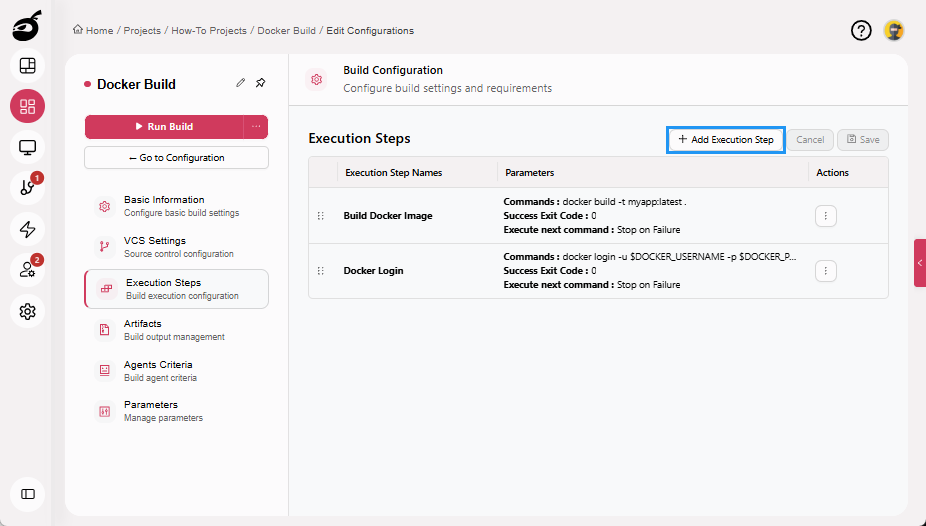
Click Add Execution Step.
-
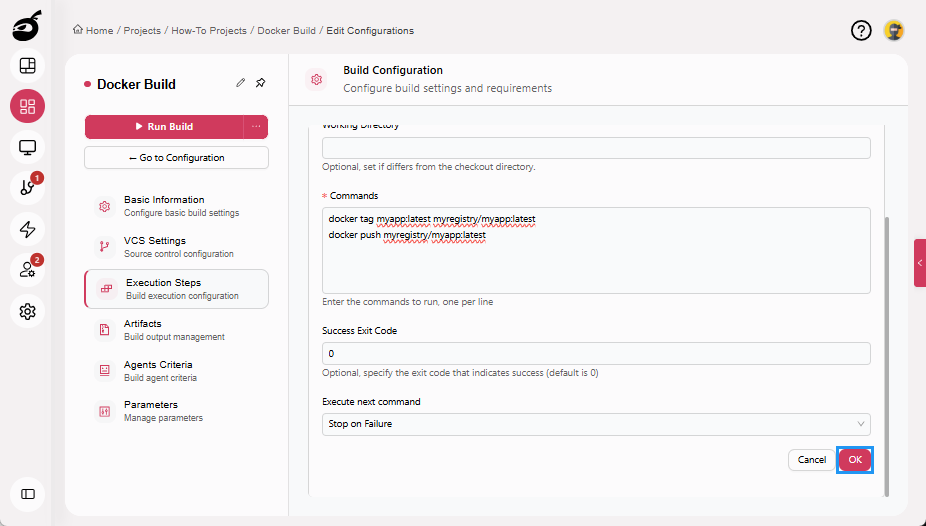
Enter the following details:
- Select Runner: Command Line
- Step Name: Push Docker Image
- Command:
docker tag myapp:latest myregistry/myapp:latest
docker push myregistry/myapp:latest
-
Click OK to add the execution step.
-
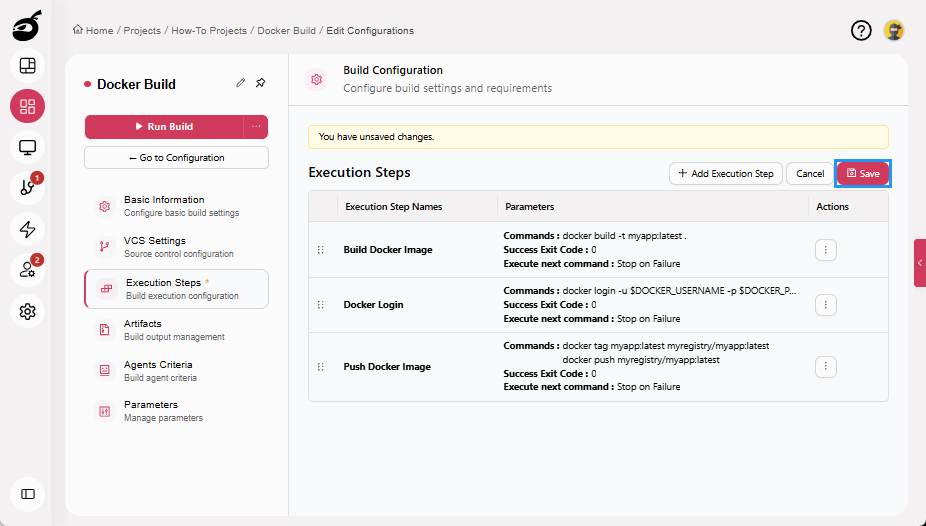
Click Save to save the Execution Steps.
Step 5: Run Build
Your build configuration is now complete.
Running a build executes the defined steps, including retrieving the source code, building the Docker image, authenticating with the registry, and pushing the image if configured. In BuildNinja, build configurations define what a build does and control when it runs.
Step 5.1: Run Build Manually
-
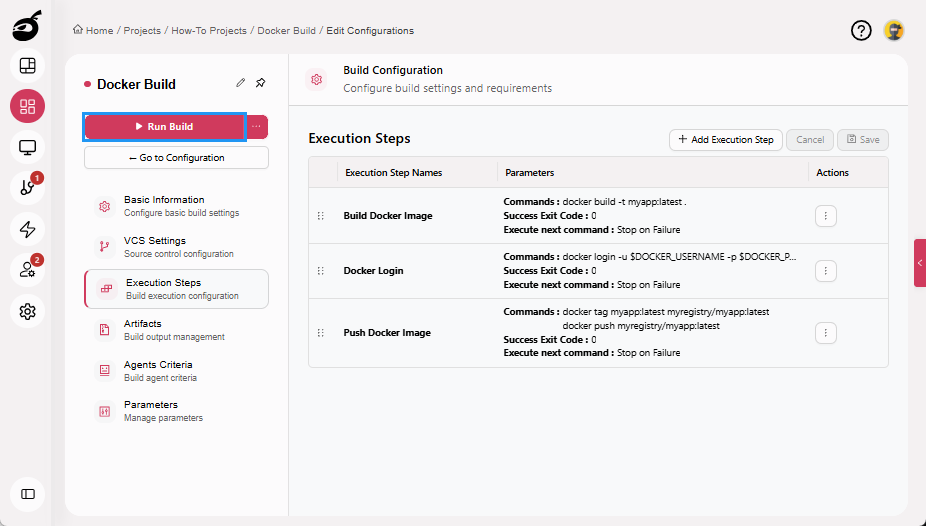
Click Run Build to start the build manually. Once triggered, the build enters the execution queue and starts automatically when a compatible agent becomes available.
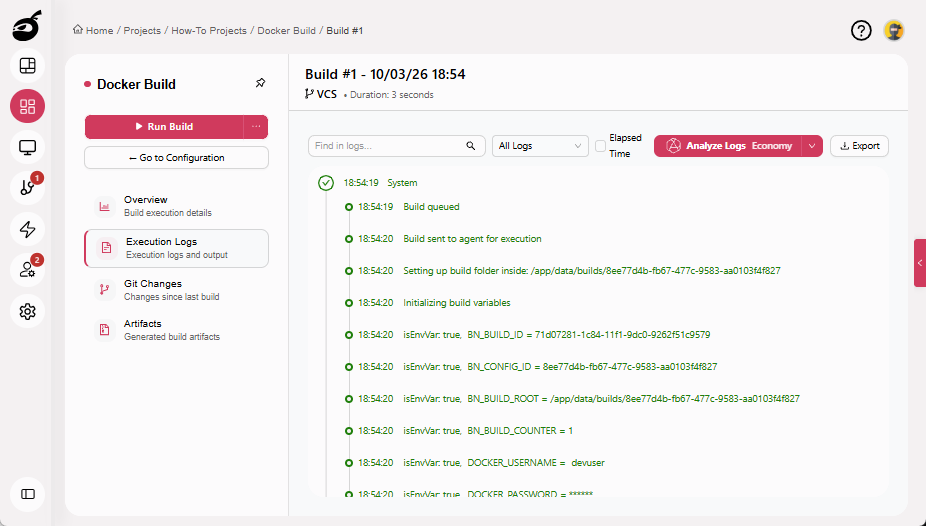
Step 5.2: Monitor Build Execution
While the build is running, you can view detailed logs for each execution step, including:
- Docker build progress
- Registry authentication
- Image tagging
- Image push status
These logs help you verify successful execution and troubleshoot failures. For more details about viewing build logs and results, see View Build ResultsBuild results provide detailed insights into each successful or failed build in BuildNinja. You can review execution outcomes, analyze logs, understand source code changes, and access any generated artifacts..
Step 5.3: Schedule Build (optional)
BuildNinja supports scheduled build triggers that allow builds to run automatically on a defined schedule. To learn how to configure and manage build triggers, see Schedule Build TriggersBuildNinja supports Build Triggers that allow builds to start automatically based on time schedules or Git activity. These triggers help streamline workflows by eliminating the need for manual build execution..