How to Execute a Remote Deployment via SSH
Configure a build configuration in BuildNinja to securely deploy files or execute setup scripts on a remote Linux server using SSH. This approach is ideal for deploying to legacy VMs, database servers, or any environment that is not part of your standard container or Kubernetes workflow. This configuration uses:
- SSH Runner to connect to and execute commands on a remote server.
- Protected Build Parameters to securely store SSH keys or passwords.
Prerequisites
Before you begin, ensure that:
- You have access to a BuildNinja project.
- A BuildNinja agent is registered and online.
- You have SSH access to the target Linux server.
- The target server allows SSH connections from the BuildNinja agent network.
- You have either:
- An SSH private key, or
- A username and password for SSH authentication.
Step 1: Create a Build Configuration
-
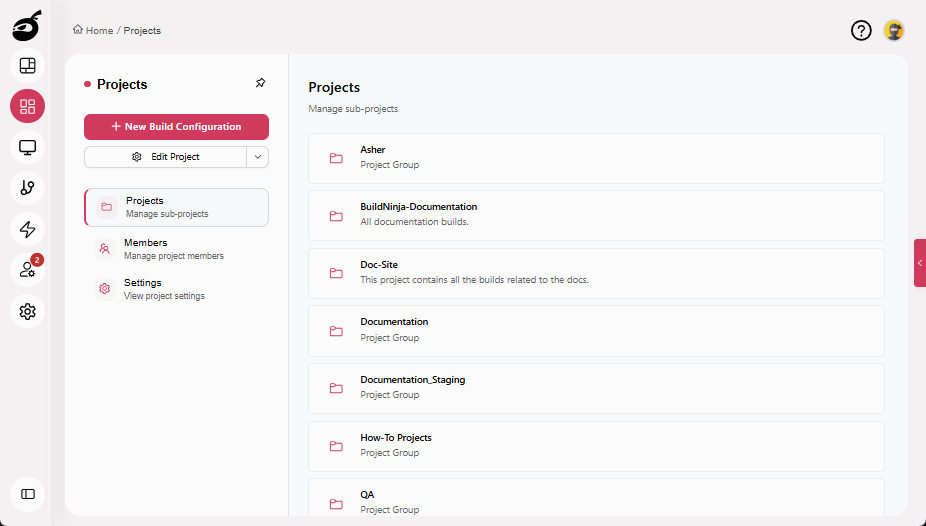
Navigate to Projects.
-
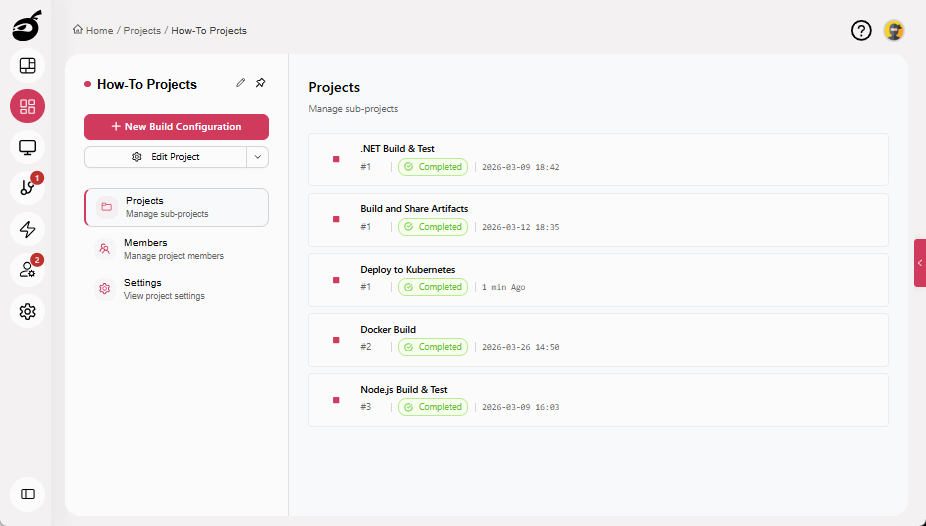
Select the project where you want to configure the deployment.
-
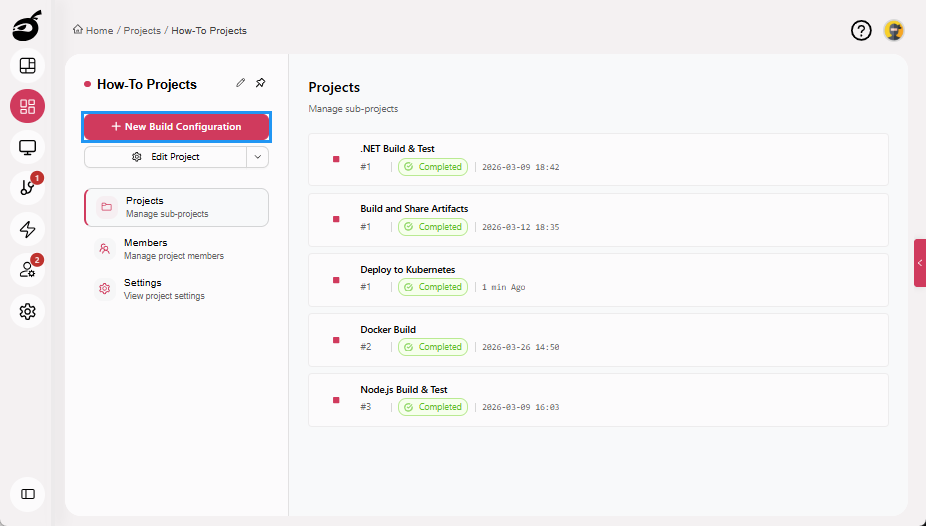
Click New Build Configuration.
-
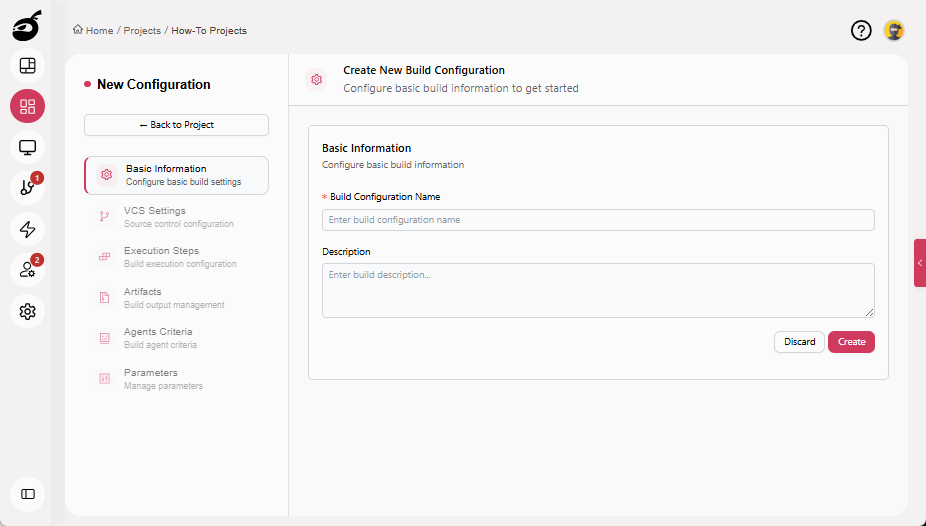
Enter the following details:
- Build Configuration Name (for example, Remote SSH Deployment).
- Description (optional).
-
Click Create.
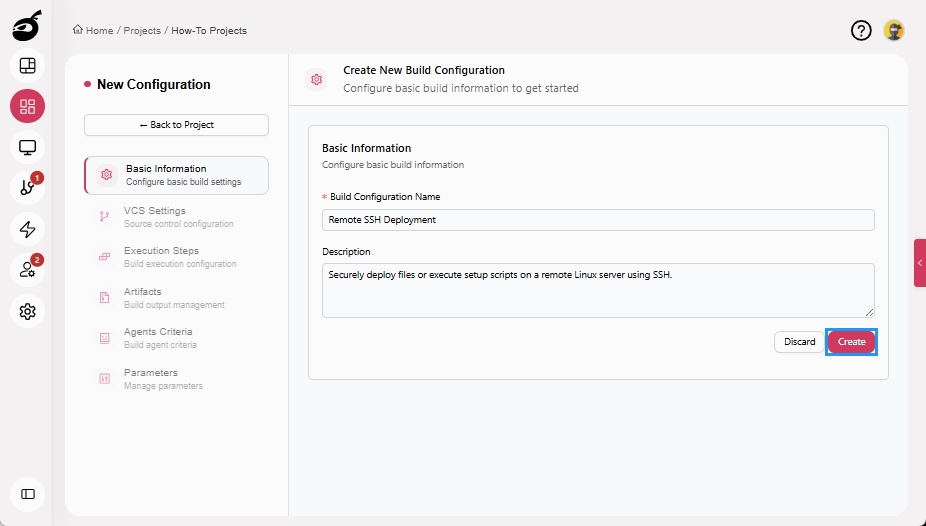
For more information about creating and managing build configurations, see Configure and Edit BuildsBuilds in a CI/CD environment represent a defined set of execution steps that run automatically to build, test, package, or prepare an application for deployment..
Step 2: Configure Protected Build Parameters (SSH Credentials)
Store the credentials as protected build parameters to ensure they are never exposed in logs or scripts. Choose one authentication option and add each required parameter individually.
Option A: SSH Key Authentication (Recommended)
Use this option when the remote server supports key-based SSH authentication.
Add SSH Username Parameter
-
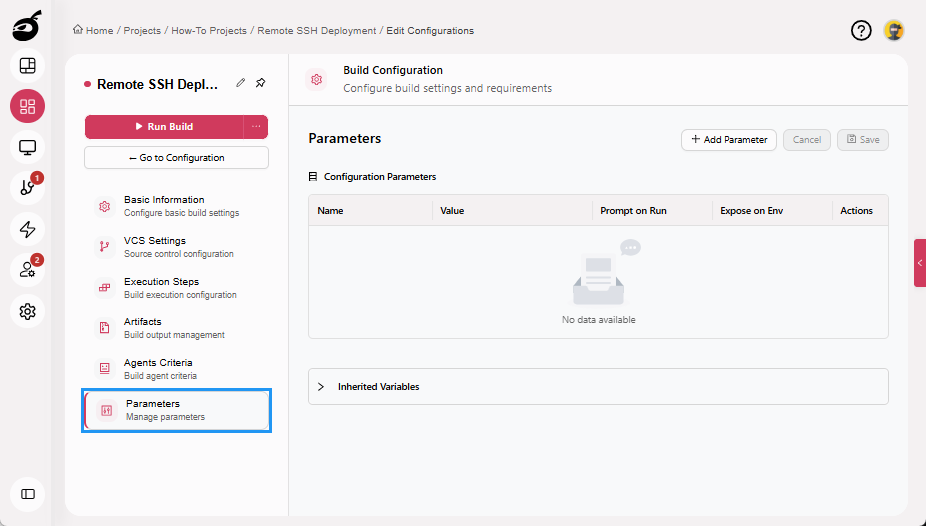
Navigate to Parameters.
-
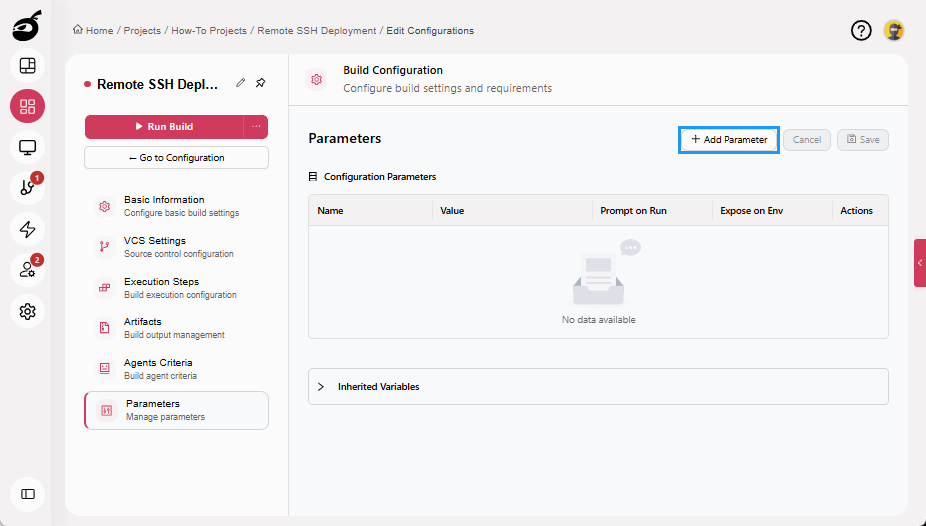
Click Add Parameter.
-
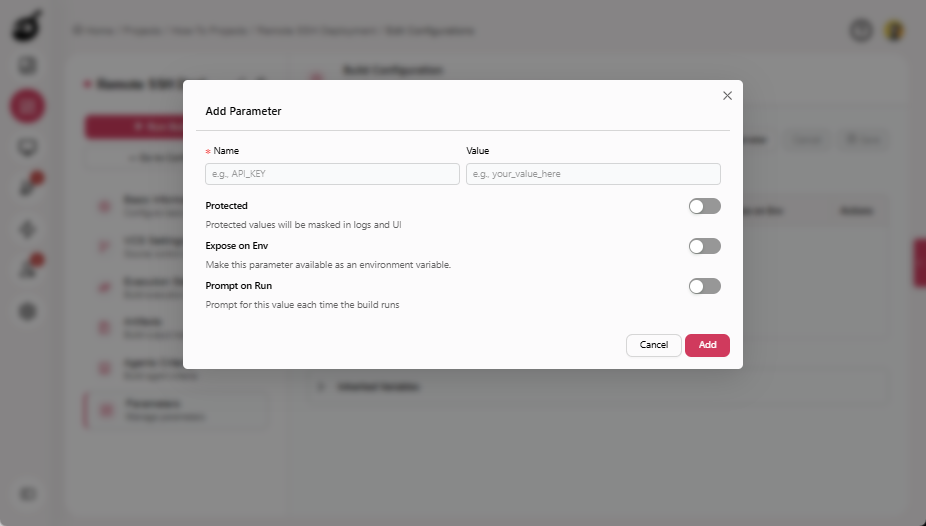
Enter the following details:
- Name: SSH_USERNAME
- Value: Remote server username.
-
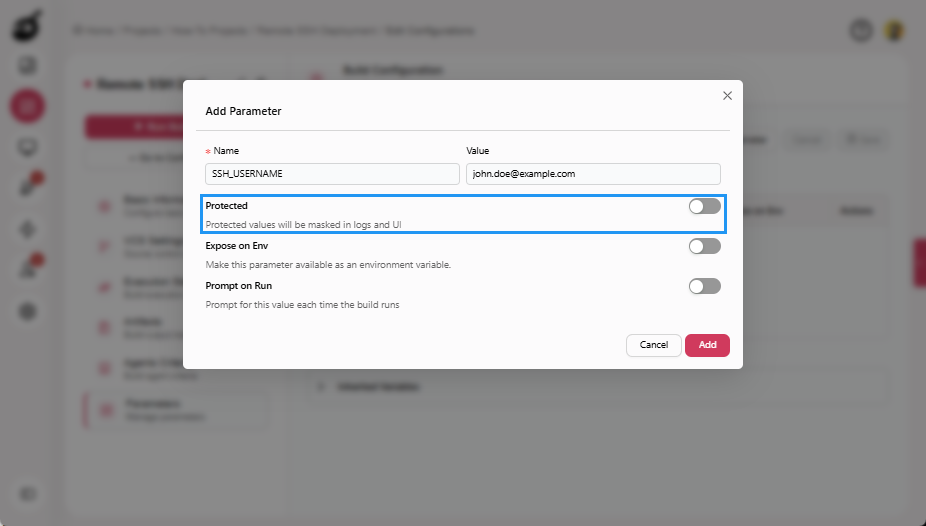
Enable Protected.
-
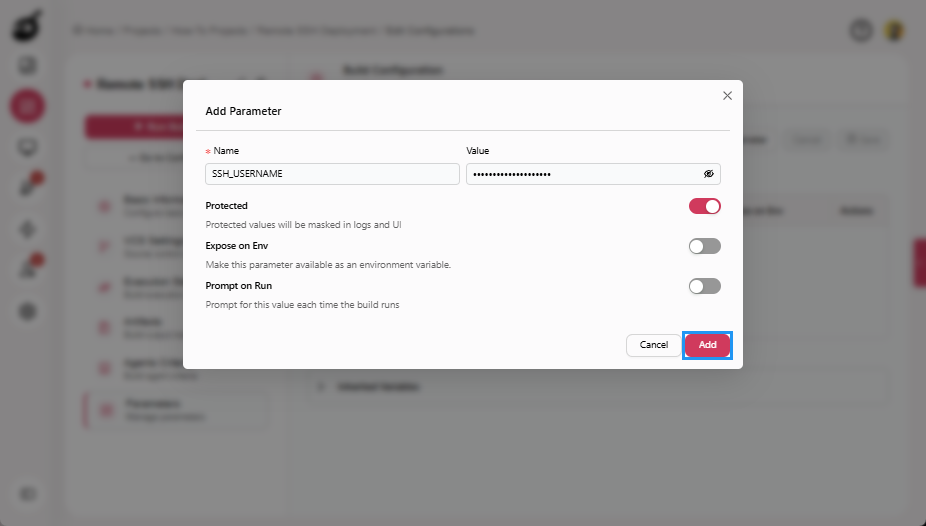
Click Add to add the parameter.
Add SSH Private Key Parameter
-
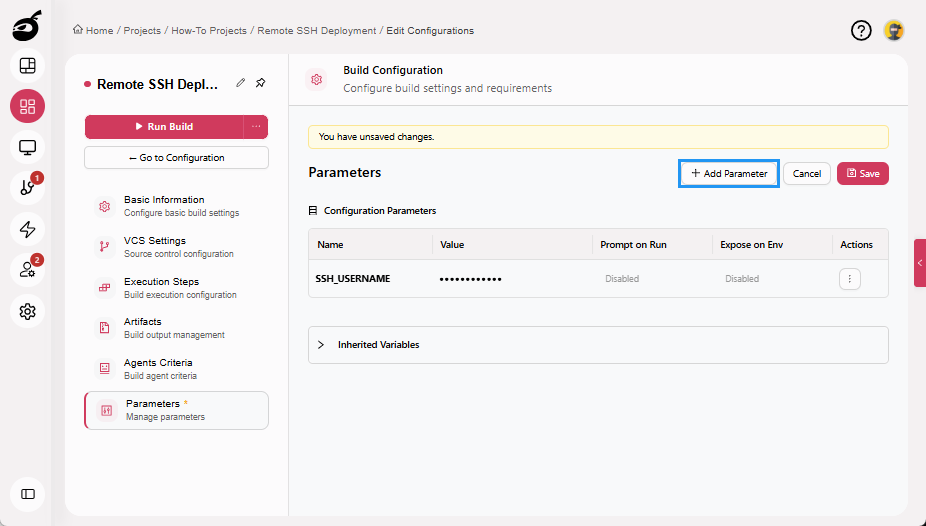
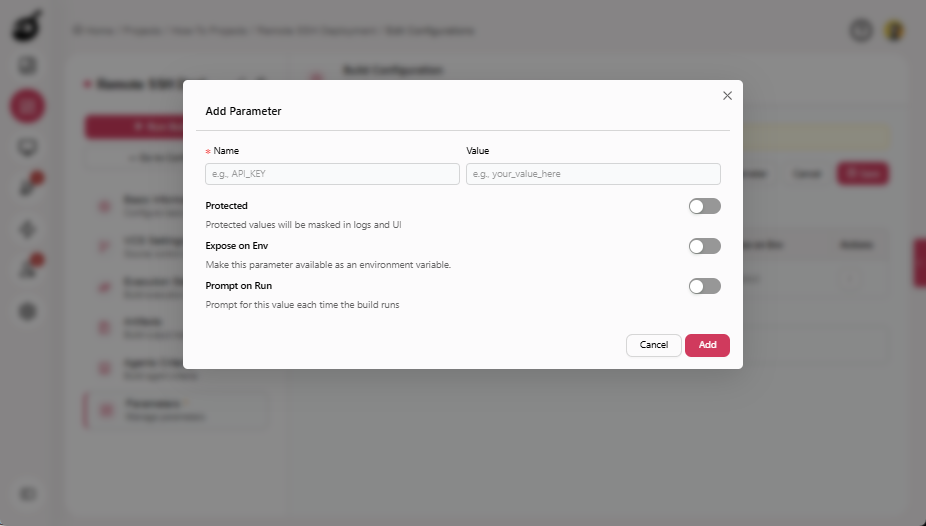
Click Add Parameter.
-
Enter the following details:
- Name: SSH_PRIVATE_KEY
- Value: Paste the private key content.
-
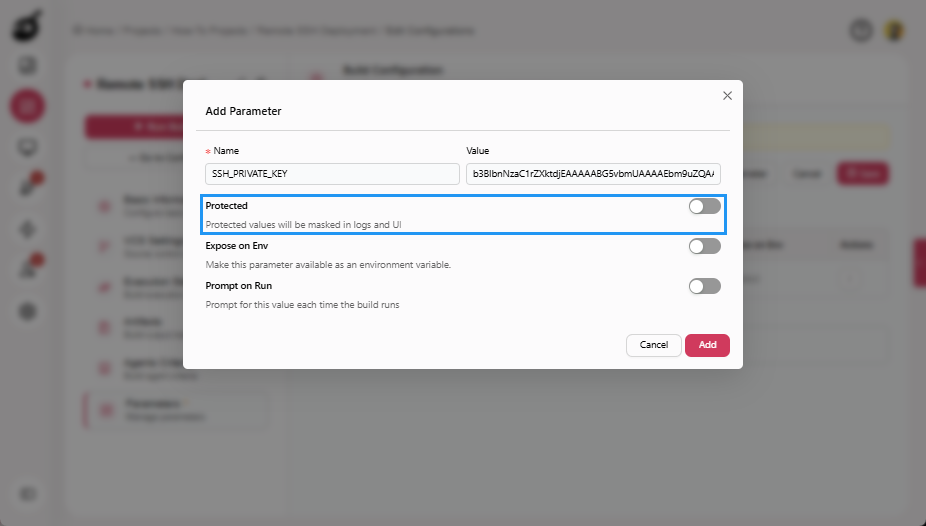
Enable Protected.
-
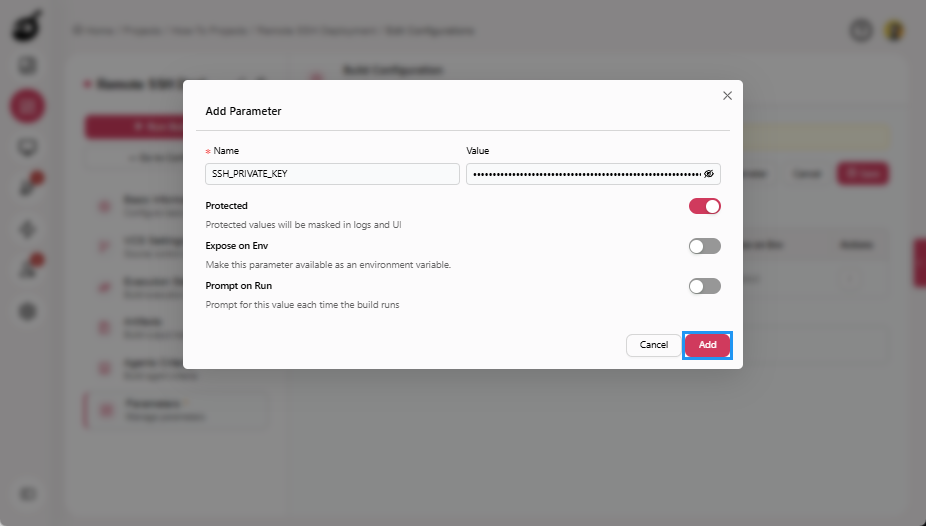
Click Add to add the parameter.
Add SSH Host Parameter
-
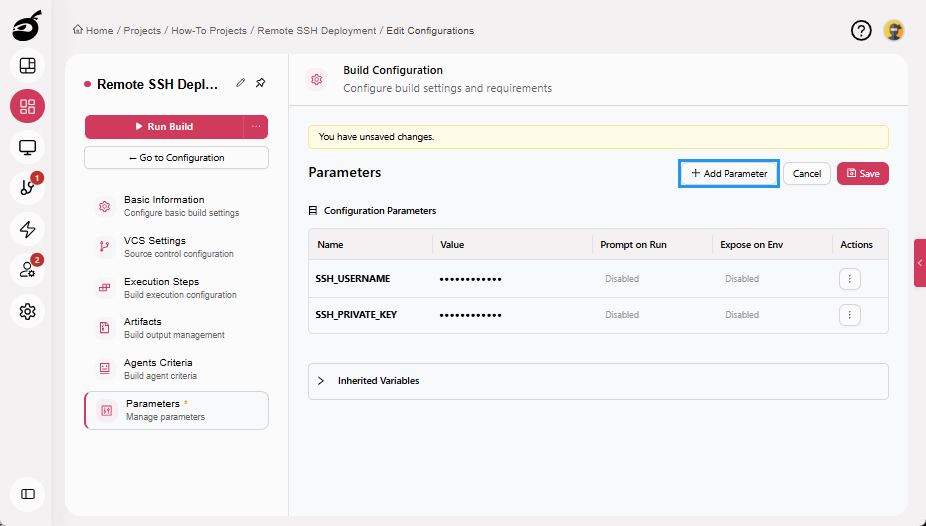
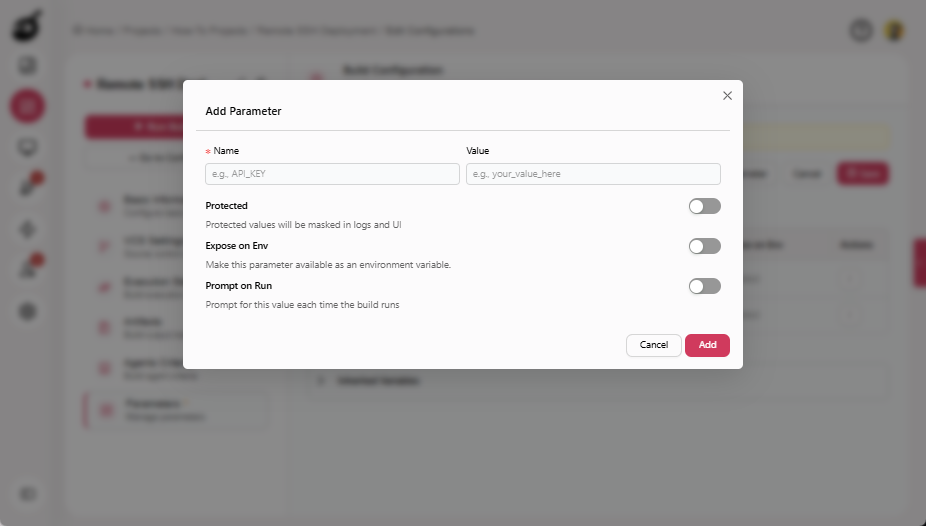
Click Add Parameter.
-
Enter the following details:
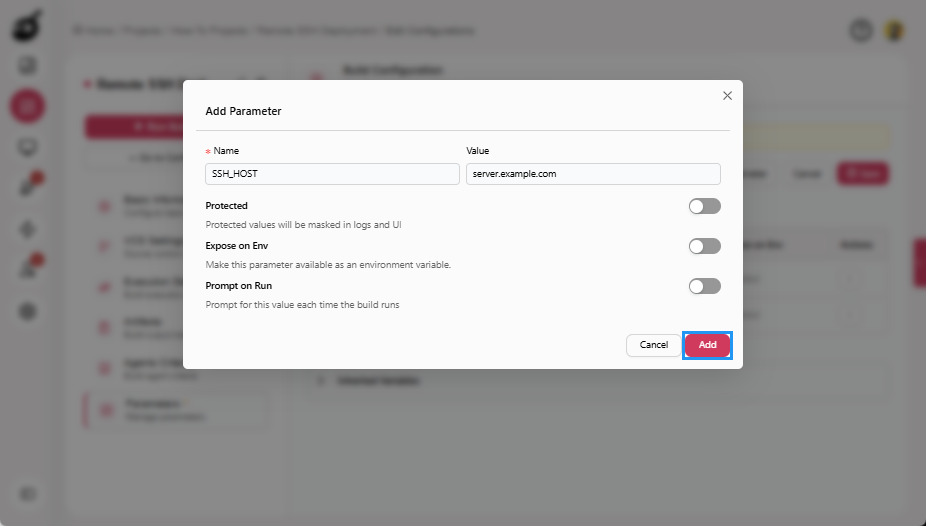
- Name: SSH_HOST
- Value: Remote server hostname or IP address.
-
Click Add to add the parameter.
-
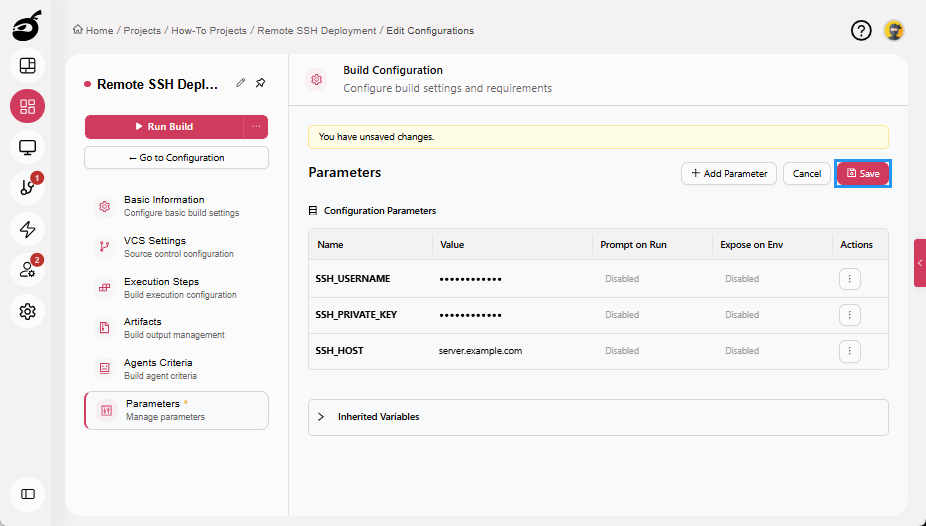
Click Save to save the parameters.
Option B: Password Authentication
Use this option when key-based authentication is not available.
Add SSH Username Parameter
-
Navigate to Parameters.
-
Click Add Parameter.
-
Enter the following details:
- Name: SSH_USERNAME
- Value: Remote server username.
-
Enable Protected.
-
Click Add to add the parameter.
Add SSH Password Parameter
-
Click Add Parameter.
-
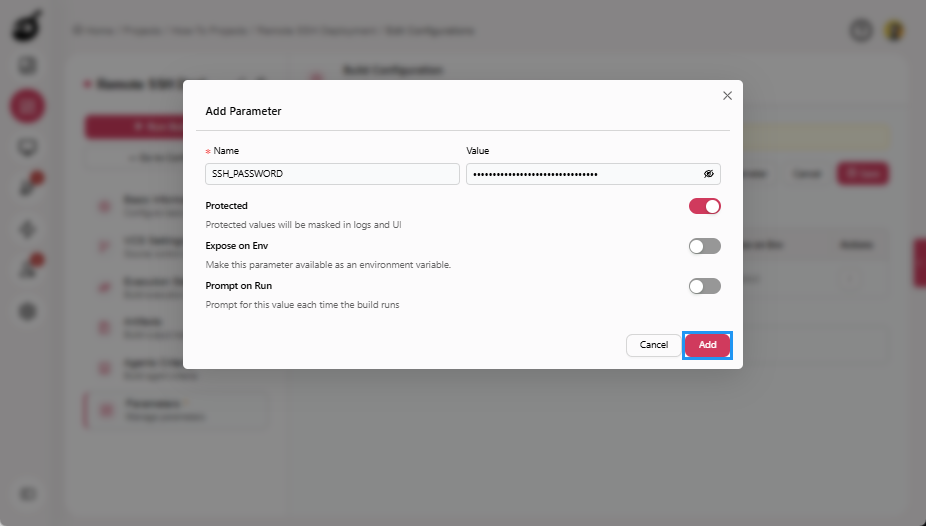
Enter the following details:
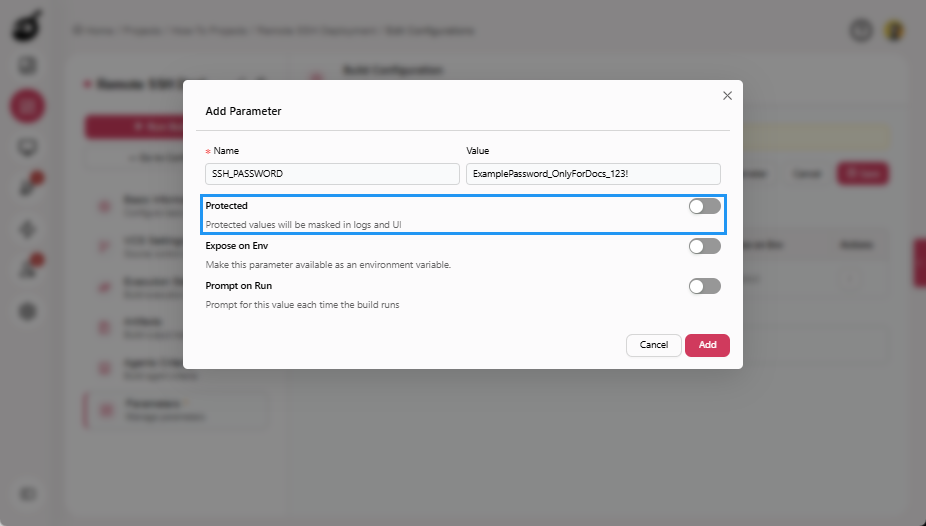
- Name: SSH_PASSWORD
- Value: Paste the password content.
-
Enable Protected.
-
Click Add to add the parameter.
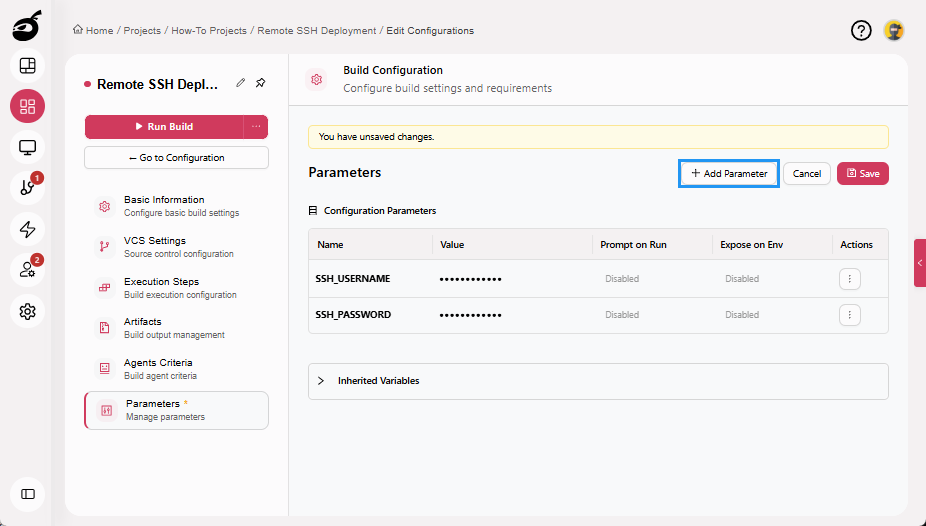
Add SSH Host Parameter
-
Click Add Parameter.
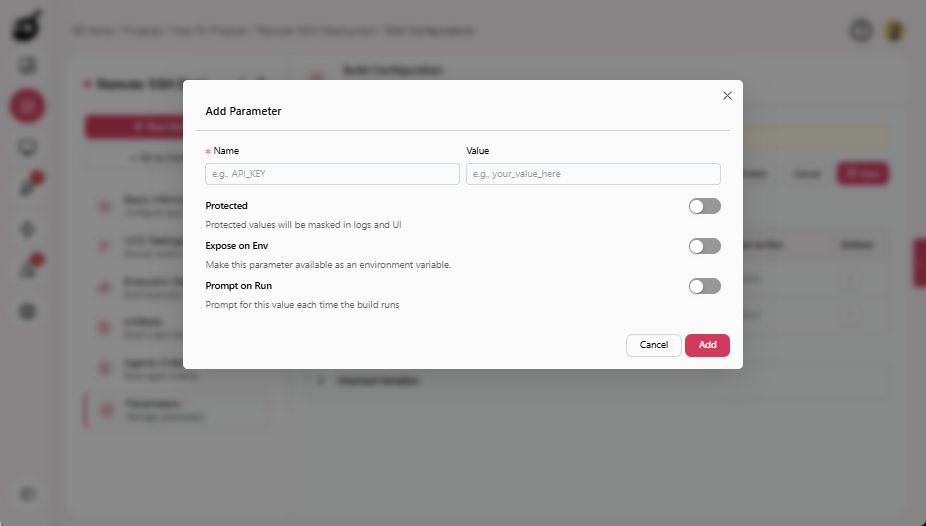
-
Enter the following details:
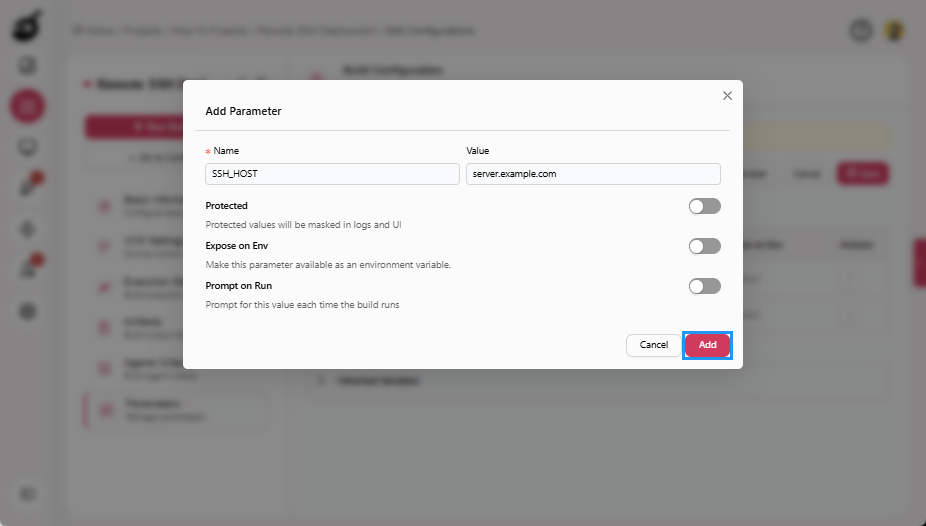
- Name: SSH_HOST
- Value: Remote server hostname or IP address.
-
Click Add to add the parameter.
-
Click Save to save the parameters.
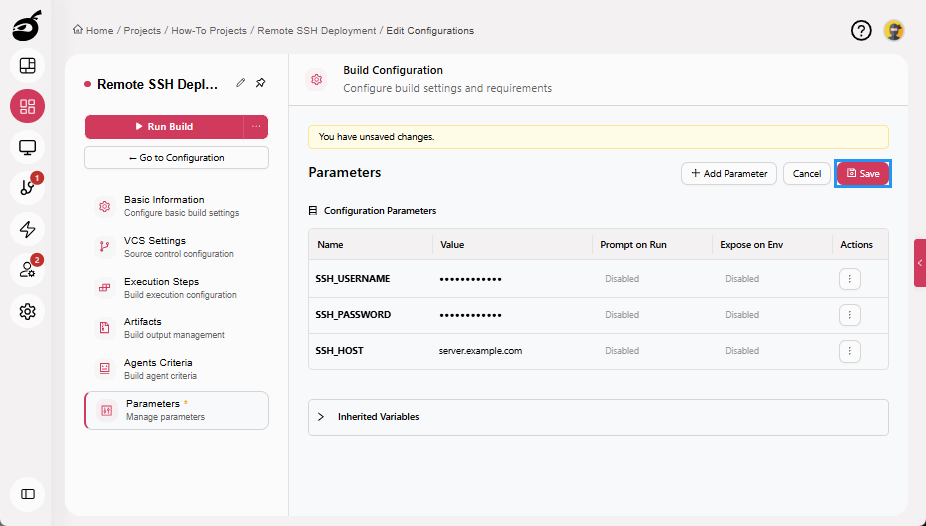
Protected parameters are masked in logs and are not exposed to unauthorized users. For more information on Build Parameters, see Configure Build ParametersBuildNinja allows you to define Build Parameters that define reusable variables that control how a build executes. These parameters help eliminate hardcoded values inside build steps, improve security, and enable flexibl….
Step 3: Configure Execution Steps (SSH Runner)
-
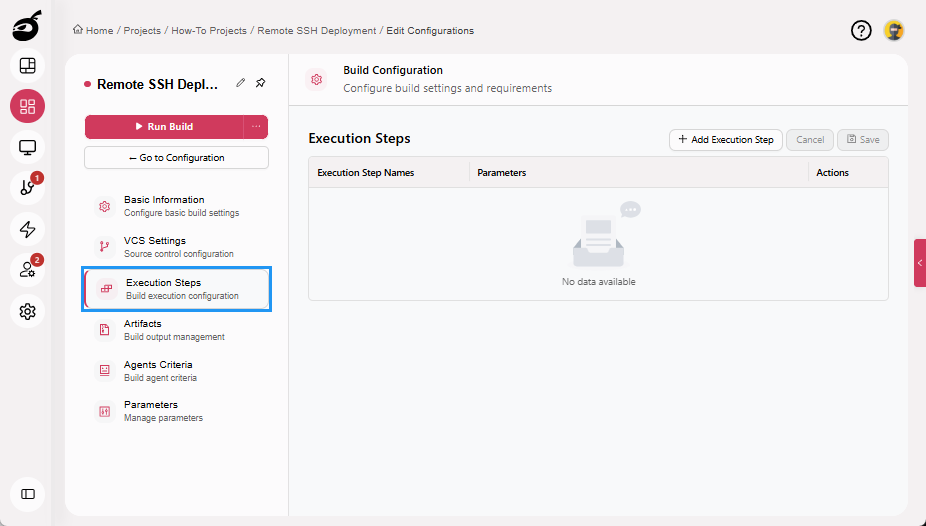
Navigate to Execution Steps.
-
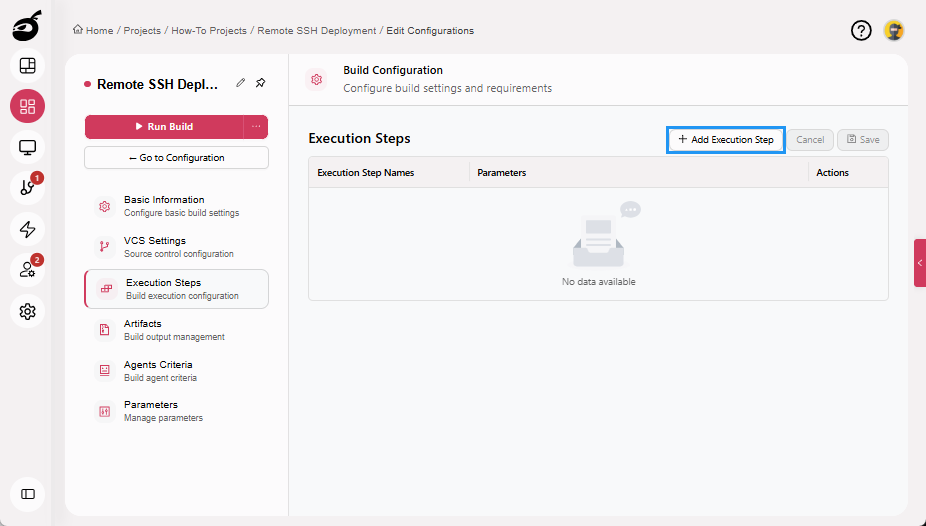
Click Add Execution Step.
-
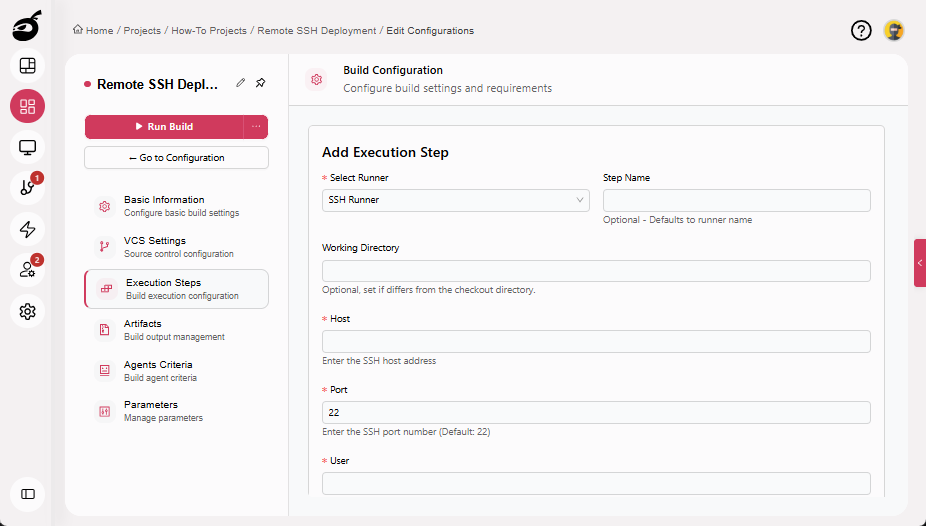
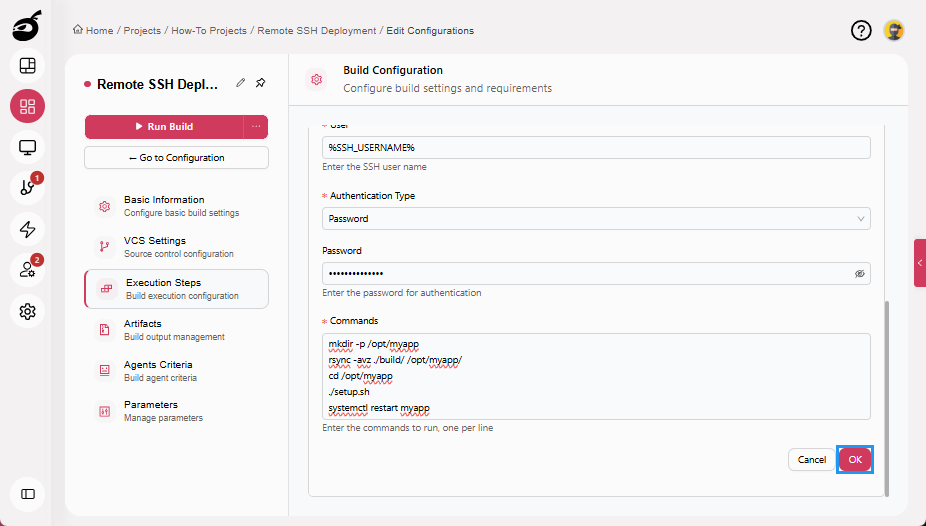
Enter the following details:
- Select Runner: SSH Runner
- Step Name: Deploy to Remote Server
- Host:
@{SSH_HOST%} - User:
@{SSH_USERNAME} - Authentication Type: Choose one of the following:
- Password: Enter
@{SSH_PASSWORD}into the Password field. - Custom SSH Key: Enter
@{SSH_PRIVATE_KEY}into the SSH Key field.
- Password: Enter
- Commands:
mkdir -p /opt/myapp
rsync -avz ./build/ /opt/myapp/
cd /opt/myapp
./setup.sh
systemctl restart myapp
-
Click OK to add the execution step.
-
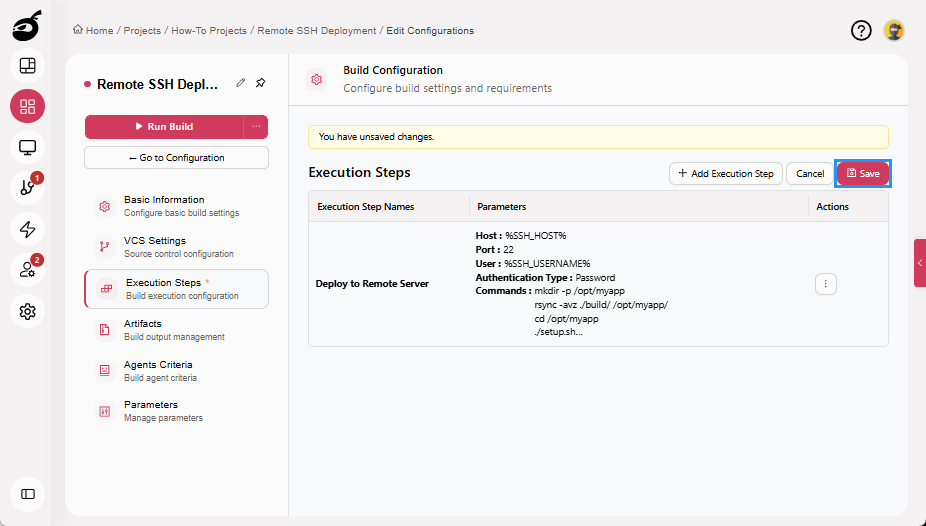
Click Save to save the Execution Steps.
Step 4: Run Build
Your deployment configuration is now complete.
Running a deployment executes the configured SSH Runner step, which connects securely to the remote Linux server and runs the defined commands to deploy files, execute setup scripts, and restart services as required. The deployment is marked as successful only if all SSH commands complete without errors. If any command fails, the execution step fails and the build is marked accordingly, helping prevent partial or inconsistent deployments.
-
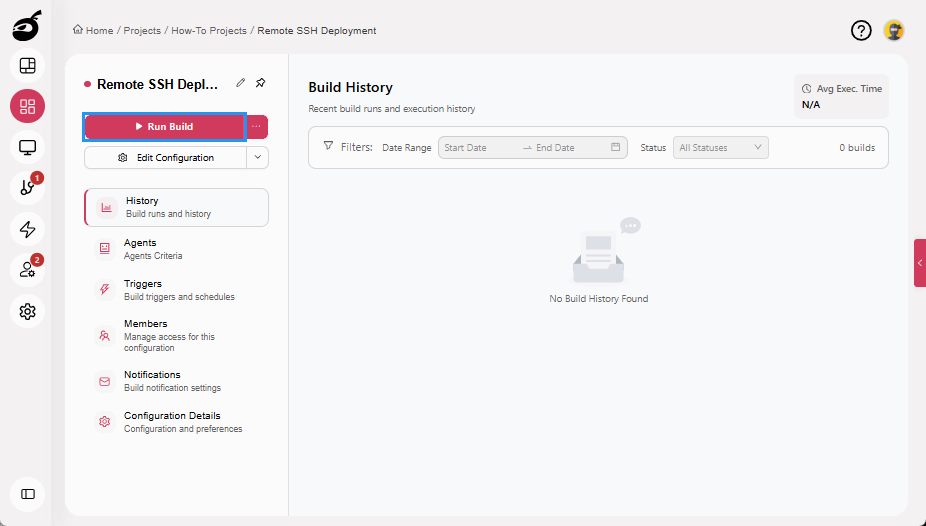
Click Run Build to start the deployment manually. Once triggered, the deployment enters the execution queue and starts automatically when a compatible agent becomes available.